
Your knowledge, cloned. IcloneU lets you build an AI assistant — a Clone — that answers in your voice, grounded in what your business actually knows, and have it reply to people on the channels they already message you on: WhatsApp, Facebook, Instagram, YouTube, Telegram, email, and a chat widget on your own site. This guide is the orientation: what IcloneU is, the core pieces a new account starts with, and where to go next. It's a map, not a manual — each section links out to the deep guide when you're ready.
Anyone who fields the same questions across several channels and wants an assistant that sounds like them, not like a generic bot. You don't need to read this end-to-end — skim the pieces, then take the platform quick tour when you're ready to build.
The big picture
Everything in IcloneU revolves around one idea: an AI Clone that represents your business in conversations. You give the Clone a personality and a body of knowledge, connect it to the channels where your audience reaches you, and from then on it reads incoming messages and replies on your behalf — in your tone, from your facts. You stay in control: there's a place to review what it has said, give it feedback, and step in by hand whenever you want.
Four pieces make that work, and you'll meet them in roughly this order:
- AI Clones — the configurable assistants themselves. Each one has its own identity, personality, and skills.
- Knowledge libraries — the material a Clone reads from so its answers come from your business, not from general AI knowledge.
- Connections — the channels a Clone replies on (Facebook, Instagram, WhatsApp, YouTube, Telegram, Email), plus a website chat widget.
- The review surfaces and Dashboard — where you watch conversations, manage replies to comments, and see your account at a glance.
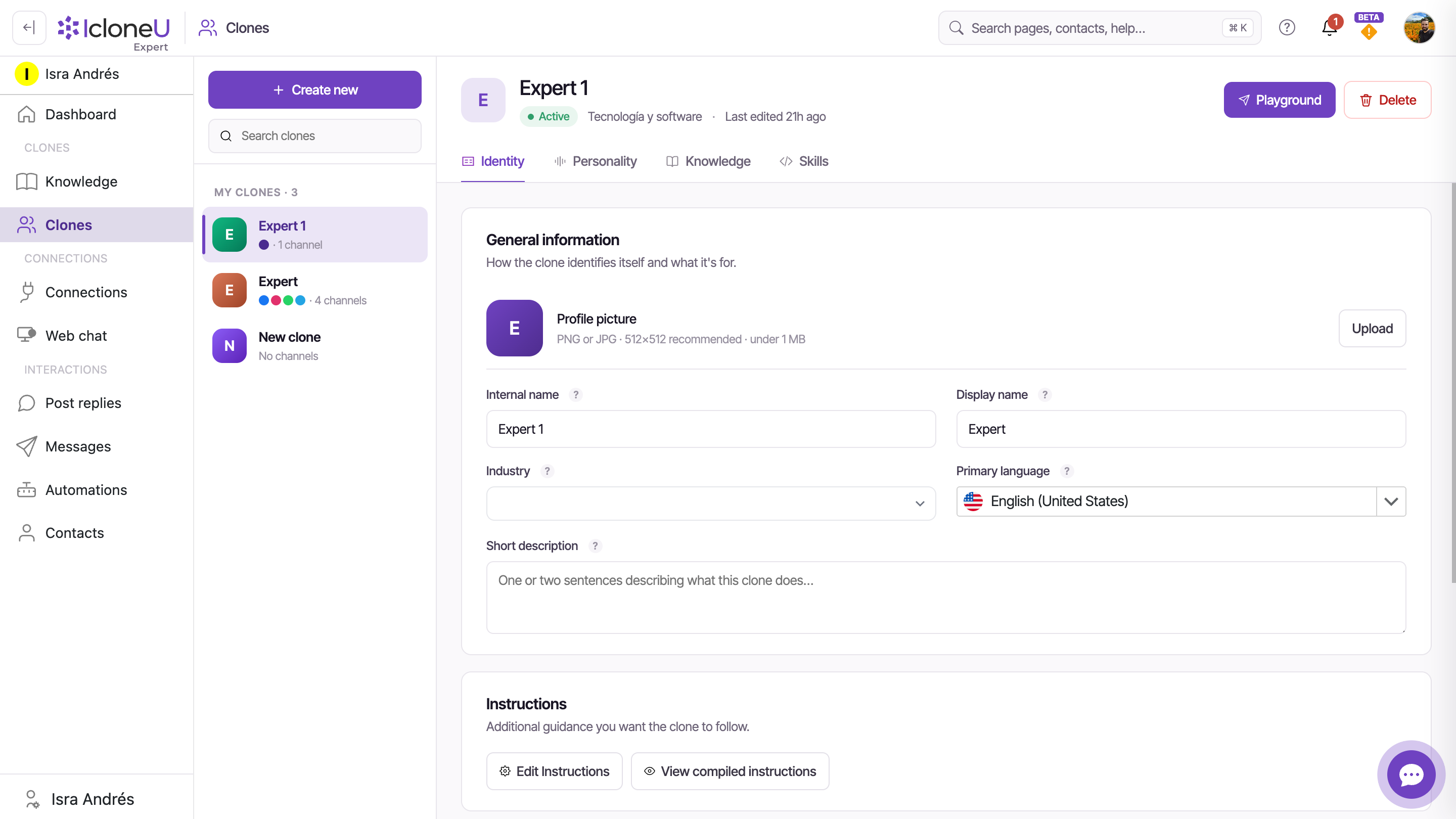
A new account doesn't start from nothing: it ships with one Clone already created (named Expert 1 by default), waiting for you to configure it. You don't have to create your first Clone — just open it and start.
AI Clones — your configurable assistants
A Clone is the central unit of work in IcloneU: a configurable AI assistant that represents your business in conversations with your audience. Once it's set up and attached to a channel, it receives incoming messages, works out what's being asked, and replies in the personality you chose, using the knowledge you provided. You find every Clone under Clones in the left sidebar.
Two Clones on the same account can be completely different — one for customer support, another for sales questions, a third for a specific product line. Each Clone is configured across a few tabs in its detail view:
| Tab | What you set there |
|---|---|
| Identity | Name, industry, primary language, a short description, and instructions for how it should behave |
| Personality | Tone and style — response length, formality, emoji density, emotional tones, and more |
| Knowledge | Which Knowledge library the Clone reads from when it answers |
| Skills | Pre-built capabilities and integrations the Clone can use |
You don't have to get it perfect before going live — and you can test a Clone privately first. The Playground button on a Clone's detail pane runs it with its real configuration so you can try messages before anyone sees it. To go deeper, see Creating and configuring an AI Clone and Setting your Clone's tone and personality.
The Knowledge Library — what your Clone knows
A Knowledge library is a named collection of source material — files, websites, audio and video transcripts — that one or more of your Clones reads from when answering. It's the factual ground truth your Clone relies on, so its replies are grounded in your business rather than in general AI knowledge. You build libraries under Knowledge in the sidebar.
You create a library, add sources to it, and attach it to a Clone on that Clone's Knowledge tab. From then on the Clone consults the library every time it answers — finding the most relevant passages and weaving them into a reply that still sounds like the personality you configured. Change a library's contents and every Clone attached to it picks up the new material on its next reply, once processing finishes.
Deleting from a library is reversible: removed sources go to a Recycle Bin and can be restored, with a 30-day retention window before they're cleared for good.
Start with What is the Knowledge Library? for the full concept, then Adding documents and files and Adding website URLs to fill it.
Connections — where your Clone replies
A Connection links one of your Clones to an external messaging channel. It's the bridge that lets the Clone receive real messages on that channel and reply on your behalf — without a Connection, a Clone exists but no one can reach it. You manage them under Connections in the sidebar; adding one usually means authorizing IcloneU through the channel's own login.
Seven channels are available to every account:
- Facebook — Page Messenger and Page comments. See Connecting Facebook.
- Instagram — DMs and comments. See Connecting Instagram.
- WhatsApp — inbound and outbound business messaging. See Connecting WhatsApp.
- YouTube — comments on your videos. See Connecting YouTube.
- Telegram — a Telegram bot. See Connecting Telegram.
- Email — receive and reply over your own mailbox.
- Mercado Libre — questions on your listings and messages on your orders (Mercado Libre México sellers only).
Removing a Connection disconnects the account and deletes its settings, but the posts, conversations and messages tied to it are preserved by default — they reattach automatically if you reconnect the same account. Permanently deleting that history is a separate opt-in checkbox in the Remove dialog, and only then is it irreversible. Deleted Knowledge sources have their own safety net: the Recycle Bin.
Web chat — a Clone on your own site
Web chat lets you embed an AI chat widget — powered by one of your Clones — directly on your website or app. It lives under Connections in the sidebar but works differently from the others: there's no external account to authorize. Instead, each API key you create is one chat configuration, and you paste a small snippet into your site to bring the widget live.
From the API keys page you create keys, choose which Clone answers, test in the Playground, and generate the embed code. Conversations that come in through the widget show up in Messages alongside every other channel.
Treat the secret key like a credential: anyone who can open the API keys page can copy it in full from the grid. Removing a key is permanent — if a key is misused, delete it and create a new one. Full walkthrough in Embedding web chat on your site.
Reviewing what your Clone says
Letting a Clone reply for you doesn't mean flying blind. Two surfaces, both under Interactions in the sidebar, let you read, tune, and step into the conversation — depending on whether the traffic is a private message or a public comment:
| Surface | What it's for |
|---|---|
| Messages | A unified inbox of every private conversation across all channels — Web chat, Telegram, WhatsApp, Facebook and Instagram DMs. Read transcripts, give a reply thumbs-up or thumbs-down, or take over from the Clone by hand |
| Post replies | Where you manage the Clone's replies to comments on your social posts — for the comment-capable channels (Facebook, Instagram, YouTube) |
The rule of thumb: a private message goes to Messages, a public comment goes to Post replies. Taking over a conversation in Messages just pauses the Clone — you can hand it back to the AI whenever you like, and nothing is lost. See Reviewing and editing AI responses for how feedback and takeover work.
Post replies only fills up once a comment-capable channel (Facebook, Instagram, or YouTube) is connected. A messaging-only channel like Telegram never shows up there — its traffic lives in Messages.
The Dashboard — your account at a glance
When you sign in, IcloneU drops you on the Dashboard (the top item in the left sidebar). It's the at-a-glance home page: a greeting and plan banner, a system-health card, a strip of key metrics — Messages Responded, Pending Approval, Handover Requested, Active Conversations — and larger sections you can reorder or hide. Most of it stays empty until you have active Clones and Connections producing data.
One label to know about: the plan banner's Active until date is your plan's period-end (renewal) date — the same date shown in Your plan under Account settings. The units-cycle reset date — when your monthly allotment refills — lives on the Billing tab instead.
Where to go next
That's the whole landscape. When you're ready to build, two guides take you from this overview to a working assistant:
- The platform quick tour — a walk through the workspace and the surfaces you'll use first, so nothing important gets missed.
- Creating your first AI Clone — configure the Clone your account already comes with, and send it its first test message.
Everything else in this help center hangs off those two. Take the channels one at a time, fill the Knowledge library as you go, and check back on the review surfaces — that's the whole loop.
Last updated September 22, 2026 · Getting Started





