
Files are the bread and butter of a Knowledge library: PDFs, spreadsheets, slides, images, audio, video — even an entire folder or ZIP archive in one go. This guide walks you through the upload itself, then demystifies what happens between clicking upload and the moment your Clones can answer from your files.
You'll need a library to upload into. If you don't have one yet, open Knowledge in the left sidebar and click + New library — it's created instantly with a default name, which you can rename inline. New to libraries altogether? Start with What is the Knowledge Library?
Upload files to a library
The whole flow lives on the Knowledge page. Four steps take you from an empty library to sources your Clones can answer from.
Open the library's Sources tab
Select Knowledge in the left sidebar, then click the library you want to add to. The library detail opens on its Sources sub-tab by default — that's where every source you add will appear.
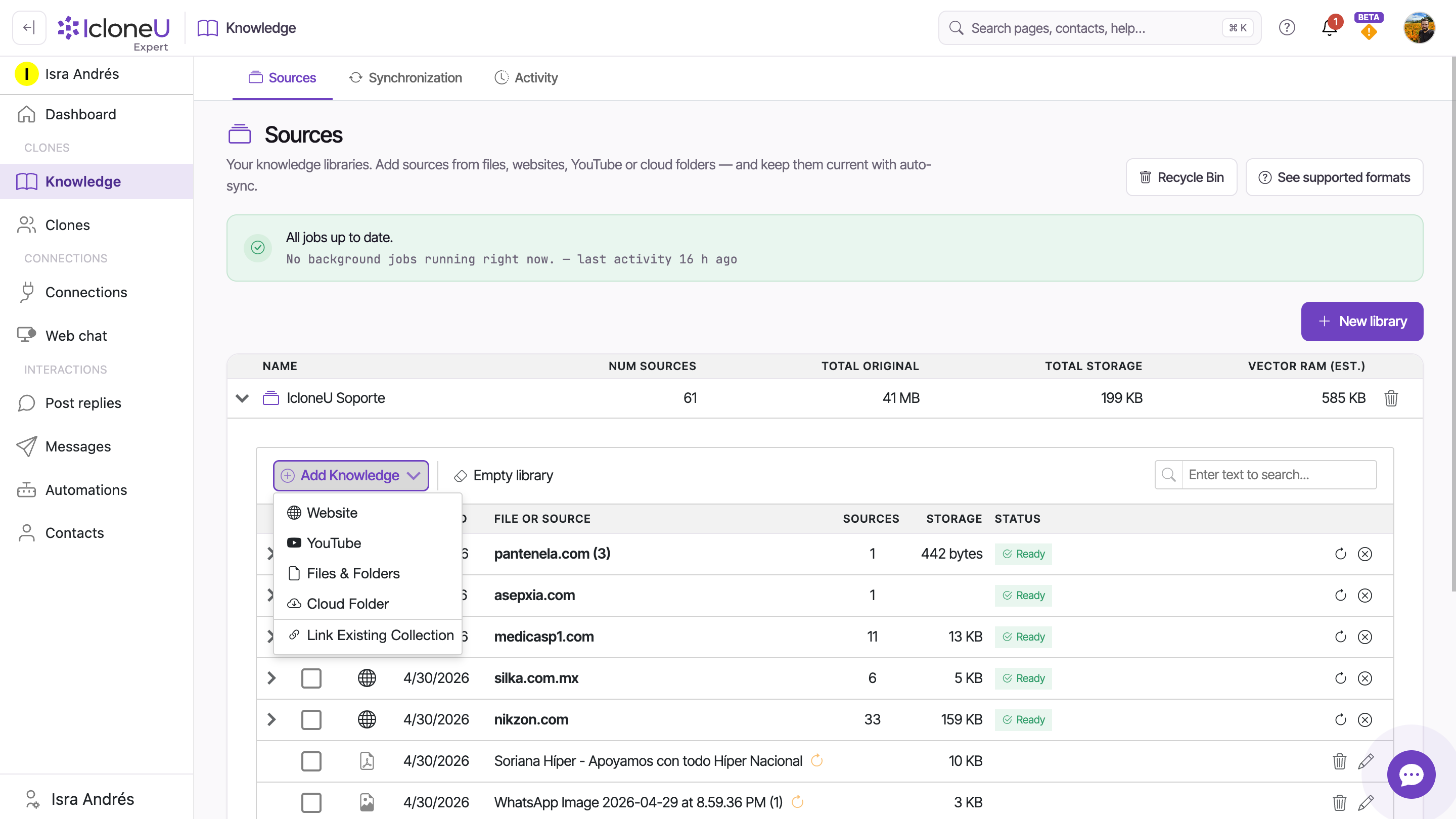
Choose Files & Folders
Expand the library row (the chevron at its edge), open the Add Knowledge dropdown and pick Files & Folders. The other options — Website, YouTube and Link Existing Collection — add different source types; website crawling is covered in Adding website URLs.
TipNot sure a format will be accepted? The See supported formats link on the Knowledge page opens the complete catalogue — summarised in Supported file formats.
Select and upload your files
Drag files into the drop zone, or click it to open a file picker — you can typically select several at once. Each file is validated on the spot: supported files queue immediately and show a per-file progress row; unsupported ones are rejected with a per-file error. A file with no extension in its name isn't refused here: IcloneU tries to work out its type when it processes it (if that fails, add the right extension and upload it again). A file that can't be read at all — typically an iCloud Drive or OneDrive file that's still only in the cloud — shows "Couldn't read this file. If it lives in iCloud Drive or OneDrive, download it to your device first, then try again." on its row.
NoteA single file can be up to 2 GB, and there's no cap on how many sources a library can hold.
Let processing run
Once the upload finishes, the platform takes over server-side: text extraction, OCR or transcription depending on the file type, then indexing. You can leave the page — processing carries on without you.
What happens after you upload
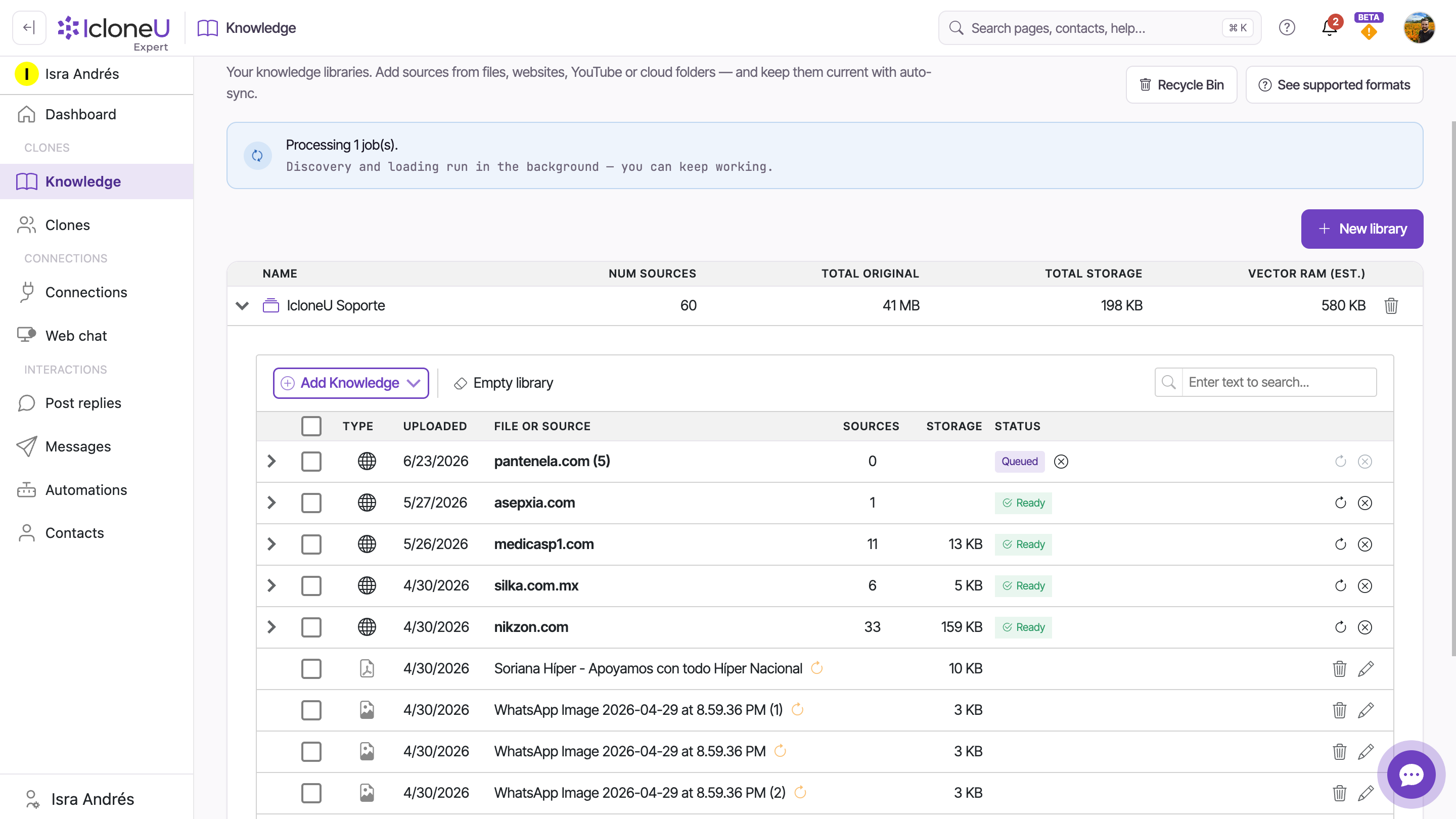
Uploading is the quick part. Afterwards each file queues for processing. On the Sources sub-tab, a file you upload shows Queued, with its name, in a strip above the library's list, then appears in the list as its own row once it's processed; a single file never gets a status label. The strip lives only in the open page — it's gone after a reload and can clear while a file is still waiting — so if a file shows in neither place, find its job in Activity before uploading it again. A folder you upload gets its own row that groups its files. Rows that group sources — a folder, a website or a YouTube channel — show where they are in their Status column:
| Badge | What it means |
|---|---|
| Queued | Waiting its turn — once processing starts, the row shows its live progress instead |
| Review Items | Seen on website sources — discovered pages wait for your review; direct file uploads skip this step |
| Ready | Done — every Clone attached to the library can answer from what the row holds on its next reply; a row shows it only once it has at least one item |
| No sources found | Seen on website sources — the crawl found nothing to add, and a bell notice says why |
A run that fails gets no badge of its own: when it ends, the row goes back to what it shows when nothing is running, such as Ready or no status at all. For the blow-by-blow, open the Activity sub-tab. It logs every phase — Discovery, Loading, Upload to AI — and it's the authoritative place to check progress or read a failure reason.
It varies with file size, type and platform load, and IcloneU doesn't publish processing SLAs — treat any figure as a rough guide, not a promise. A few short documents are typically ready within minutes; a long PDF takes a few minutes; audio and video noticeably longer. A job that hasn't started yet shows its place in line in the Status column of Activity: Queued · next in line, how many jobs are ahead of it, or Queued · starts after your current job. Your account runs one job at a time for website crawls and syncs, YouTube imports, audio, video and larger uploads, so a new one waits for the one before it, however long that takes; small uploads (up to 10 documents or images, 20 MB in all) queue separately, so one can run alongside. A queued job isn't stuck, and re-uploading only adds another copy to the line. If a job that has started shows no movement in Activity for over half an hour, refresh the page, then re-upload it — and contact support if the new copy stalls too.
Bulk uploads: folders and archives
Adding fifty files one at a time is nobody's idea of fun. Two bulk routes bring a whole batch in through the same Files & Folders flow:
- Local folders — upload an entire directory in one operation. Every file inside is detected and processed under the normal rules for its format.
- Compressed archives — ZIP, RAR, 7z, TAR and GZ. The archive isn't indexed as one big blob; it's auto-extracted, and each file inside becomes its own source on the Sources list.
Files inside an archive that aren't in a supported format won't make it in — if something seems missing after extraction, the Activity sub-tab is the place to look.
Two things archives don't handle well: nested archives (a ZIP inside a ZIP) are undocumented behaviour, so flatten one level if a particular file matters; and a very large archive can fail at upload — split it into smaller ones if it does.
Scanned PDFs and images
No separate OCR software needed. PDFs go through both text extraction and OCR, so a contract that was printed, signed and scanned back to PDF still becomes searchable text. Image files — JPEG, PNG, TIFF, GIF, SVG, WebP — are OCR'd too, which makes screenshots and photos of paper documents fair game.
- OCR extracts text characters only. It won't describe visuals — a chart image yields its labels, not "a chart showing Q3 revenue". If your Clone needs the interpretation, add it as a separate text source.
- Accuracy depends on resolution, contrast, font and language. Low-quality or stylised scans can be misread, so spot-check anything critical via the Activity sub-tab.
- If a scan won't read well, re-scan at a higher resolution — 300 DPI is a common minimum for reliable OCR.
- Audio and video aren't OCR'd; they're transcribed automatically instead.
Frequently asked
A single file can be up to 2 GB, and there's no limit on the number of sources a library can hold. Very large archives can still fail at upload time, though — particularly on a slow connection — in which case splitting them into smaller archives helps.
As soon as it finishes processing. A file you upload shows Queued, with its name, in a strip above the library's list, then appears in the list as its own row once it's processed — that row is your sign, because a single file never gets a status label. Small text documents typically get there in minutes; audio, video and very large files take longer. These are observation-based guides, not guarantees — IcloneU doesn't publish processing SLAs. Watch the Activity sub-tab for live progress.
Yes — ZIP, RAR, 7z, TAR and GZ archives are all accepted and auto-extracted, with each file inside becoming its own source. Other archive formats, such as .zipx or .cab, aren't on the supported list.
Check its extension against Supported file formats. If the format looks right, the file may be a proprietary variant that shares the extension — re-exporting it from the original application usually resolves it. Converting to a supported cousin also works (e.g. DOC → DOCX).
It reuses a collection you've already added to another library — a crawled website, say, or a batch of files — in this one, without adding it again. In the library you want it in, open Add Knowledge and choose Link Existing Collection. The window lists your account's other collections, newest first, each with its number of sources; pick one and click Link. A toast confirms Collection linked successfully, and the collection now shows in both libraries, so a Clone attached to either can answer from it. If some of its sources couldn't be attached, a warning says how many were left out instead. To take a shared source out of one library later without deleting it everywhere, see Data retention and the Recycle Bin.
Last updated September 23, 2026 · Knowledge Library





