
Beyond sliders and presets, IcloneU lets you write the rules your Clone follows in your own words — how to greet, what to steer around, and which topics to refuse outright. They all live in one place: the Additional Instructions modal on the Clone's Identity tab, with a separate sub-tab for general rules, public comments, private messages, audience segments and undesirable content.
Slider-based tone controls — response length, formality, predictability, emoji density, plus emotional-tone chips — live on the Clone's Personality tab, not in this modal. The Personality tab: sliders and voice controls, near the end of this guide, covers every one of them. Everything before it is about the instructions you write yourself.
Open the Additional Instructions modal
The entry point is the Instructions section of the Identity tab — one button to edit, one to inspect the result.
Open your Clone's Identity tab
Click Clones in the left sidebar and pick your Clone from the My clones list. The detail pane opens on the Identity tab by default.
Find the Instructions section
Scroll below General information to the Instructions section. It offers two buttons: Edit Instructions and View compiled instructions.
Click Edit Instructions
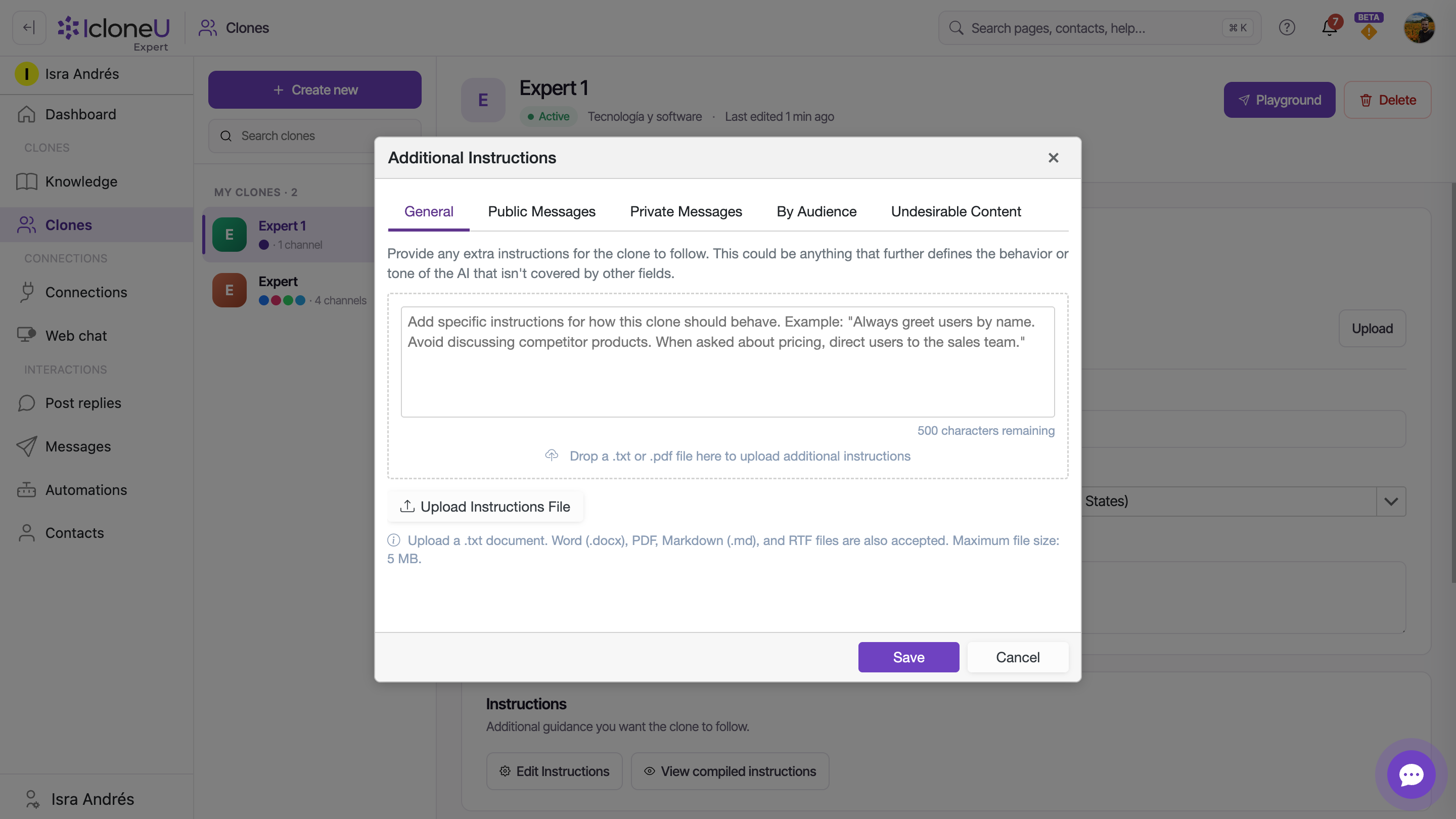
A modal titled Additional Instructions opens with five sub-tabs: General, Public Messages, Private Messages, By Audience and Undesirable Content.
NoteOn a freshly created Clone the modal has occasionally been observed to open empty. If that happens, click Cancel and re-open it; if it persists, reload the page.
What each sub-tab does
Each sub-tab scopes its instructions to a different situation:
| Sub-tab | What goes there |
|---|---|
| General | Behavior rules the Clone follows in any context — greetings, escalation rules, things to steer around |
| Public Messages | Rules that apply only when the Clone replies to comments on posts or other public content |
| Private Messages | Rules for direct or 1:1 messages |
| By Audience | Separate instructions for five fixed audience segments — see below |
| Undesirable Content | Topics the Clone must refuse — see below |
General, Public Messages, Private Messages and Undesirable Content each give you a single free-text field capped at 500 characters — enough for a handful of crisp rules, in the spirit of the General tab's own example: "Always greet users by name. Avoid discussing competitor products. When asked about pricing, direct users to the sales team."
The General sub-tab is the only one that also accepts an instructions file, via Upload Instructions File — .txt, Word (.docx), PDF, Markdown (.md) and RTF, up to 5 MB. The other sub-tabs have no upload — Public Messages, Private Messages and Undesirable Content get only their 500-character field, and By Audience its five segment fields. An uploaded file keeps its line breaks, so rules and bullets stay on their own lines, and clicking the file's name after uploading shows the exact text your Clone reads. A file uploaded before 17 September 2026 was stored without its line breaks, and it stays that way until you upload it again — IcloneU can't restore them for you. To check, click the file's name: if the text runs together in one block, upload the file again, click Save in the modal and then Save changes on the save bar.
Anything you would look up rather than obey belongs in the Clone's Knowledge tab instead of here — catalogue details, sizing charts, FAQs, shipping and returns policies, addresses and opening hours. The reason is mechanical: your instructions travel with every single message the Clone answers, while Knowledge is looked up only on the turns that actually need it, so moving reference material across both lowers the units each reply uses and sharpens the answer. What stays here is the voice, the tone and the rules the Clone must follow every time — and those stay even when they run long, because a rule only works if the Clone has it in view on the reply where it mattered.
By Audience: five segment fields
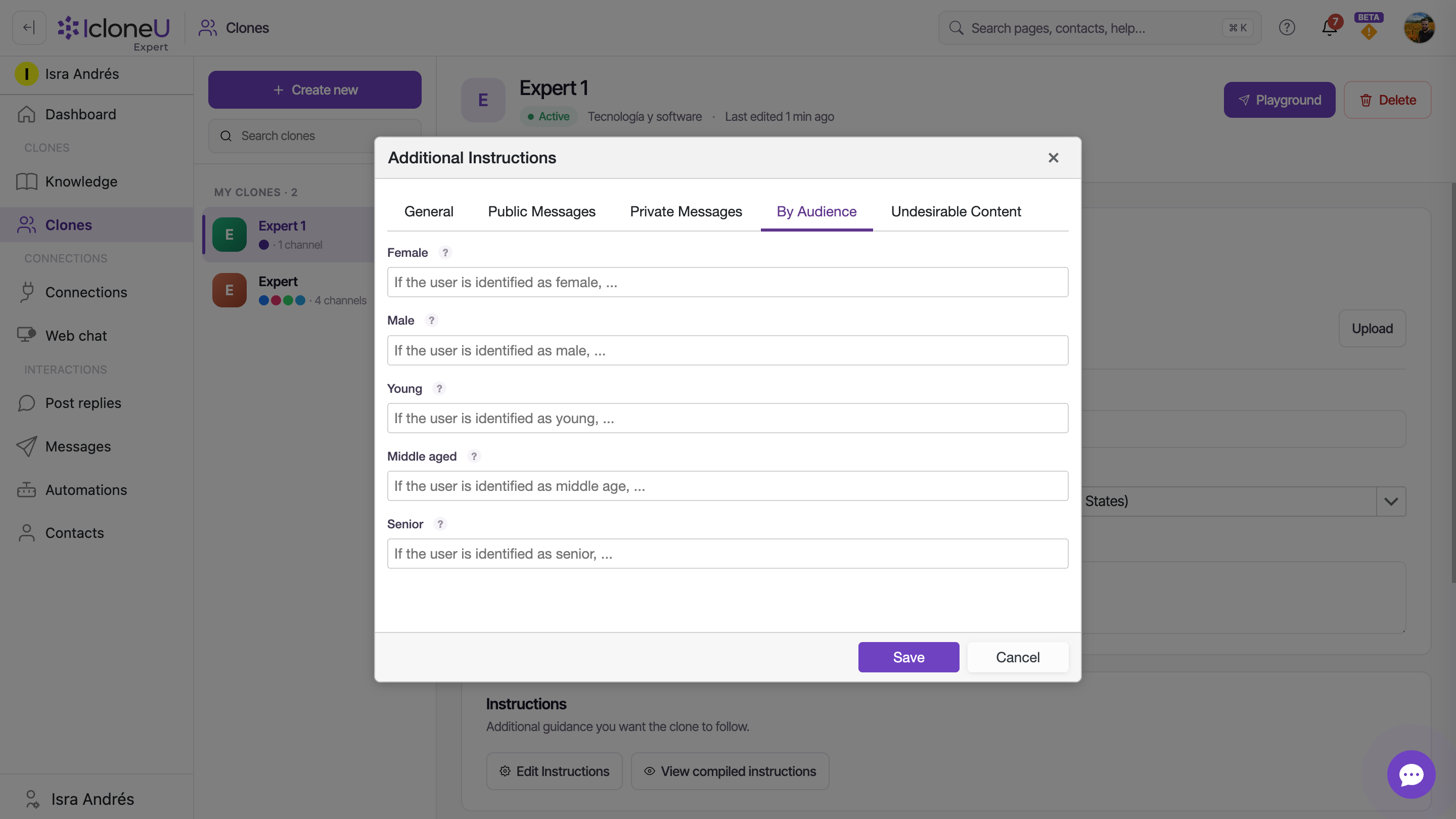
Instead of one box, By Audience shows five separate fields — Female, Male, Young, Middle aged and Senior — with no character counter. Each field completes the same sentence — "If the user is identified as that segment, …" — so you write only what changes for that group, for example a more empathetic tone or simpler vocabulary.
The segmentation is currently a fixed gender-and-age scheme. Segments based on role, customer status or relationship stage aren't available today.
Topics to avoid: Undesirable Content
The Undesirable Content sub-tab is where "topics to avoid" lives. Describe what the Clone should never discuss — the field's own examples are misinformation, competitor products and internal pricing — within the same 500-character cap.
The tab spells out what happens next: "The clone will politely decline and redirect when asked about these topics." So the Clone doesn't go silent — it declines politely and steers the conversation elsewhere.
Check the result: the Compiled prompt
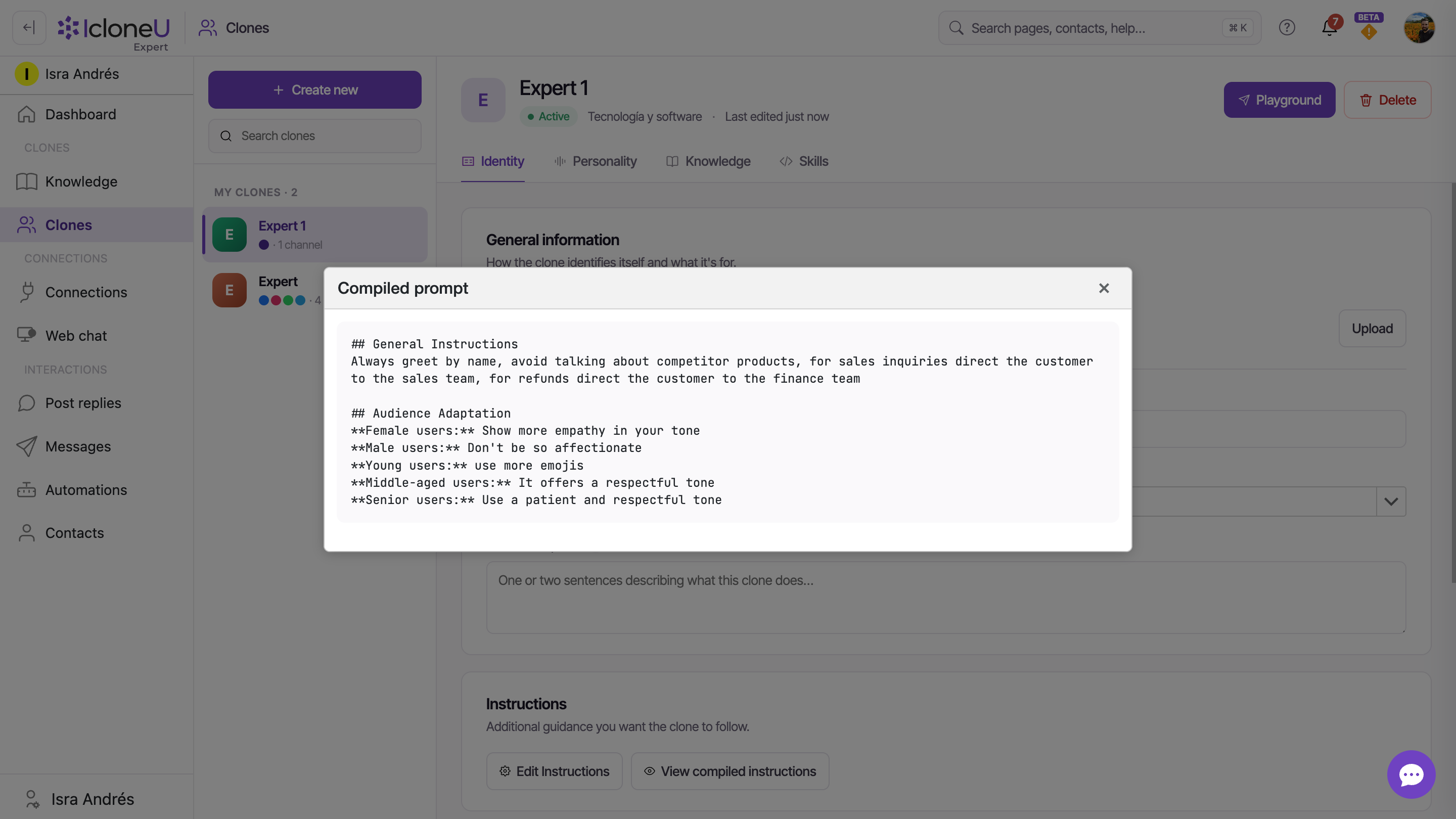
Back on the Identity tab, the second button — View compiled instructions — opens a modal titled Compiled prompt showing the final system prompt assembled from your settings. It's the closest you can get to reading exactly what your Clone is told before it answers.
On a Clone with nothing configured yet, the modal renders empty — fill in and save your Identity fields and instructions first, then re-open it.
How the language setting fits in
Instructions shape how the Clone speaks; the Primary language field, higher up on the same Identity tab, is the last stop in the reply-language chain. The Clone replies in the language of the customer's current message; when a message has no clear language of its own (an emoji, a number, an "ok"), it stays in the language the conversation was already in; and only when neither gives an answer does it fall back to Primary language. Ten locales are currently available: Spanish (Spain, Mexico, Argentina), English (United States, United Kingdom), Portuguese (Brazil, Portugal), French (France), German (Germany) and Italian (Italy).
Save, then test
Edits made in the modal still have to be saved on the Clone page before they reach your live Clone.
Save the modal
Click Save in the modal footer — or Cancel to discard the edits.
Confirm on the save bar
Back on the Clone page, an Unsaved changes bar appears at the bottom with Discard and Save changes. Click Save changes — as the bar itself notes, changes apply to the live clone immediately after save.
Test in the Playground
Open Playground in the top-right of the detail pane and send a few messages that exercise your new rules — including one about a topic you listed under Undesirable Content — to watch the tone and the polite refusal land.
The Personality tab: sliders and voice controls
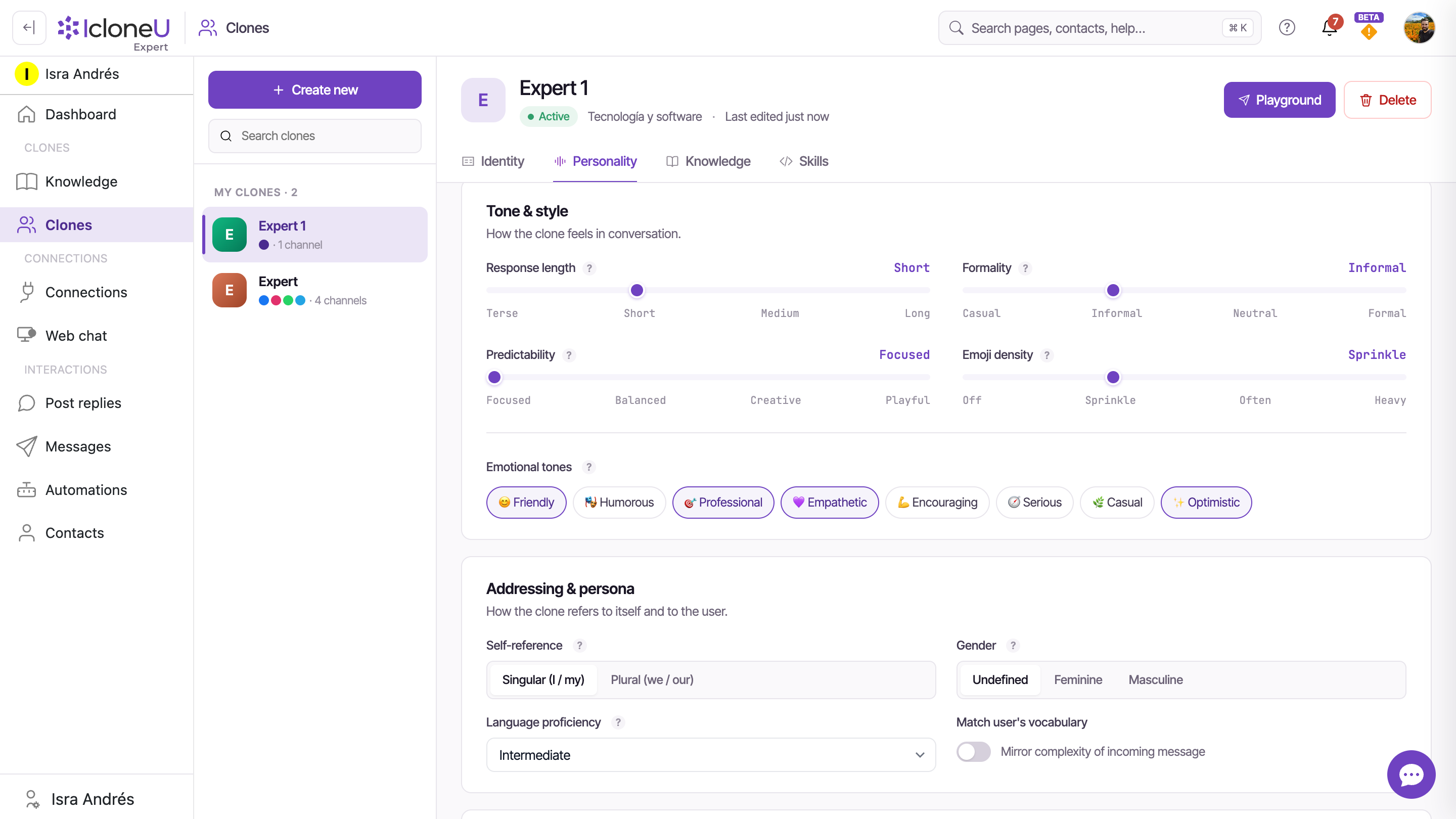
The sliders live on a different surface from everything above: the Clone's Personality tab, next to Identity. The tab opens with a Voice summary — an auto-generated, one-line read of how your Clone currently sounds — followed by the Tone & style group: four sliders, each with four positions.
| Slider | Scale (left → right) | What it tunes |
|---|---|---|
| Response length | Terse · Short · Medium · Long | How long typical replies run — a couple of sentences at one end, step-by-step detail at the other |
| Formality | Casual · Informal · Neutral · Formal | The register of language — contractions and first names at one end, titles and measured sentences at the other |
| Predictability | Focused · Balanced · Creative · Playful | How varied the wording is from reply to reply |
| Emoji density | Off · Sprinkle · Often · Heavy | How often emojis appear in replies — from never to most messages |
If you came looking for "formal or casual", that's the Formality slider; "concise or detailed" is Response length — its own hint contrasts Concise, staying under a couple of sentences, with Detailed, which can walk through steps and examples.
Below the sliders, Emotional tones offers eight chips — Friendly, Humorous, Professional, Empathetic, Encouraging, Serious, Casual and Optimistic. Pick up to a few for the Clone to lean into; as the control's own hint puts it, they bias word choice and punctuation but don't override your instructions.
The Addressing & persona group decides who is speaking. Self-reference picks between Singular (I / my) — a personal voice — and Plural (we / our) — a business speaking for the brand. Gender (Undefined, Feminine or Masculine) sets the Clone's own gender; in languages with gendered grammar it drives adjective and pronoun agreement. Language proficiency sets how simple or idiomatic the wording runs, and the Match user's vocabulary toggle mirrors the complexity of the incoming message. The card ends with two voice-note controls, Answer voice notes with voice and Voice, covered in Voice-note replies below.
Last comes AI Learning, which teaches the Clone your voice in two sub-modes: Style Analysis, with an Analyze my style button that learns your style from your previous responses, and Feedback Learning, which learns from reviewer feedback. The Apply learned style to replies toggle decides whether the result is used — in its own words: "Combines with the settings above. Turn off to reply without using the learned style."
Voice-note replies
Your Clone can answer a voice note with a voice note. The switch is Answer voice notes with voice, at the end of the Addressing & persona card on the Personality tab, and it's off on a new Clone. With it on, when a customer sends a voice note the Clone replies in text as usual and then sends the same reply as a voice note. In Messages, the voice note shows as a player under the Clone's text.
Next to the switch, Voice picks how it sounds. The default, Automatic (by gender and language), chooses a voice from the Clone's Gender and language; pick a specific voice from the list instead and a player appears so you can listen to a sample first.
- Only in reply to a voice note. A typed message gets a typed reply.
- On WhatsApp, Telegram, Messenger and Instagram — the channels where customers can send voice notes. The web chat widget has no way to record one.
- Only for replies that go out straight away. A reply delayed by Reply timing or a Reply schedule date range, held for your approval, or waiting out an Auto-send after a delay review goes out as text only.
- Text only when it can't be spoken. A reply over 1,200 characters once formatting and links are removed, a reply with nothing left to speak, or an account that has run out of units gets the text reply alone.
- Voice uses units. Transcribing the customer's voice note and speaking the reply both use units, like any other reply.
In the Playground, the microphone beside the Message... box records a voice note as if you were the customer: the Clone transcribes it, answers, and — with the switch on — voices its reply too.
If a customer's voice note can't be transcribed, the customer gets an automatic reply in English, whatever the conversation's language: “I couldn't understand the audio message. Could you please try again or send a text message?” On Messenger and Instagram that includes a voice note over 25 MB or one that couldn't be downloaded. On WhatsApp a voice note that can't be downloaded gets a different English reply, “I couldn't download the audio message. Could you please try again?”, and on Telegram, “I was unable to download the voice message.”
Frequently asked
Those are slider controls on the Clone's Personality tab — Response length, Formality, Predictability and Emoji density, plus the Emotional tones chips. The Personality tab: sliders and voice controls, above, covers each one with its scale labels. The Additional Instructions modal complements them with rules in your own words; everything you configure feeds the same compiled prompt.
The General, Public Messages, Private Messages and Undesirable Content fields each cap at 500 characters. The five By Audience fields show no character counter. For longer material, the General sub-tab accepts a file upload — .txt, Word (.docx), PDF, Markdown (.md) or RTF, up to 5 MB.
Because the modal added up the General field, the file uploaded under it, and the Public Messages and Private Messages fields, and the combined text passed 8,000 characters. On the General sub-tab, below the units warning, it then shows: "Tip: part of this text looks like reference material. Catalog details, sizing charts, FAQs, and policies work better in your clone's Knowledge — your clone looks them up only when a conversation needs them, which lowers the units used per message and improves accuracy. Keep the voice and behavior rules here." It's advice, not a limit — the tip itself blocks nothing: your text isn't truncated or rejected because of its length. In practice it's the uploaded file that trips it, since the typed fields cap at 500 characters each; the fix is to move the reference material into the Clone's Knowledge tab and leave the behaviour rules in the instructions.
In the product's own words: "The clone will politely decline and redirect when asked about these topics." It won't ignore the message — it declines and moves the conversation somewhere it can help.
On a Clone whose Identity fields and instructions haven't been filled in and saved yet, the Compiled prompt modal renders empty. Add your instructions, save with Save changes, and re-open it.
Last updated September 23, 2026 · AI Clones





