
Crawling your website is the quickest way to teach a Clone everything you've already published. You give IcloneU one starting URL; the crawler discovers the site's internal links on its own, extracts the page text, downloads linked files and transcribes embedded media — and the result lands in your Knowledge library as a single searchable source.
You'll need an existing Knowledge library (you can create one on the way), the full URL of the site or page you want to crawl, and the right to ingest that content — the platform doesn't check copyright or terms-of-service compliance for you. New to libraries? Start with What is the Knowledge Library?
What the crawler collects
A website source brings in three kinds of content — and the dialog you'll meet below has a switch for the last two:
- Page content — the text of every page the crawler discovers from your starting URL.
- Linked files — documents the crawled pages link to are downloaded and indexed alongside the pages themselves. A file kept on another domain, or on a file address of your own such as cdn., files. or static., is skipped without being listed anywhere. Each file can be up to 50 MB; one the crawl tries but can't download or read is listed under Errors in the run's Activity details (see Why are some pages or files missing from the crawl? below).
- Embedded media — audio and video found on the pages is transcribed, with YouTube, Vimeo, Dailymotion, Facebook, TikTok, SoundCloud, Spotify, iVoox, podcast feeds and HLS/DASH streams all recognised.
After a whole YouTube channel or playlist rather than a website? That's the other web-family source: choose YouTube instead of Website when you add the source, and every video is imported and transcribed individually.
Add a website to your library
Configuration takes under a minute; the crawl itself runs in the background, so you can keep working while it does.
Open your library's sources
Select Knowledge in the left sidebar. On the Sources sub-tab, find the target library and click the chevron at the left of its row to expand it. No library yet? Click + New library — one is created immediately, named "New Library".
Choose Website from the Add Knowledge dropdown
Click the Add Knowledge dropdown and choose Website. (The same dropdown is also home to the other source types — YouTube, Files & Folders and Link Existing Collection.)
Enter the starting URL
Paste the full URL, including https://. One starting point is enough — the crawler discovers the site's internal links from there. If the URL is malformed, the dialog shows validation feedback.
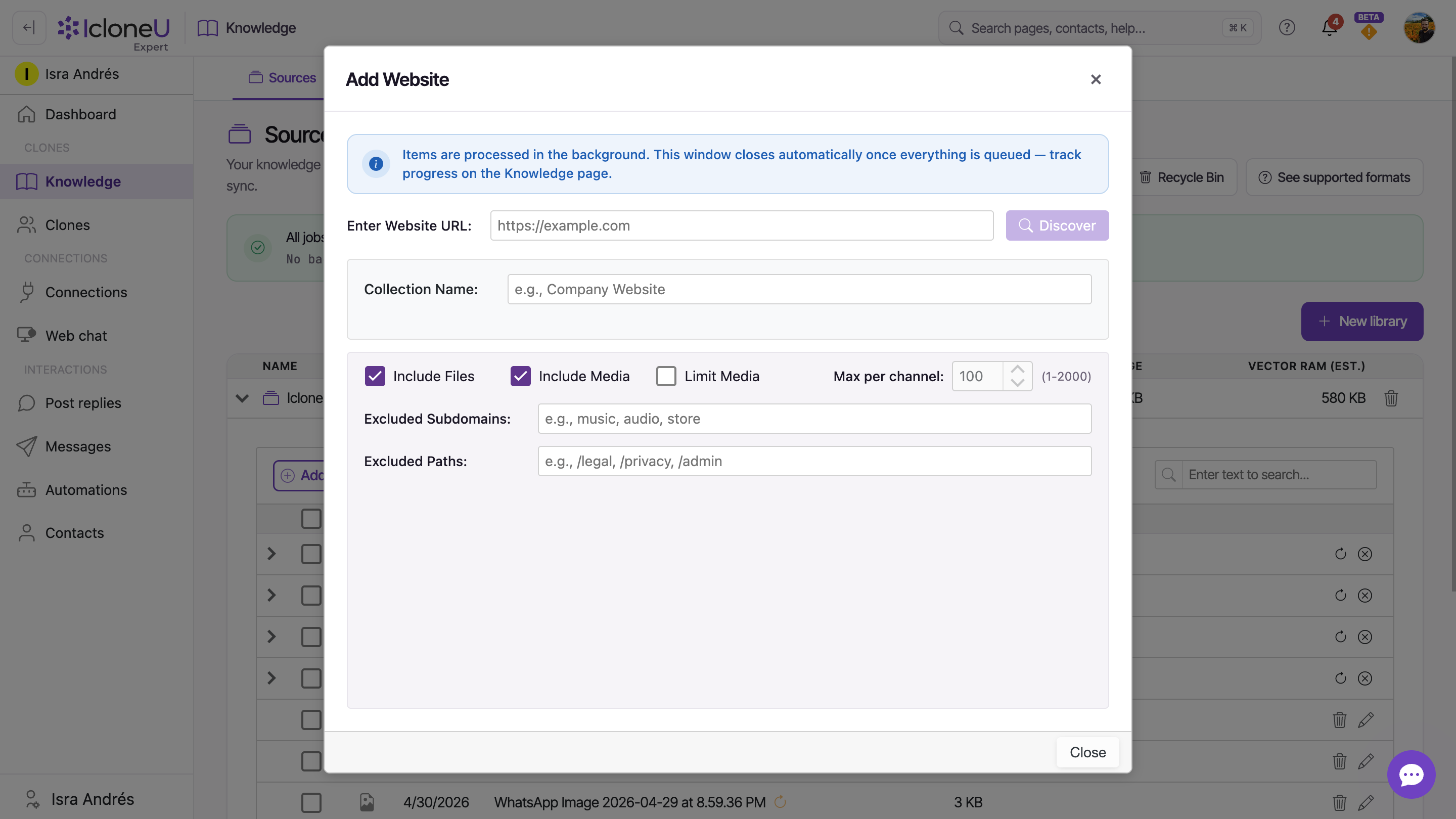
Set the crawl scope, then Discover
Give the collection a name and adjust the scope controls — each one is explained in the table below. Then click Discover to find pages before anything is ingested. If you've added this site before, Collection Name becomes a list with that website already picked, and Discover takes you to it instead of starting over — see Adding a site you've already added.
TipThe defaults suit most sites: Include Files and Include Media on, with Max per channel preset to 100 if you switch Limit Media on. Often the only thing worth typing is the Collection Name.
Review what was found, then Process
Once discovery is queued, the dialog closes and the website shows up in the library as its own row. Its Status shows Queued, then a live count like Discovering: 22 found, 140 reviewed — found counts unique pages and often plateaus while the crawler works through pagination and duplicates; the reviewed number keeps climbing the whole time, so a rising reviewed count means the crawl is healthy even when found stops moving. When discovery finishes, the row shows Review Items and the bell shows Discovery complete. Click Review Items on the row (or on the notice) and the dialog lists everything the crawl found, each item with a checkbox, with Pages / Files / Media filter buttons to view one category at a time. Untick what you don't want, then click Process (N). The dialog closes again, and the row shows Queued and a live count while your picks are processed, then Ready; the Activity sub-tab logs the progress of each phase. If discovery finds nothing to add, the row shows No sources found instead and a bell notice says why — see Why did the crawl find 0 pages? below.
When the row shows Ready, everything the crawl extracted is searchable by any Clone attached to the library.
The scope controls, explained
Step 4's controls decide how far the crawl reaches and how much it brings back. These are the controls and their defaults:
| Control | Default | What it's for |
|---|---|---|
| Collection Name | — | The label this source shows in your library |
| Include Files | On | Download the files that crawled pages link to |
| Include Media | On | Transcribe embedded audio and video found on pages |
| Limit Media | Off | Cap how much embedded media the crawl takes on |
| Max per channel | 100 (range 1–2000) | Upper bound on items collected per channel |
| Excluded Subdomains | — | Comma-separated subdomains to skip, e.g. music, audio, store |
| Excluded Paths | — | Comma-separated paths to skip, e.g. /legal, /privacy, /admin |
Legal boilerplate, admin areas and store pages rarely make good knowledge. A minute spent on Excluded Paths and Excluded Subdomains keeps the crawl lean — and the answers cleaner.
What a crawl covers
The starting URL decides how far a crawl reaches. These rules tell you what to expect back:
- Subdomains — a starting URL at the top of your site, such as https://www.example.com, also takes in its subdomains (blog., shop. and the like). Technical ones such as cdn., mail., login., admin. or staging. are always skipped; list any others you want left out under Excluded Subdomains.
- Folders — a starting URL inside a folder keeps the crawl to that folder on that one address: https://example.com/blog/my-post covers /blog/ and nothing else. A starting URL such as https://example.com/about, or /blog without the final slash, covers the whole site.
- Redirects — if the starting URL redirects to another address (example.com to example.com.mx, say), the crawl follows it and covers the site that answered. For the fullest crawl, start from the address your site ends up on.
- Sitemaps — pages listed in your site's sitemap (the list of pages many sites publish for search engines) are crawled even when no menu links to them, as long as they're inside the crawl's reach.
- Size — the crawl follows links up to five steps from the starting page and takes up to 1,000 pages; that can rise to 5,000 for a site whose sitemap lists more.
- robots.txt — the crawler respects your site's robots.txt (the file where a site tells crawlers what they may read), so pages it rules out aren't read.
- Language — pages are requested in the account's language (the one set under Your details, in Account settings; in a team, the account owner's). On a site that shows each visitor a different language, that's the version the crawler reads.
- Shopify stores — if the site is a Shopify store, the crawl skips its product and collection pages and reads the content pages (about, policies, blog, FAQ and so on). Products come from connecting the store instead — see Connecting your Shopify store.
Adding a site you've already added
The dialog compares the domain in the address you type (the example.com part) with the websites you've already added, in all your libraries — this library's first. Any website whose address contains that domain counts, so example.com also matches example.com.mx or blog.example.com. When one matches, Collection Name becomes a list with that website already picked, showing its number of sources, and Discover takes you to it instead of starting a second crawl:
- Something is running on it (a crawl or processing) — the dialog says so under the address and stays open. Wait for that job to finish, then try again.
- Its pages were found but never processed — the dialog opens the list of pages found last time. Pick what you want and click Process (N); this time the dialog stays open to show the progress, and Continue in background closes it.
- It already has sources — the dialog closes and the Sync window opens, the same one as the Synchronize button on the website's row (see When the website changes).
- It has no sources and no pages found yet — it's reused, and the crawl runs as it would for a new site.
To add the site as a separate website instead — just one folder of it, say — choose New Collection in the list once the address is typed, just before you click Discover (editing the address picks the matching website again); the new website gets a numbered name, such as “example.com (2)”. And when the match is in another library and already has sources, a sync updates it there and doesn't add the site to this library: to use it here too, add it with Link Existing Collection in the Add Knowledge dropdown, or crawl it again with New Collection.
When the website changes
A website source is a snapshot taken at the moment of the crawl, not a live mirror. Your Clone reads from that indexed snapshot — publish a price change or a new blog post five minutes after the crawl and the Clone won't see it until the source is re-synchronised. Three ways to bring it up to date:
- Scheduled re-sync — on the Knowledge page's Synchronization sub-tab, switch on the site's own Auto-sync and the platform re-fetches it on a schedule. It looks on from the start without being scheduled, so the first time, switch it off and on again; see Keeping your library up to date.
- Manual re-sync — click the circular-arrow Synchronize button on the website's row in Sources when you've pushed a change you want reflected straight away. The Sync window it opens starts on New + Changed, which adds new pages, updates changed ones and moves pages the crawl no longer finds to the Recycle Bin; New only just adds new pages. Every option is explained in Keeping your library up to date.
- Replace the source — delete the website source and add it again. A fresh crawl from scratch is sometimes cleaner than a re-sync when the site's structure has changed significantly.
Two things a re-sync won't preserve. First, on a New + Changed sync, pages the sync can't find anywhere — neither through links from your starting URL nor in your site's sitemap — are moved to the Recycle Bin. The run lists them on the Activity sub-tab as Removed (N) — no longer on the site, and you can restore them from the Recycle Bin as a set. A page you've unlinked from your menus stays in the library as long as your sitemap still lists it. If more than a fifth of the site's pages in your library would go at once, IcloneU treats the crawl as unreliable and removes none of them. Second, content that has moved behind a login simply stops appearing, because the crawler doesn't authenticate. If a specific page must survive regardless, ingest it separately as a file source (export it to PDF, say, and upload that).
After every re-sync, the Activity sub-tab logs the run — worth a spot-check that it finished and the new content is in. Cadences, cost guards and the rest of the sync configuration are covered in Keeping your library up to date.
Frequently asked
Setting one up takes under a minute; the crawl and processing then run in the background. How long that takes depends on the site's size and depth and on how much embedded media has to be downloaded and transcribed — small text-heavy sites are typically quick, media-heavy ones take longer. Treat those as rough guides rather than guaranteed times (IcloneU doesn't publish processing SLAs), and watch the Activity sub-tab for live progress. During discovery the source row also shows a live status like Discovering: 22 found, 140 reviewed — a climbing reviewed count means the crawl is still working, even when found has stopped moving.
Check the bell. When a crawl of a site you're adding finds nothing, its row shows No sources found and a Discovery found no items notice explains why (after a sync that finds nothing, the notice is We could not check your site). It gives one of four reasons: the site appears to be blocking automated requests; the site returned a very small response with no links, which usually means a challenge or captcha page; the page loaded but we found no links (the page may need JavaScript to show its menu, or may not link to other pages); or we could not reach the site, or it did not return a web page. Each notice ends with what to try next; once that's done, click Synchronize on the row to try again. The crawler also respects your site's robots.txt, and it can't get past every anti-bot wall: if the site keeps it out, use a different ingestion route, such as exporting the pages (to PDF, say) and uploading them as file sources — see Adding documents and files.
IcloneU won't read a site whose security certificate doesn't check out, and it tells you which problem it found: the certificate has expired, was issued for a different address, is incomplete, or wasn't issued by a trusted authority. When you first add the site, the Add Website dialog says so and doesn't start the crawl. On a later sync, the run stops, Activity lists the reason under Errors, and the bell shows Your website's security certificate needs attention. The fix is on the site's side: ask whoever hosts your site to renew or reinstall the certificate, then sync again.
Start with the run's details in Activity: pages and linked files the crawl couldn't take are listed under Errors, each with a reason. No readable content on the page means a page had almost no text even after the crawler opened it in a browser, or a linked file had no text it could read (a password-protected document, for example); neither is retried. File too large is a linked file over 50 MB — upload it directly instead — and Could not extract content is a linked file that couldn't be converted. The site blocked access means the site refused that page; you can retry it. A linked file that doesn't show up at all is usually kept on another domain or on a file address such as cdn. or files., which the crawl skips — upload it directly instead. Pages that don't show up at all are usually outside the crawl's reach (see What a crawl covers) or behind a login: the crawler isn't known to authenticate against arbitrary sites, so export those pages manually and upload them as file sources instead.
Usually, yes. When a page is built with a framework such as React, Vue, Angular, Next.js, Nuxt, Svelte, Blazor or HubSpot, or its HTML carries very little text, the crawler opens it in a real browser and reads what a visitor would see. A page that still has almost no text is left out and listed under Errors as No readable content on the page. If a whole crawl comes back empty with a notice that the page loaded but no links were found, start from a page that lists your content.
Pages that vanish from the site aren't deleted outright. A re-sync moves them to the Recycle Bin and lists them on the Activity sub-tab as Removed (N) — no longer on the site. Open the Recycle Bin to restore the removed set. A page that's still on your site can land there too if the sync didn't reach it — because the site refused it that time, say, or the crawl hit its page limit.
The hosting platform may have changed its access policy, or the media may be geo-restricted. If the content matters, try adding the media directly via its own URL, where a source type accepts it.
There's a better route: choose YouTube instead of Website in the Add Knowledge dropdown, give it a channel or playlist URL, and every video is imported and transcribed. (YouTube videos embedded in pages you crawl are transcribed as part of the website source too.)
Last updated September 23, 2026 · Knowledge Library





