
An AI Clone is the central unit of work in IcloneU — a configurable assistant with its own identity, personality, knowledge and skills, answering on your behalf once it's connected to a channel. This guide is the configuration reference: what actually happens when you click create, what every Identity field does, how to test safely, and where platform assignment picks up.
If you want the fastest path from zero to a live Clone, Creating your first AI Clone walks it end to end. This guide goes deeper on each configuration choice — come here when you want every field explained.
Create a Clone
Everything happens in the Clones workspace. Your account starts with one Clone the platform creates on sign-up — named "Expert 1" by default — and the My clones list on the left holds every additional one you add.
Open the Clones workspace
Select Clones in the left sidebar. The My clones list shows each Clone with its channel status beside it — on a brand-new account that's just "Expert 1".
Click + Create new
The button sits at the top of the list, and it acts immediately: a single click creates and saves a Clone — a "Clone New clone saved" toast confirms it, and a Clone named New clone appears in the list. There's no draft state and no confirmation step, so expect a real Clone to exist the moment you click.
NoteNothing goes public from this click — the new Clone has no channels connected, so no customer can reach it yet. It is one of the Clones your plan includes, though.
Open it on the Identity tab
Click the new Clone in My clones. The detail pane opens on the Identity tab by default — the next section walks through it field by field.
Treat deletion as permanent. The Delete button in the top-right of the detail pane asks for confirmation — "Are you sure you want to delete the clone …? This action cannot be undone." — and confirming with Delete clone removes the Clone and its configuration with no undo step offered afterwards. Deleting a Clone doesn't erase the conversations it already handled, though — they stay readable in Messages under its name; only the Clone and its configuration go away.
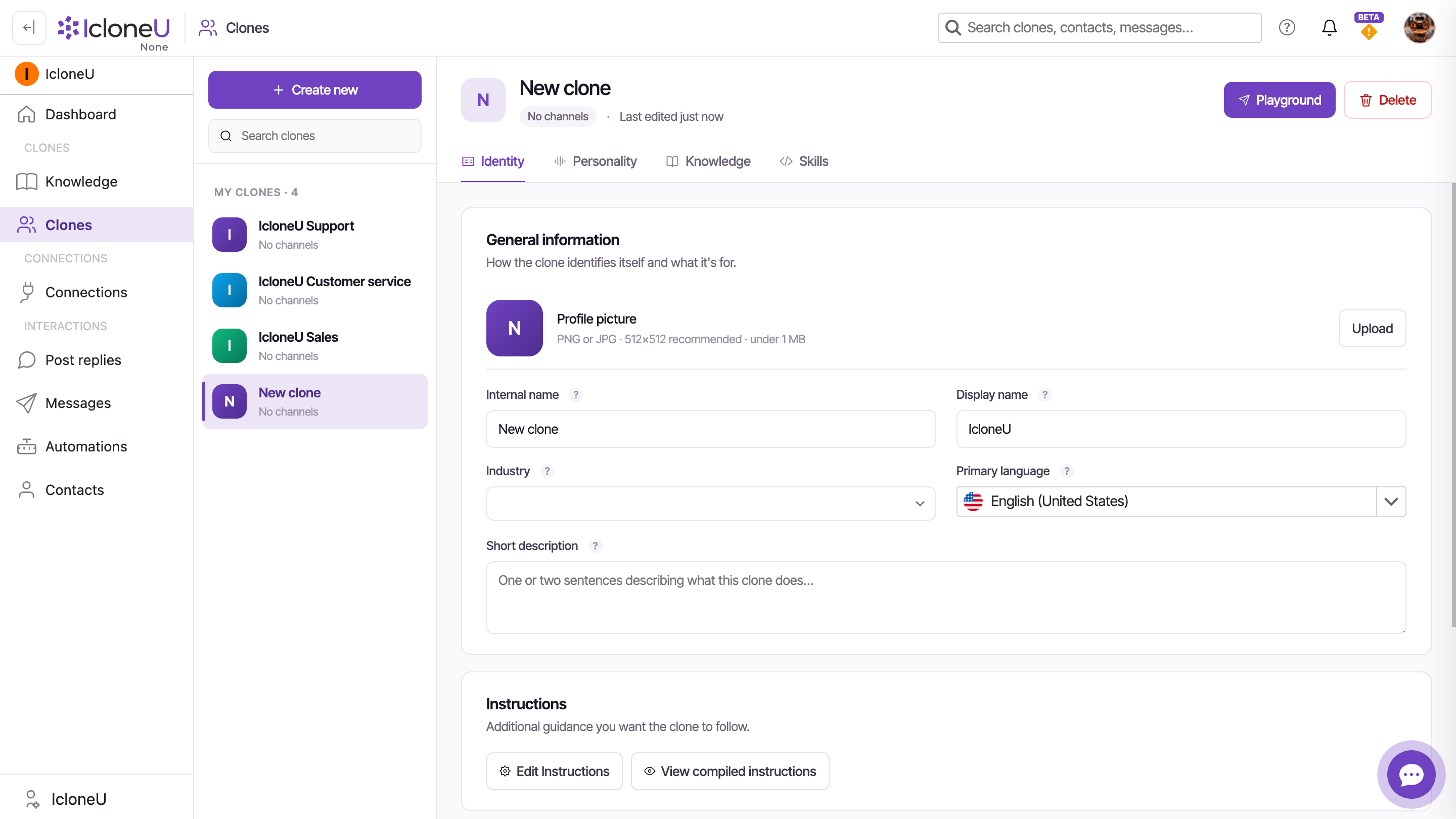
The Identity tab
The Identity tab gives the Clone its public face and its defaults, and it saves explicitly: edit any field and an Unsaved changes bar appears with Discard and Save changes buttons. Nothing applies until you save — and once you do, it applies to the live Clone immediately, as the bar's own footer warns.
The General information section holds five fields plus an optional profile picture:
| Field | What it does |
|---|---|
| Profile picture | The Clone's avatar. PNG or JPG, 512×512 recommended, under 1 MB — set it with the Upload button |
| Internal name | Only visible inside IcloneU — identifies the Clone in lists and dashboards. Your first Clone defaults to Expert 1 |
| Display name | What the Clone calls itself in conversations with end users — the field suggests e.g. Iclo, Luna, Ava |
| Industry | Helps the Clone tune its tone and vocabulary to your sector — pick the closest of about 50 options |
| Primary language | The default reply language when the user's language can't be detected |
| Short description | One or two sentences on what this Clone does. Feeds its context so it can describe itself — never shown to end users |
The two name fields split audiences: Internal name is for you and your teammates, Display name is for the people the Clone talks to. That lets you run "Sales Clone (A test)" internally while customers only ever meet "Iclo" — though setting both to the same value is allowed too, and sensible for a single-brand Clone.
A freshly created Clone starts its Display name from your account name only when that name isn't an email address — on a fresh account, where the name is still the email, it uses the company name from your onboarding answers instead, or starts blank. A blank-named Clone answers under a generic name, and email-shaped names are never shown to customers, even when typed in by hand. Type a real Display name and save.
Primary language currently offers ten locales: Spanish (Spain, Mexico, Argentina), English (United States, United Kingdom), Portuguese (Brazil, Portugal), French (France), German (Germany) and Italian (Italy).
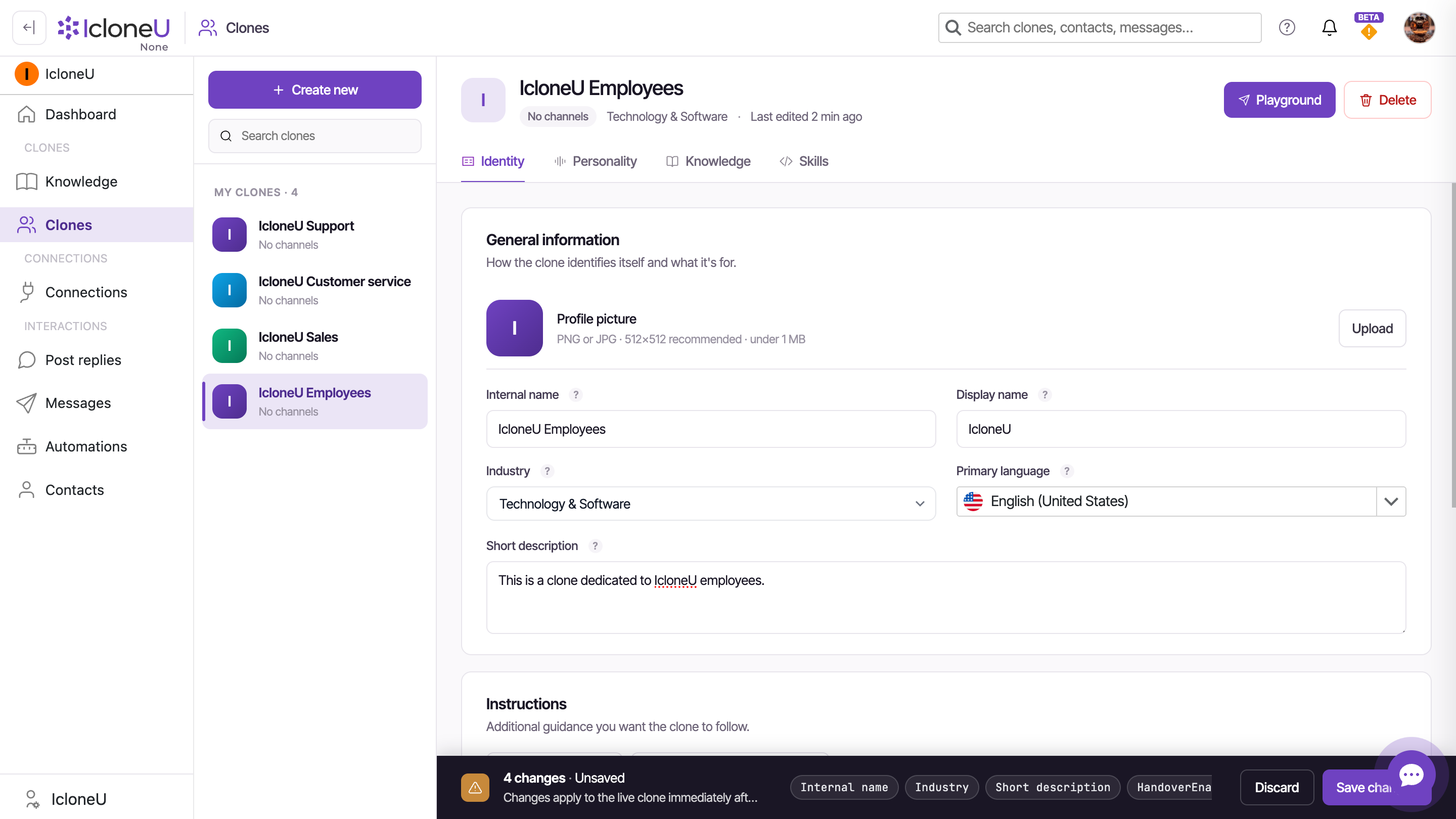
Where instructions and personality live
Below General information sits the Instructions section — home of the written rules your Clone follows. Edit Instructions opens the Additional Instructions dialog, organised into five sub-tabs (General, Public Messages, Private Messages, By Audience, Undesirable Content), and View compiled instructions opens the Compiled prompt — the final system prompt assembled from everything you've configured, handy for checking what the Clone actually receives.
Also on this tab: Human Handover. An Enable handover toggle lets the Clone transfer a conversation to a human agent on request, frustration, or trigger keywords — switch it on and a Topics Requiring Human box appears underneath for the topics that should trigger a handover, one per line. Leave it off for a fully automated Clone. The same card also holds a Qualify leads toggle, which has the Clone identify a contact's interest, budget and fit during the conversation.
How the Clone sounds — response length, formality, predictability, emoji density, emotional tones — lives one tab over, on Personality. Setting your Clone's tone and personality covers every slider and the AI Learning options.
Instructions are for behaviour — voice, tone, and the rules the Clone must follow on every reply. Facts it would look up — catalogue details, sizing charts, FAQs, shipping and returns policies — belong on the Knowledge tab, because instructions travel with every message while Knowledge is retrieved only when a conversation calls for it. Upload a long enough reference file as instructions and the editor will say so itself; Setting your Clone's tone and personality explains that tip and where each kind of content belongs.
Test it in the Playground
Don't connect a platform on faith — talk to the Clone first. The Playground is a chat sandbox attached to every Clone, and its replies use the current saved configuration across all four tabs: Identity, Personality, Knowledge and Skills.
Open the Playground
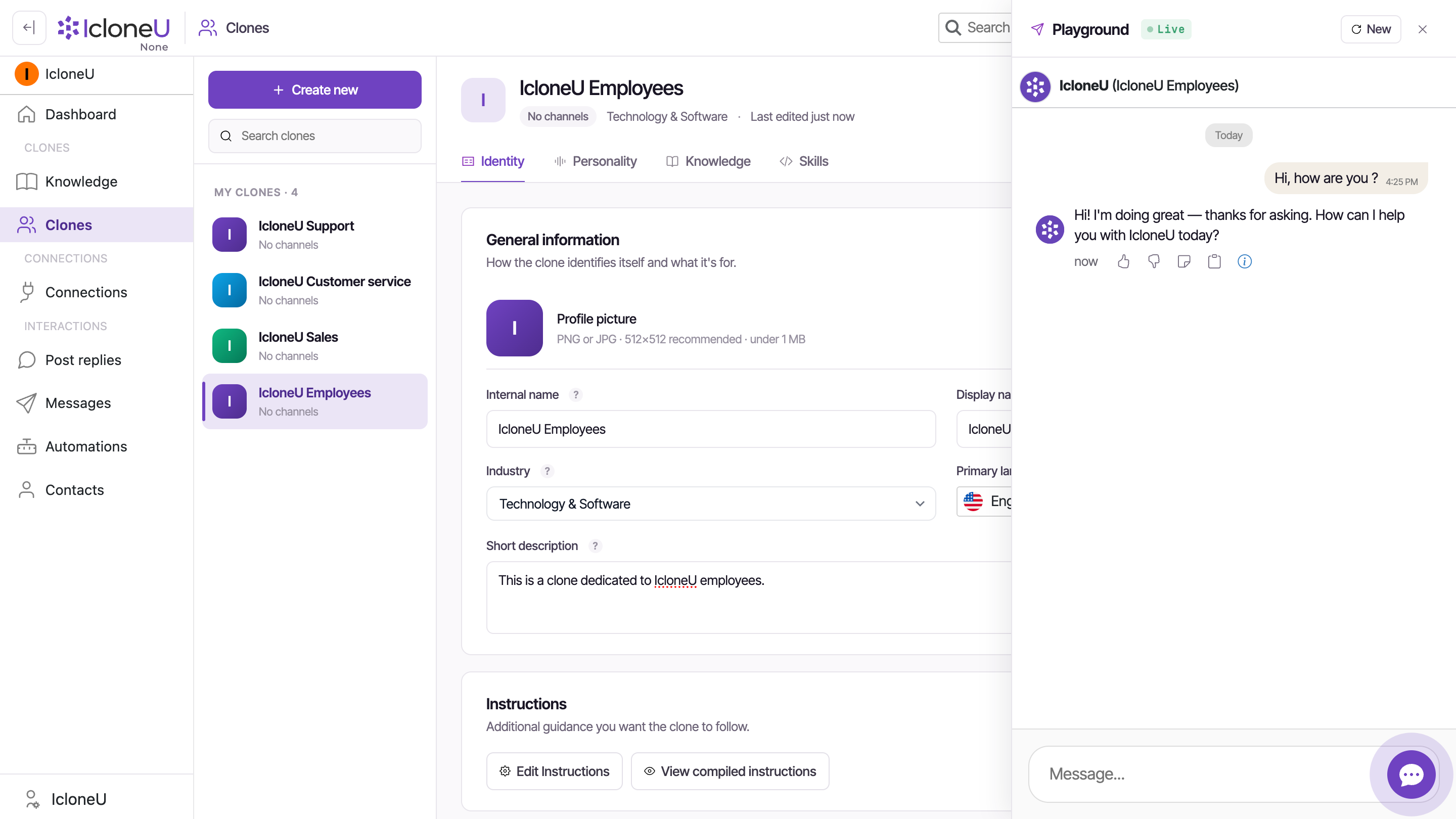
Click Playground in the top-right of the Clone's detail pane, next to Delete. A chat panel slides in from the right; just below its header it names the active Clone in the format Display name (Internal name) — "Iclo (Sales Clone)", say.
Read the Live badge correctly
The green ● Live badge means the panel's session with your Clone is up and your messages will reach it in real time — nothing more. It isn't a publication status: a Clone can show Live here while still listing No channels on the Clones page.
Send a test message
Type into the Message... box at the bottom and press Enter. Ask what a customer would — including "who are you?", which should surface the Display name and short description you set, not the internal name.
Try a photo, a file or a voice note
Two buttons beside the box let you play the customer. The paperclip — "Send a photo or file as the customer" — sends one photo, video or document of up to 15 MB, with no caption (type it as your next message), and the Clone answers as it would on WhatsApp: it can't see what the file shows, so it follows what your instructions say about files, photos or receipts, or else asks for the key details in text. The microphone records a voice note of up to 2 minutes, which the Clone transcribes and answers — voicing its reply too when Answer voice notes with voice is on in the Personality tab.
Iterate with New
Adjust the configuration in the tabs on the left, click Save changes, then press New in the Playground header to start a fresh conversation and re-send the same test question.
Testing runs on the same metered pipeline as production, so each reply draws from your plan's monthly units. Cost is token-based — there's no fixed per-reply price, and longer answers or knowledge retrieval cost more. Keep an eye on the balance under Account settings → Billing.
Assign it to a platform
Configuration done and Playground answers looking right? The last step is exposure. A Clone answers no one until it's connected to a platform — WhatsApp, Instagram, Facebook and the rest — and until then the Clones list shows No channels next to its name, however polished its configuration is.
Connection flows are per-platform, so they have their own guide: Assigning a Clone to a platform covers authorising an account and routing its messages to the Clone you just configured. And you don't have to funnel everything through one Clone — IcloneU is built so different Clones can each take a platform of their own, say one tuned for WhatsApp DMs and another for Instagram comments.
Frequently asked
Each plan includes a set number — as of writing: Starter 1, Pro 4, Expert 7, Enterprise custom. The Plans page lists the number your tier includes. For patterns on splitting work across several, see Running multiple Clones.
It keeps no persistent global memory of its own. Each conversation or post runs as a thread (the threading depends on the underlying AI model answering), and in practice that allows cross-session carryover — something a user tells the Clone in one session can be known to it in another.
No. Each Playground reply consumes units from your plan's monthly quota, exactly like production traffic — cost is token-based, so longer or knowledge-heavy replies cost more. Watch your unit balance under Account settings → Billing to see your own account's real consumption.
Treat Clone deletion as permanent: the confirmation dialog warns "This action cannot be undone", and the Clones workspace offers no undo step afterwards. The way back is + Create new and reconfiguring. The upside: deletion always asks for that explicit Delete clone confirmation first, so a stray click on Delete alone can't lose anything. One reassurance: deleting a Clone doesn't wipe its past conversations — the messages it already handled stay in Messages under its name, and only the Clone's own configuration goes away.
Last updated September 23, 2026 · AI Clones





