
An AI Clone is a configurable assistant that answers on your behalf — in your tone, from your knowledge, across the channels you connect. The good news: your account already has one, so this is less about building from scratch and more about shaping what's there and switching it on.
This is the quickstart. For every Identity field, the full Playground walkthrough and the create behaviour explained in depth, see Creating and configuring an AI Clone.
Open your Clone
Everything happens in the Clones workspace. Your account starts with one Clone the platform creates on sign-up — named Expert 1 by default — so you don't have to create anything to get going. The My clones list on the left holds it and any others you add.
Open the Clones workspace
Select Clones in the left sidebar. You'll already see Expert 1 in the My clones list — click it to open it on the Identity tab.
Or add another with + Create new
Need a second Clone? Click + Create new at the top of the list. It acts immediately — a single click creates and saves a Clone (a "Clone New clone saved" toast confirms it) named New clone. There's no draft state and no confirmation step.
NoteCreating a Clone makes nothing public — a new Clone has no channels connected, so no one can reach it yet. It is one of the Clones your plan includes.
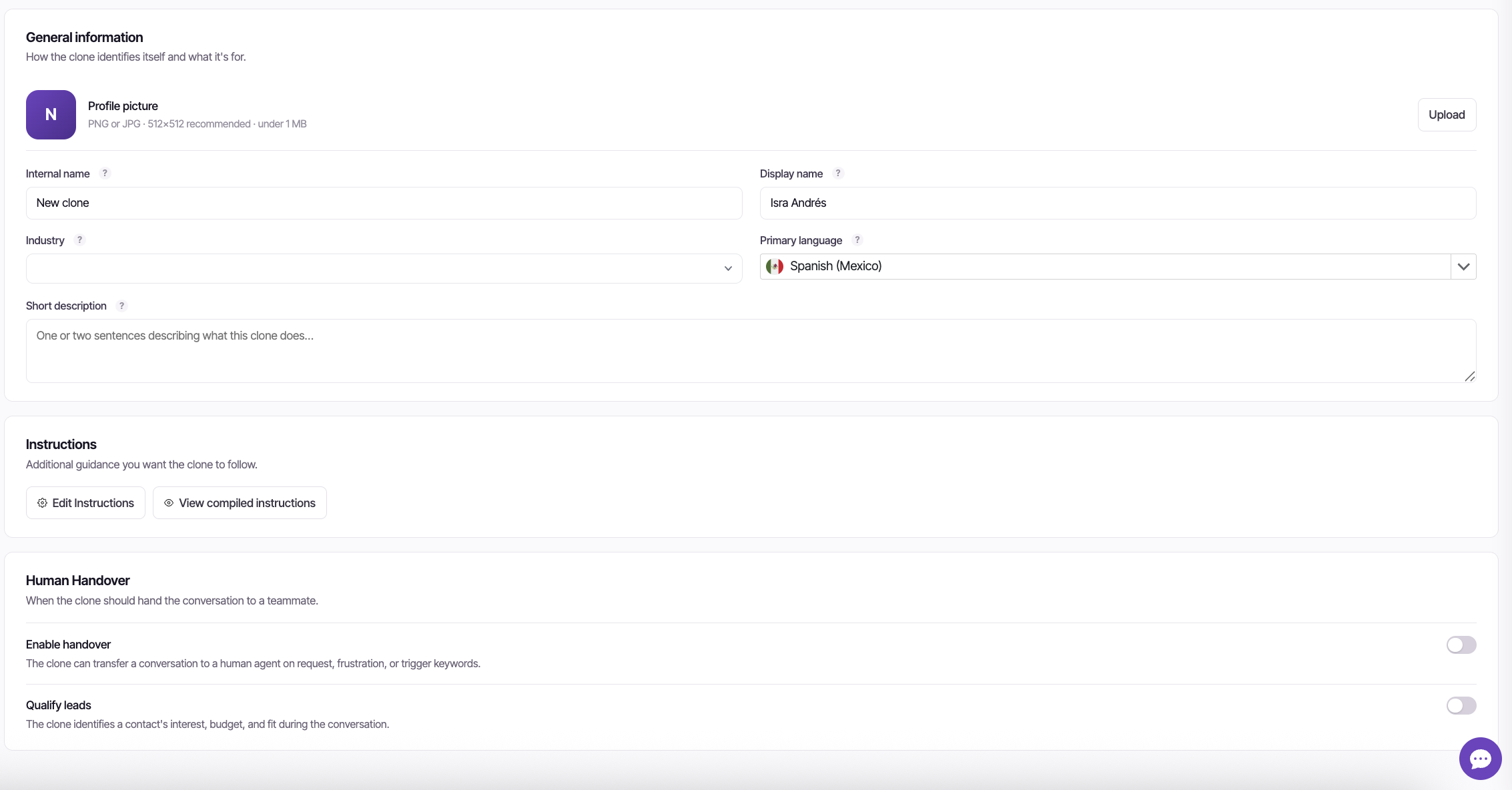
Give it a name on the Identity tab
The detail pane opens on the Identity tab. At minimum, set a Display name — what the Clone calls itself in conversations with end users. Optionally fill in Industry and Primary language (the default reply language when the user's can't be detected).
Internal name is only visible inside IcloneU — it identifies the Clone in lists and dashboards (your first one defaults to Expert 1). Display name is the public one end users see. Set them the same for a single-brand Clone, or differently to keep "Sales Clone (test)" private while customers meet "Iclo".
Identity saves explicitly: edit any field and an Unsaved changes bar appears with Discard and Save changes. Click Save changes — nothing applies until you do, and once saved it reaches the live Clone immediately.
A brand-new Clone starts its Display name from your account name only when that name isn't an email address — on a fresh account, where the name is still the email, it uses the company name from your onboarding answers instead, or starts blank. A blank-named Clone answers under a generic name; your email is never shown to customers. Type a real Display name and save.
Give it knowledge
A Clone is only as good as what it knows. On the Knowledge tab, attach a Knowledge Library so the Clone answers from your facts instead of generic AI knowledge. Pick the library from the selector, then Save changes. New to libraries? What is the Knowledge Library? covers building one and adding sources.
The same tab has an Answer from library only toggle: turn it on and the Clone replies that it doesn't have the information when the library has no match, rather than falling back to general knowledge — useful when accuracy matters more than coverage. A How closely answers must match slider tunes how relevant a passage must be before the Clone uses it.
With no library attached, the Clone answers from its instructions and general reasoning — which can drift off-brand. Attach at least one library before you connect a live channel.
Optional: tone and skills
Two tabs you can leave for later, or shape now:
- Personality — how the Clone sounds: response length, formality, predictability, emoji density and emotional tones, all on sliders and chips. Setting your Clone's tone and personality walks through every one.
- Skills — what the Clone can do beyond answering: recognize returning customers, act on services you've connected (a store, for example) and send your own files, such as a menu or a price list. It's the advanced tab; safe to skip on your first Clone.
Test it in the Playground
Don't ship blind — talk to your Clone first. Click Playground in the top-right of the detail pane (next to Delete). A chat panel slides in; type into the Message... box and ask what a customer would, including "who are you?", which should surface the Display name and description you set. Beside the box, a paperclip sends a photo or file as the customer would and a microphone records a voice note, so you can test those too.
A green ● Live badge means the panel's session with your Clone is connected — not that the Clone is published. A Clone can show Live here while still listing No channels on the Clones page.
The Playground can also chat as one of your customers: use the Test as customer control and enter their email, and new test conversations are linked to that contact, so the Clone recognizes them as it would on your real web chat. As there, order details and the tags and fields marked Visible to the clone reach the Clone only once the chat has verified the customer's identity.
Testing runs on the same metered pipeline as production, so each reply draws from your plan's monthly units — cost is token-based, so longer or knowledge-heavy answers cost more. Watch the balance under Account settings → Billing.
Go live: connect a channel
Here's the part that trips up first-timers: a Clone isn't "published" — it goes live only by being attached to a channel. Until then the Clones list shows No channels next to its name and it answers no one, however polished its configuration is.
Channels are connected on the Connections page (not inside the Clone): add a connection — WhatsApp, Facebook, Instagram, Telegram, YouTube or Email — attach this Clone to it in its settings panel, and make sure the Enabled toggle is on. Two guides walk it end to end: the Setup checklist for the full go-live flow, and Assigning a Clone to a platform for the attach step.
Frequently asked
Each plan includes a set number — as of writing: Starter 1, Pro 4, Expert 7, Enterprise custom. Your account starts with one (Expert 1); on Starter, that is the one Clone the plan includes. The Plans page lists the number your tier includes.
No. Each Playground reply consumes units from your plan's monthly quota, exactly like production traffic — cost is token-based, so longer or knowledge-heavy replies cost more. Check your balance under Account settings → Billing.
There's no publish step. A Clone goes live purely by being attached to an enabled Connection on the Connections page. Until a channel is attached, the Clones list shows No channels and the Clone answers no one — see the Setup checklist.
Treat deletion as permanent: the confirmation dialog warns "This action cannot be undone", and there's no undo afterwards. The way back is + Create new and reconfiguring. The upside: deletion always asks for an explicit Delete clone confirmation first, so a stray click on Delete alone can't lose anything.
Last updated September 23, 2026 · Getting started





