
The Email channel lets a Clone receive and reply to messages sent to a mailbox you connect. It works over the two standard email protocols: IMAP (IcloneU polls your mailbox for new inbound mail) and SMTP (IcloneU sends the Clone's replies through your provider's outgoing server). There is no OAuth in the current connector — you authenticate with a provider-issued app password instead of your regular account password. Setting it up is a little more involved than the OAuth channels: you paste server addresses and ports, then run a Validate → Connect flow. This guide covers all of it.
Your normal email password will not work for Gmail (since 2025-03-14) or Microsoft 365 (since 2026-04-30) — both deprecated basic password access to IMAP/SMTP. Generate a 16-character app password at your provider before you start, and have your provider's IMAP and SMTP server addresses handy. See App passwords below.
What the Email channel is
Email is a decades-old, federated protocol stack, so IcloneU connects to your mailbox the way any email client would — over IMAP and SMTP — rather than through a provider API. That has a few consequences worth knowing up front:
- IMAP (Internet Message Access Protocol) — IcloneU checks the mailbox's Inbox, and no other folder, for new inbound messages. Each fetched message becomes an entry in your Messages surface.
- SMTP (Simple Mail Transfer Protocol) — when the Clone composes a reply, IcloneU connects to your provider's outgoing server and submits it; the provider delivers it onward.
- No 24-hour window, no message templates, no conversational policy timer — the limits that apply are your provider's own sending caps, not anything IcloneU imposes.
- App-password authentication, not OAuth — the connector uses a username/password pair (your email address + an app password) sent over TLS.
Email is a pull-based channel: IcloneU polls IMAP for new mail rather than receiving an instant push, so inbound has some latency before the Clone sees it. IcloneU checks each connected mailbox about once a minute — a test email typically appears in Messages within roughly 1–5 minutes.
Email is one of the channels you add from the Connections page. Once active, it shows up there as a row identified by the email address, and incoming emails appear in the Messages surface tagged with the channel.
App passwords (and why no OAuth yet)
Because IcloneU's Email connector uses basic-style authentication rather than OAuth 2.0, and because Gmail and Microsoft 365 have both turned off regular-password access to IMAP/SMTP, you authenticate with an app password: a 16-character credential you generate inside your provider account specifically for one application. It takes the place of your normal password in the IcloneU Connect form.
- Two-step verification must be on first. Both Google (2-Step Verification) and Microsoft (Multi-Factor Authentication) require it to be enabled before the app-password option appears. There is no path around this.
- 16 characters, shown once. Copy it immediately when generated — the provider never shows it again. If you lose it, revoke and generate a new one.
- Full mailbox access. An app password isn't scope-limited the way an OAuth grant is; it grants read and send. Treat it like a production secret — don't reuse it across apps, and generate one per app so you can revoke selectively.
- Account password changes can break it. Rotating your main password sometimes invalidates dependent app passwords (provider-dependent). If that happens, regenerate and re-enter it in IcloneU.
Where to generate one: Gmail / Google Workspace → Google Account → Security → 2-Step Verification → App passwords (or go straight to myaccount.google.com/apppasswords). Microsoft 365 / Outlook.com → Microsoft Account → Security → Advanced security options → App passwords. iCloud, Yahoo and others each have their own app-password flow in their security settings.
OAuth for email is planned, and as of 2026-05-29 IcloneU has started the Google and Microsoft app-verification reviews — but those run for weeks on the providers' timelines, so there's no committed ship date. Plan around the app-password path for now; when OAuth ships, existing Connections would likely migrate via a one-time re-authentication (the exact mechanics aren't defined yet).
IMAP and SMTP server settings
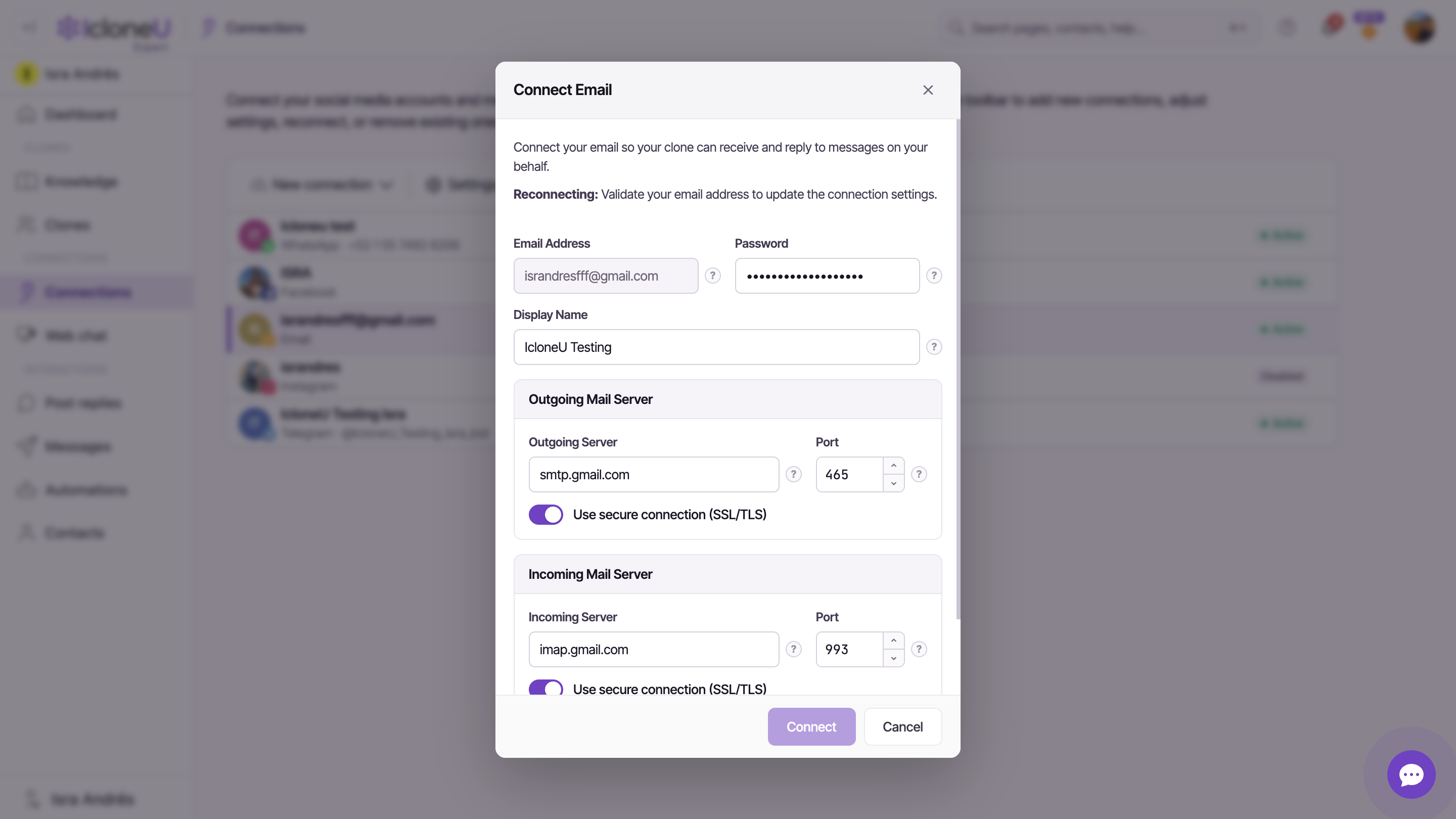
The Connect form asks for two servers: an Outgoing Mail Server (SMTP, for sending) and an Incoming Mail Server (IMAP, for receiving). Each needs a host, a port, and a Use secure connection (SSL/TLS) toggle — left on by default. IcloneU pre-fills these for known providers when you enter your email address, but here are the standard values:
| Provider | Incoming (IMAP) | Outgoing (SMTP) |
|---|---|---|
| Gmail / Google Workspace | imap.gmail.com : 993 | smtp.gmail.com : 587 |
| Microsoft 365 / Outlook.com | outlook.office365.com : 993 | smtp.office365.com : 587 |
| iCloud | imap.mail.me.com : 993 | smtp.mail.me.com : 587 |
| Yahoo Mail | imap.mail.yahoo.com : 993 | smtp.mail.yahoo.com : 587 |
| Custom hosting | provider-specific, typically 993 | provider-specific, typically 587 |
The standard secure ports are IMAP 993 (SSL/TLS), and for SMTP either 587 (STARTTLS) or 465 (SSL/TLS). Plaintext ports — 143 for IMAP, 25 for SMTP — are not used. Most providers prefer 587; if your provider only offers 465, that works too.
When we connected a real Gmail account, IcloneU's form auto-suggested smtp.gmail.com:465 (SSL) rather than 587 — so don't be surprised if your prefilled port differs from the table. Either port validates and connects.
- One mailbox per Connection. A Connection ties to one IMAP login plus one SMTP login (usually the same credentials). To run several addresses, create one Connection each — and each gets its own provider-side sending budget.
- Sub-folders are ignored. IcloneU reads only the Inbox, and there's no setting for other folders; if a provider rule files mail into a sub-folder first, the Clone never sees it.
- Provider quirks vary. Gmail's labels appear as folders over IMAP; iCloud and Yahoo are strict about app passwords and aggressive about rate-limiting. For anything outside Gmail/Outlook, check the provider's own IMAP/SMTP docs.
Connecting a mailbox
With your app password and server addresses ready, the whole flow takes about 5 minutes. The key thing to understand is that it's a two-button flow: Validate attempts authenticated logins to both servers to prove your settings work, then Connect saves those proven settings and creates the Connection.
Start a new Email connection
Open Connections in the left sidebar, click New connection, and pick Email. The Connect Email dialog opens with the subtitle "Connect your email so your clone can receive and reply to messages on your behalf."
Fill in the identity fields
Enter the Email Address (this acts as the username for both IMAP and SMTP), paste your 16-character app password into Password, and optionally set a Display Name — the sender name recipients see on the Clone's replies. If you leave Display Name empty, the part of your address before the @ is used.
Heads upPaste the app password here, not your regular email password. For Gmail and Microsoft 365 the regular password fails immediately because basic password access is disabled. Treat the paste like a production credential — close the form before you walk away.
Set the Outgoing Mail Server (SMTP)
Enter the SMTP Outgoing Server and Port (defaults to 587), and leave Use secure connection (SSL/TLS) on. IcloneU may have pre-filled these from your email address.
Set the Incoming Mail Server (IMAP)
Enter the IMAP Incoming Server and Port (defaults to 993), again with Use secure connection (SSL/TLS) on.
Validate
Click Validate (the checkmark button). While the form is incomplete, a hint under the disabled button names whichever required fields are still blank — "Complete these fields to validate: <missing fields>.", drawn from Email Address, Outgoing Server and Incoming Server. (Password isn't named in that hint, but Validate does use it.) Validate then attempts authenticated logins — SMTP first, then an IMAP login probe — so a Validate failure can be a wrong app password just as easily as a wrong host or port. On success it shows "Your outgoing mail settings are working."
NoteIf the inbox check fails after the outgoing check passes, IcloneU tells you which to fix: a rejected login points at the password (some providers need an App Password for IMAP), while a no-response points at the incoming server host or port.
Set an escalation address (optional)
A successful Validate reveals one more optional field — Escalation Address (placeholder team@yourcompany.com): the address a conversation is forwarded to when the Clone can't handle it and needs a human. Leave it empty to disable escalation.
Connect
Click Connect. This saves the settings Validate already proved and creates the Connection — IcloneU encrypts your credentials and stores the mailbox config. (Cancel backs out without saving.)
After connecting, the Email Connection appears on the Connections page identified by the email address. A new Email Connection is created switched on, with your account's oldest Clone already attached, so it answers from the moment it's connected. To have a different Clone answer, select the row to open its settings panel and pick it from the Clone dropdown ("The clone that will reply on behalf of this integration."). Email's panel is DM-style — Enabled, Clone, the Response authorizations required for card with its Direct-message review control, and Reply timing, with no "Post options" section (those are for comment channels) — and it adds a Configure button to re-edit the mail-server settings later. For the full attach-and-enable flow, see Assigning a Clone to a platform.
You can also have a human review the Clone's replies before they send. In the panel, under Response authorizations required for, tick the categories you want reviewed (for Email the hint reads "Applies to email replies. You can select more than one type."). Ticking categories alone is not enough: under Direct-message review, switch from the default Send immediately to Hold until approved. A held reply appears in the conversation thread with a green checkmark approve button (tooltip "Authorize response"), and the conversation shows an hourglass badge with a count of replies waiting on you — replies held for approval on any channel with Hold until approved, plus "In review" replies still inside their auto-send delay. Or pick Auto-send after a delay: the reply parks in the thread as an amber "In review" item and sends itself after the minutes you set (5–240; the hint reads "Minutes before the reply sends automatically. You can approve, edit or cancel it during this time."); if the customer writes again before it sends, the parked reply is cancelled and its answer is folded into the regenerated one. Email connections that existed before this feature shipped were migrated with Hold until approved already selected; connections made after it start on Send immediately. The same Direct-message review control is available on every direct-message channel except web chat — including WhatsApp and Telegram. On WhatsApp, Hold until approved shows a warning because the platform only accepts replies within 24 hours of the customer's last message ("This platform only allows replies within 24 hours of the customer's last message. A reply that isn't approved in time expires and can no longer be sent."); Auto-send after a delay avoids that risk. Email has no such window, so a held email reply simply waits until you act on it.
Disconnecting a mailbox
To remove an Email Connection, select its row on the Connections page and click Remove in the toolbar, then confirm. After disconnect, IcloneU stops polling IMAP and stops sending via SMTP, and the attached Clone stops auto-replying. Your existing conversation history in Messages stays visible, and the mailbox itself is untouched — email keeps arriving normally and you can still use it from your normal mail client.
Removing the Connection in IcloneU does not invalidate the app password at your provider — that 16-character credential stays valid (and usable by anyone who has it) until you explicitly revoke it. If you're disconnecting for a security reason or shutting the integration down for good, revoke it: at Google via myaccount.google.com/apppasswords, at Microsoft via Account → Security → App passwords. You can skip the revocation if you plan to reconnect soon.
One thing disconnect can't do: recall replies the Clone already sent. Email is fire-and-forget once the provider accepts it — there's no retraction. New inbound from customers still lands in your mailbox; they see nothing change unless you set up a provider-side auto-reply explaining the mailbox is no longer monitored.
Troubleshooting
Two problems come up most: a customer's email never reaches IcloneU, or the Clone's reply lands in the recipient's spam folder. Work them in this order.
Mail isn't arriving in IcloneU. First confirm the email actually reached your mailbox by opening it in the provider's web interface and searching for the sender:
- The Connection is switched off — if its row on the Connections page reads Disabled, IcloneU isn't checking the mailbox. Once you open Settings, switch Enabled on and click Save, the most recent mail (up to 50 messages) is picked up; anything older from that period is skipped.
- No Clone is attached — if the row reads No Clone, the Clone answers no email. While the Connection is still switched on, IcloneU keeps reading the mailbox and drops each email it reads (only a workflow bound to the Connection can still reply), and attaching a Clone later doesn't bring those back; if it's switched off (saving the panel without a Clone, or deleting its Clone on the Clones page, does that), the mail waits in the mailbox as described above. Open Settings, pick a Clone, switch Enabled on and click Save.
- IcloneU filtered it as bulk or automated mail — mail from no-reply or bounce addresses (in From or Reply-To), mail whose headers mark it as a newsletter, mailing list, bulk send or auto-reply, mail your provider tagged as spam but still delivered to the Inbox, delivery reports and read receipts, and, on Gmail, anything filed under Promotions, Social, Updates or Forums is skipped without being stored or answered.
- It's in the Inbox but not in IcloneU yet — give it a few minutes (IcloneU checks about once a minute) and check again.
- It's in Junk/Spam at the provider — IcloneU polls the Inbox, not Junk, so the Clone won't see it. Mark it Not Spam (improves future routing) and move it to the Inbox so the next poll picks it up.
- A provider rule filed it in a sub-folder — IcloneU reads only the Inbox. Adjust the rule, or move the message to the Inbox.
- The app password stopped working — it may have been revoked, expired, regenerated, or invalidated by an account-password change. Check the app-passwords list at your provider; if the IcloneU row is gone, generate a new one and reconnect.
- IMAP is disabled at the tenant level — Microsoft 365 and Google Workspace admins can switch IMAP off org-wide, which blocks every IMAP integration. Ask your admin to re-enable it.
Replies are going to spam. Email is hostile territory for automated replies. The usual culprits, roughly in order:
- Missing SPF, DKIM or DMARC on your sending domain, so recipient providers can't verify the mail isn't forged. Gmail and Microsoft 365 configure these by default, but a custom domain that delivers through them without publishing the recommended records is effectively unauthenticated. Send a test to a tool like mail-tester.com to see what's missing.
- Spammy content patterns — high link density, all-caps, trigger phrases. Natural, conversational replies clear filters more reliably than marketing-flavored ones.
- A young or poor-reputation sending domain, especially one that suddenly starts sending volume. Reputation builds over time; ramp gradually.
- Broken threading or mismatched From / Reply-To — a reply that doesn't reference the original, or a From that doesn't match the SMTP sender, reads as suspicious to filters.
If replies were flowing and suddenly stopped, you may have hit your provider's daily SMTP limit — roughly Gmail free 100/day, Google Workspace 2,000/day, Microsoft 365 10,000/day (with a 30/minute sub-throttle), Outlook.com free 300/day. Caps reset at midnight provider-time. Each connected mailbox has its own independent budget.
If you've worked through all of the above and a fresh test email from a different account still doesn't arrive, escalate to support with the connected address, the missing sender plus timestamp, which folder (if any) the message landed in at the provider, and screenshots of the Connections page, your web mail, and the Messages surface.
Frequently asked
Any provider that exposes standard IMAP + SMTP with app-password authentication. In practice that covers Gmail / Google Workspace, Microsoft 365 / Outlook.com, iCloud, Yahoo Mail, Zoho, Fastmail, and most custom IMAP/SMTP servers — including on-premises Exchange and self-hosted mail servers, as long as your IT team exposes the protocols. What doesn't work: webmail-only providers with no IMAP/SMTP, and tenants where an admin has forced OAuth-only and disabled app passwords.
For Gmail, Google Workspace, Microsoft 365, Outlook.com, iCloud and Yahoo, yes — the regular account password no longer works for IMAP/SMTP on these providers. Smaller or self-hosted providers may still accept a regular password; check yours. Generating an app password requires 2-Step Verification / MFA to be on first.
Yes. Create one Email Connection per mailbox (each with its own app password and server settings), then attach the same Clone to each — or a different Clone per mailbox if you want a distinct persona for support@ versus sales@. Each mailbox is one of the Connections your plan includes.
It can send files: when your Clone sends one of its files (set up under Files the clone can send on its Skills tab) or a product photo from your store, the customer gets a second email right after the reply, repeating it with a download link to the file — a link, not an attached file. A reply that Reply timing delays, or that Direct-message review holds, goes out without the file. It can't read files customers attach: IcloneU reads only the subject and the text of each email, so attachments — even their names — never reach the Clone and don't show in Messages. If a question depends on a document, the customer needs to write the key details in the email itself.
Email threading is heuristic — mail clients group messages by matching the Message-ID, In-Reply-To and References headers plus the Re: subject prefix. For replies to thread correctly the connector has to set those headers on outbound; whether IcloneU does all of that correctly is open for confirmation. When it works, the reply shows up as a continuation; when it breaks, it appears as a separate email.
Last updated September 23, 2026 · Platform connections





