
A Clone you've built is reachable by nobody until you give it a channel. A Connection is that bridge — the link between one of your Clones and an external account like a Facebook Page or a WhatsApp number, so messages flow in, the Clone reads them, and replies flow back out. This guide covers the part that's the same on every channel: where Connections live, how to add one, how to attach the Clone that answers, and the one toggle to enable with care. The provider-specific sign-in (Meta, Google, a bot token) lives in each channel's own guide — we link them where they belong.
You'll want at least one Clone to attach. If you haven't built one yet, do that first in Creating your first AI Clone — a Connection with no Clone has nothing to answer with (only a workflow bound to it can still reply), and doesn't even store what arrives.
Where Connections live
Every channel you link lives on one page. Open Connections in the left sidebar — its own subtitle sums up the job: "Connect your social media accounts and messaging platforms to enable your clones to respond automatically." The page lists every Connection in your account, grouped by channel, with a toolbar across the top: New connection, Settings, Reconnect and Remove.
The page follows the team you've picked in the Select a team dropdown: it lists the team's Connections, and any channel you connect is saved under the team's account — visible to the whole team. The toolbar also reflects your role: without the Manage connections permission, New connection, Reconnect and Remove aren't shown, and Settings opens a Connection's panel without its Save button. Outside a team, everything on this page belongs to your own account, as described here.
Every account can connect seven channels here: Facebook, Instagram, WhatsApp, YouTube, Telegram, Email and Mercado Libre (Mercado Libre México sellers only). Web chat is a separate item in the same sidebar group — it's embedded on your site with a code snippet rather than authorized through a provider, so it's covered on its own in Embedding web chat.
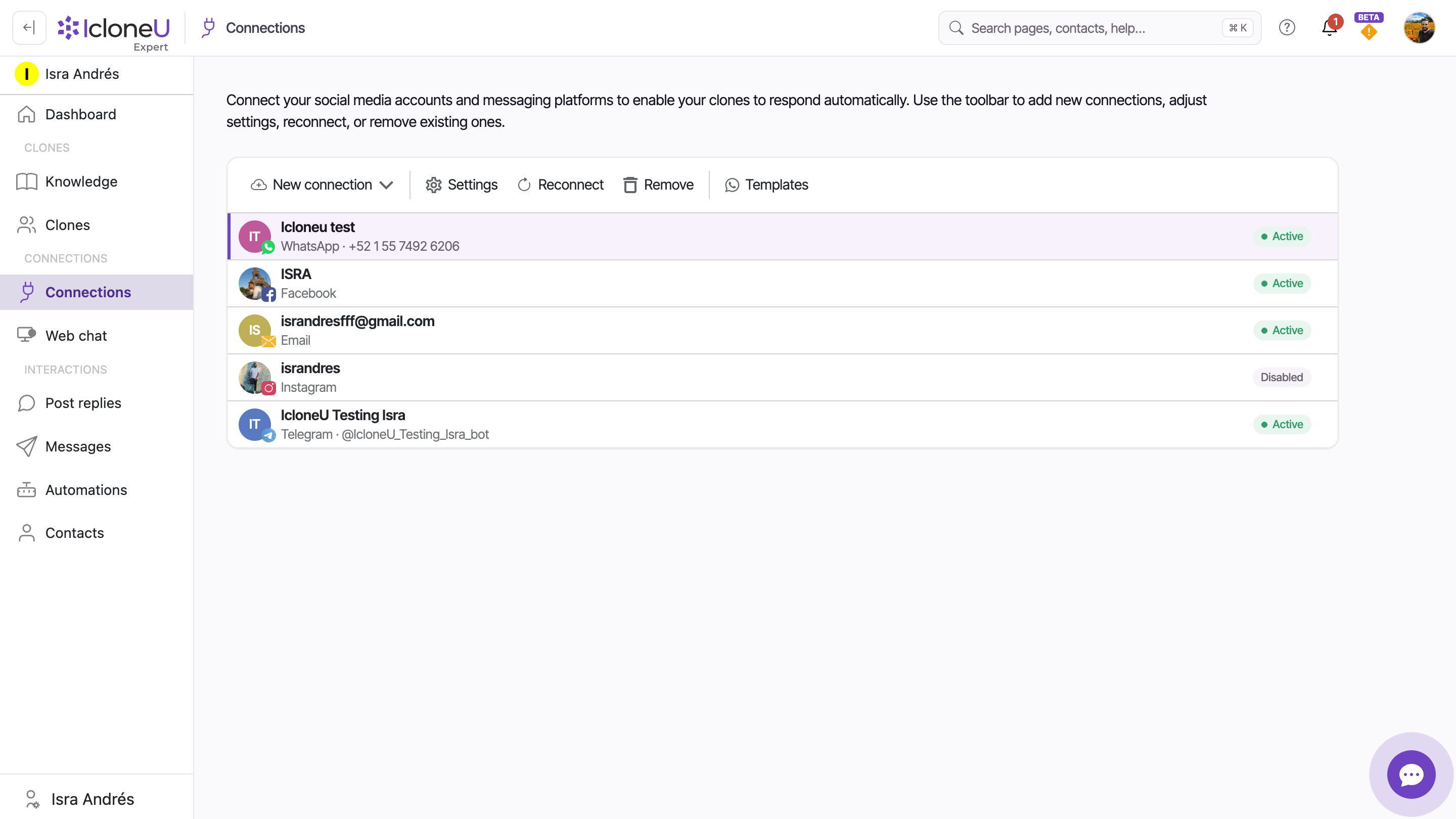
Add a connection
The first part of the flow is identical no matter which channel you pick. The provider's own login screen — the part that is channel-specific — opens at step 3 and is documented in that channel's guide.
Open Connections
Click Connections in the left sidebar.
Open the New connection dropdown
Click New connection in the toolbar. The dropdown lists the channels your account can add — Facebook, Instagram, WhatsApp, YouTube, Telegram and Email.
Pick the channel
Click the channel you want. IcloneU hands you off to that provider's sign-in — Meta for Facebook, Instagram and WhatsApp; Google for YouTube; a bot-token setup for Telegram; a server-credentials form for Email. This step differs per channel, so follow its dedicated guide for the exact screens.
Back in IcloneU
When the provider flow finishes, you're back in IcloneU. For Facebook, Instagram and YouTube, a page lists the accounts you authorized, each with a Connect button — click it on the one you want. Right after a successful connect, the Connection's settings panel opens automatically — which is where the next two steps happen. On the Connections page the new account shows as a row under its channel: Active for WhatsApp, Telegram and Email, Disabled for a new Facebook, Instagram or YouTube Connection until you finish those steps.
Time it right: most of the work is on the provider's side, not in IcloneU. Plan on a few minutes per channel, more the first time you set up a Meta Business Account or verify a phone number.
Attach the Clone that replies
A Connection receives messages, but it only answers through the Clone attached to it. That attachment lives in the Connection's settings panel — titled Account options for <name> — which opens automatically right after you connect, and any time later when you select the row and click Settings (the gear). Inside, the Clone dropdown — described as "The clone that will reply on behalf of this integration" — names who answers.
Connecting a channel binds your account's default Clone — the oldest one — from the very first moment, so closing the post-connect panel without saving doesn't leave the Connection unbound. On Facebook, Instagram and YouTube it does leave it switched off, though — see the Save step below. An empty Clone field means your account has no Clones at all; in that state the panel points you to create one first, the Enabled switch is greyed out, and saving turns it off. Use the dropdown and Save whenever you want a different Clone answering here.
Open the settings panel
It opens on its own right after connecting. To reach it later, select the Connection's row on the Connections page and click Settings (the gear).
Pick the Clone in the Clone dropdown
Choose the Clone that should answer on this channel. The dropdown lists the Clones that exist on your account — there's no "none" option, so make sure the one you want is actually selected.
Save
Click Save. From then on, incoming messages on this channel route to that Clone.
Heads upOn Facebook, Instagram and YouTube the panel also shows an AI identifier ✨ card, and while Enabled is on, Save stays greyed out until you switch on "I have added the ✨ AI identifier and disclosure to this profile." Add the identifier and disclosure on that profile first, then switch the confirmation on. On these three channels a new Connection starts switched off, and this Save is what turns it on: close the panel with Cancel or × instead and the Connection stays Disabled, ignoring every message and comment until you come back to it. This doesn't appear for WhatsApp, Telegram, Email or web chat.
One Clone can answer on many Connections at once — the same Personality and Knowledge applied to WhatsApp, Instagram and Email together — so you can reuse a Clone you've already built. More on that wiring in Assigning a Clone to a platform.
The Enabled toggle — turn it on with care
The same panel carries an Enabled toggle. Its own description spells out what "off" means, verbatim: "When off, incoming messages and comments for this account are ignored. Tokens are kept so you can re-enable without reconnecting." So leaving it off is the clean way to set a channel up quietly; switching it on is what puts the Clone live. Note the starting state: WhatsApp, Telegram and Email Connections are created with it on — the Clone answers from the moment the Connection exists — while a new Facebook, Instagram or YouTube Connection is created off and goes live only when you save the panel with the AI identifier ✨ confirmation on. What happens to messages that arrive while it's off — and which channels can recover them — is covered per channel in Assigning a Clone to a platform.
On direct-message channels — Telegram, WhatsApp, and Facebook & Instagram DMs — the Clone auto-replies the moment a message arrives, by design (IcloneU's goal there is to answer quickly). Out of the box there's no per-message approval step for DMs — though you can add one with the review options below. So while Enabled is on for a live customer account — and on WhatsApp and Telegram it is, from the moment you connect — real people get AI replies right away. Connect a live account only once the Clone's Knowledge and personality are ready for that, or switch Enabled off in the post-connect panel and Save — and consider connecting against a test account first.
Post comments on Facebook, Instagram and YouTube work differently: there you can hold categories of reply for your approval before they post, via the panel's Response authorizations required for section. Post comments are always gated that way. Direct messages have their own opt-in gate: the panel's Direct-message review chips — Send immediately (the default), Hold until approved (each matching reply waits for your approval; on WhatsApp, Facebook and Instagram a held reply expires if not approved within the platform's 24-hour reply window) and Auto-send after a delay (the reply parks for a set number of minutes so you can approve, edit or cancel it, then sends itself). The full breakdown of which replies auto-send and which wait for you is in Reviewing and editing AI responses.
One more thing on those three comment channels: on Facebook, Instagram and YouTube, while a Connection is enabled the Save button stays greyed out until you switch on the panel's AI identifier ✨ confirmation — "I have added the ✨ AI identifier and disclosure to this profile." — which confirms the AI disclosure is visible on that profile before the Clone goes live. A new Connection on these three channels stays switched off until you do. WhatsApp, Telegram, Email and web chat don't ask for this.
Enabled is also how you pause a channel later without tearing it down — flip it off and the tokens are kept, so turning it back on needs no reconnection. Don't confuse it with Remove: removing a Connection disconnects the account and deletes its settings, but your conversation and post history is preserved and reattaches automatically if you reconnect the same account later. History is only deleted for good if you tick the optional "Also permanently delete all conversation and post history for this account" checkbox in the confirmation dialog.
Conversation starters, on Facebook and Instagram
Two channels get an extra card in the same panel. On a Facebook or Instagram connection — and nowhere else — the panel carries Conversation starters, described as "Up to 4 question chips Meta shows before a person's first message. Leave all empty to remove them." These are the tappable questions Meta puts in front of someone opening a chat with you for the first time. Fill in up to four boxes, 80 characters each, and Save.
They are not a separate scripted flow, and that is the useful part. The card's own hint says what a tap does: "A tapped question arrives as a normal message, so keyword triggers and your Clone answer it." So write starters as questions your Clone already answers well, or that your keyword triggers already catch — not as menu items you then have to build behaviour for.
The chips live on Meta's side, not just in IcloneU, so Save pushes them to Meta before storing anything. If Meta accepts, the two sides match. If Meta refuses, neither side changes and you get "Meta rejected the conversation starters — they were not saved" — whatever questions you had before are still there, on both sides. The rest of the panel saves normally either way, and Save only contacts Meta when you actually edited a question, so re-saving other settings can't trip this. To take the chips down, clear all four boxes and Save.
What each channel needs up front
Most first-time snags aren't in IcloneU at all — they're a missing prerequisite on the provider's side. Sort these out before you start the connect flow and the rest goes smoothly. Each channel's own guide has the complete list; these are the ones that trip people up first.
| Channel | What you need ready first |
|---|---|
| A Facebook Page (not a personal profile), and you must be an Admin on it. The same Connection handles both Page Messenger DMs and Page-post comments. | |
| A Business or Creator account, linked to a Facebook PAGE — and you must be Admin on that Page. This is the single biggest first-time gotcha (see below). | |
| A Meta Business Account and a dedicated phone number you can register on the WhatsApp Business Platform — one that isn't already active on the consumer or Business app under the same identity. | |
| YouTube | A Google account that owns the channel; you authorize via Google sign-in. YouTube is comment-only (replies to comments on your videos). |
| Telegram | A bot token, created with @BotFather inside Telegram, that you paste into the setup dialog. |
| Your mailbox's server credentials (username and password) — Email connects with server sign-in rather than a provider OAuth screen. |
IcloneU connects Instagram through Facebook, so your Instagram Business or Creator account must be linked to a Facebook Page — not just to your personal Facebook profile. With only the personal link, the sign-in completes but Meta reports there are no Instagram accounts linked to your Facebook, and nothing lands in your Connections list. The fix: create a Facebook Page on the same account, then link the Instagram account to it from the Page's settings, and re-run the connect flow. Connecting Instagram walks through it step by step.
Frequently asked
Check its row on the Connections page first. Disabled on a new Facebook, Instagram or YouTube Connection means the post-connect panel was closed without saving: open its Settings, switch Enabled on, switch on the AI identifier ✨ confirmation and click Save. No Clone means no Clone is attached — usually because your account had none when you connected: create one, pick it in the Clone dropdown, switch Enabled on (on Facebook, Instagram and YouTube also switch on the AI identifier ✨ confirmation) and Save. If the row reads Active and it's still silent, work through My AI Clone isn't responding.
No. One Clone can be attached to several Connections at once, applying the same personality and Knowledge everywhere. Attach the same Clone on each Connection's settings panel — see Assigning a Clone to a platform.
On direct-message channels — Telegram, WhatsApp, Facebook and Instagram DMs — yes, by default: the Clone auto-replies as soon as a message arrives. To keep a human in the loop, set the connection's Direct-message review to Hold until approved or Auto-send after a delay in its settings panel. Only enable a live customer account once the Clone is ready, or connect a test account first. Post comments on Facebook, Instagram and YouTube can instead be held for your approval via Response authorizations.
Switching Enabled off pauses replies but keeps the authentication tokens, so you can turn it back on with no reconnection — a safe pause. Remove disconnects the account and deletes its settings; your conversation and post history is preserved by default and reattaches automatically if you reconnect the same account later. It only becomes irreversible if you tick the optional "Also permanently delete all conversation and post history for this account" checkbox in the confirmation dialog. Use the toggle to pause; reserve Remove for channels you're truly done with.
The Clone dropdown only lists the Clones on your account — it has no "none" entry, so a Connection saved with Enabled on always carries a Clone. To stop a Connection from replying, switch its Enabled toggle off rather than trying to detach the Clone.
Last updated September 22, 2026 · Getting Started





