
Your profile on IcloneU lives on one page: Account settings → Your details. This guide shows you where that page is, what each row on it holds, and walks through changing the account name — the name IcloneU uses to greet you, to name your team, and even to pre-fill new Clones.
Where Account settings lives
Everything in this guide starts from the same place — the avatar menu in the top-right corner.
Open the avatar menu
Click your avatar in the top-right of the dashboard. The menu offers Account settings, Team, Plan and Log out.
Choose Account settings
The page opens on the Your details sub-tab by default — your profile rows at the top, your plan summary below.
Account settings has four sub-tabs. This guide covers the first; the other three are billing and behaviour territory:
| Tab | What it holds |
|---|---|
| Your details | Profile rows (account name, email, password, two-factor, language) plus the Your plan summary |
| Billing | Unit balances, the + Add units button, payment methods and billing history |
| Billing preferences | Billing details for invoices: company name, billing email, business address and tax ID |
| Options | Account-level reply behaviour (handover timeout, reply schedule and reply timing), plus the Team activity tracking and Audience Avatar switches |
What lives on Your details
The Profile section is a stack of rows, one per setting:
| Row | What you'll find |
|---|---|
| Account name | How IcloneU refers to you — defaults to your email address until you change it; a pencil icon opens the edit dialog |
| Your account email, with a Verified badge | |
| Password | Your sign-in password, with a Change password action |
| Two-factor authentication | Shows Not enabled, with a Turn on action |
| Language | Your display language (e.g. English (United States)) — editable from the row |
Below the Profile rows sits Your plan: your plan tier with an Active badge, the plan's expiry on the "Active until" line, and an Upgrade plan button. The Dashboard's own "Active until" chip shows this same date. For the units side of the story, see Understanding usage and limits.
Change your account name
When you sign up, IcloneU uses your email address as your account name — and while that's the case, the dashboard greeting keeps things plain: just "Good morning.", with your email on the line beneath it. Set a real name and the greeting starts using it. Changing it takes about a minute:
Find the Account name row
On Your details, look in the Profile section for the Account name row and click the small pencil icon at its right end.
Read the Change account name dialog
A dialog titled Change account name opens with the current name pre-filled. Its body text sets expectations: "Please update the account name below. If this account is part of a team, the account name will also be used as the team name. This is the name that other team members will see when collaborating."
Type the new name and confirm
Type the name you want IcloneU to use, then click Change name. The dialog closes and the Account name row updates immediately; the dashboard greeting shows the new name the next time you open the Dashboard.
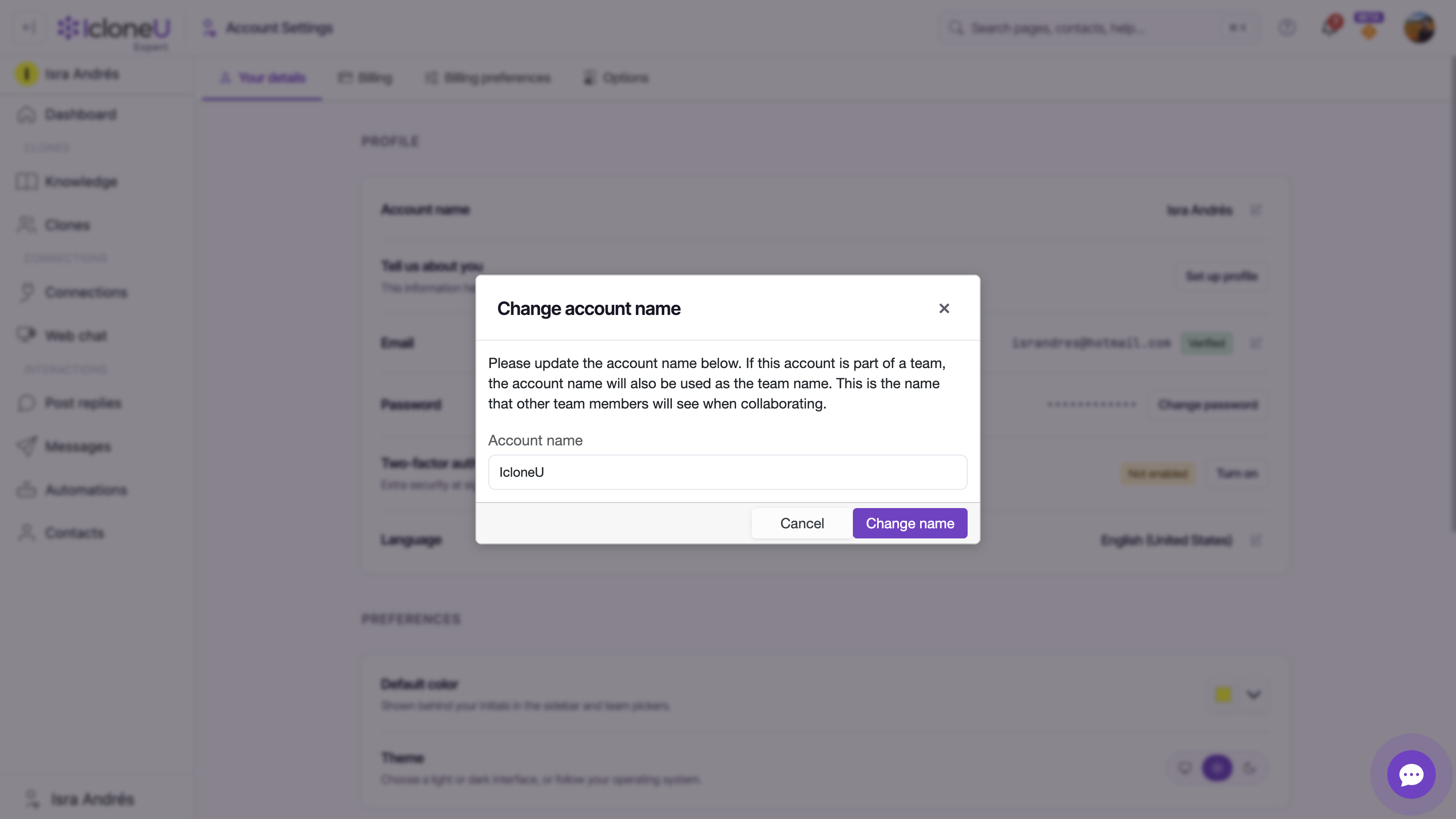
If a greeting somewhere still shows the old name, a hard reload with Ctrl+Shift+R (Cmd+Shift+R on Mac) clears the cached state. And if Change name stays greyed out, the input is empty or unchanged — type a value different from the one already shown.
Where the name shows up — and where it doesn't
The account name is more than a label. Three surfaces follow it:
- The dashboard greeting — once you set a real name, the "Good morning, …" line greets you by it. Until then the greeting stays a plain "Good morning." and your email shows on the line beneath it.
- Your team's name — if the account is part of a team, the account name is also used as the team name, and it's what other members see on the team picker when collaborating.
- New Clones' Display name — when a Clone is created, the account name is copied in once as its starting Display name (skipped when the account name is an email address — emails never become public names). Renaming the account later never renames existing Clones. The full story is in Creating and configuring an AI Clone.
This row only changes the personal name the dashboard and team picker use. Your business profile — who you are, your audience, your Clone's voice — is configured separately, through the "Tell us about you" wizard behind the Set up profile button on the yellow banner of the same Account settings page.
Frequently asked
Because the account name defaults to your email when you sign up, and the greeting only adds a name once it's a real one — until then it reads simply "Good morning.", with your email on the line beneath it. Change the account name and the greeting starts using it the next time you open the Dashboard.
No — none of them. The account name is copied into a Clone's Display name once, when the Clone is created; after that the Clone keeps its own name until you edit it on its Identity tab. A Clone whose Display name was left blank answers under a generic name rather than picking up the account name.
When the account is part of a team, yes — the Change account name dialog says it plainly: the account name is also used as the team name, and it's the name other team members see when collaborating.
Last updated September 23, 2026 · Account & Settings





