
You won't find API keys under Account settings — they have their own page, API keys, under Connections in the left sidebar, where each key is one embeddable widget configuration answered by one of your AI Clones. This guide covers the full key lifecycle: creating a key, copying its secret, editing its settings, testing it, and rotating or revoking it when you need to.
A key needs a Clone to answer through it — the page itself tells you so: "You need to create at least one clone before you can generate API keys. Go to the Clones section to set up your first clone." Starting from zero? Begin with Creating your first AI Clone.
What an API key is in IcloneU
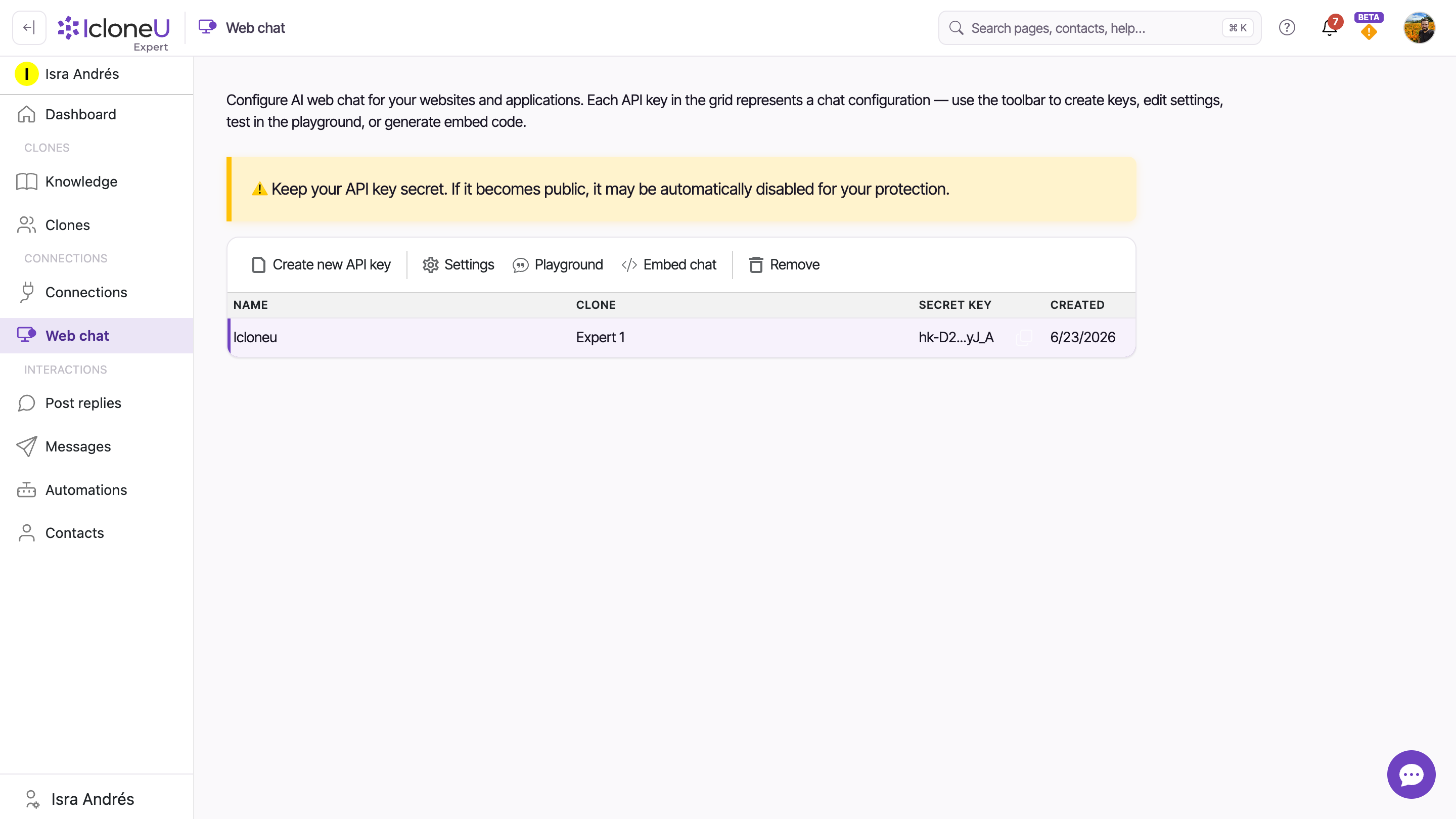
Open API keys in the left sidebar (under Connections) and you'll find a grid of keys. The page subtitle says it best: "Manage the API keys that power your embeddable widgets — Web Chat, Reviews, and more to come. Each key in the grid represents one widget configuration; use the toolbar to create keys, edit settings, test in the playground, or generate embed code."
Each row is one key, and each key delegates to exactly one Clone — the Clone supplies the personality, knowledge and skills that answer in that widget. The grid shows four columns: Name, Clone, Secret key (shortened, e.g. hk-ay...V508, with a copy button that copies the full key) and Created. Conversations that come in through the widget land in Messages, like every other channel's.
IcloneU has two kinds of key, and they aren't interchangeable. The ones on this page are widget keys — they start hk- and power an embedded Web chat or Reviews widget. Programmatic access to your account data (contacts, conversations, tags, webhooks) uses a public API key instead, created on the API Keys tab of Automations: "Public API keys for programmatic access to your account. Each key is shown in full only once at creation; revoke and re-create to rotate." Those keys start ik-, carry an access level (Read Only, Standard or Full Access) and are sent as an Authorization: Bearer ik-… header. A widget key sent to the public API is rejected — the header has to carry the ik- key. Two differences matter before you assume the two behave alike. A public API key can be given an Expiration at creation — Never expires, 30 days, 90 days or 1 year — and once that date passes the API refuses it on its own, with no warning and no way to extend it; a widget key has no expiry at all. And rotating a public API key is revoke-and-recreate, not the delete-and-recreate described below. The whole surface is in Public API keys.
A key has no separate permission or scope settings. Besides its name and the widget's appearance, it has two settings: which Clone answers, and the Domains list of the sites where the widget will run.
Create an API key
Creation takes under a minute.
Open the API keys page
Click API keys in the left sidebar, under Connections. A new account shows an empty grid until you create your first key.
Start a new key
Click Create new API key in the toolbar. The Create new API key dialog opens.
Fill in the configuration
Name is the label you'll see in the grid — pick something that says where the key will be used. Clone is the AI Clone that will answer through this key (it defaults to your first Clone). Domains is the list of sites where the widget will run, each entered as https:// plus the host — for example https://www.example.com. After saving, open your site and check that the widget appears and answers.
TipThe optional Customize widget appearance button opens the Widget appearance window — General, Web chat and Reviews tabs with a live preview — so the widget matches your site before it goes live. The widget's Language is on the General tab; it sets the language of the widget's labels, buttons and system messages.
Click Create API key
The key is created immediately and a Save your key dialog appears.
Copy the secret
The dialog shows the full secret (it starts with hk-) next to a Copy button, with the message: "Please save this secret key somewhere safe and accesible. You can use this key to integrate with IcloneU through the API." Keep it somewhere safe. After you click Close, the grid shows the key shortened, and its copy button copies the full key whenever you need it again.
Heads upAnyone who can open this page can copy the full key from the grid. If a key may have leaked, replace it — the walkthrough is in Rotate or revoke a key.
Manage keys from the toolbar
Select a key's row and the toolbar acts on it. Five actions cover the whole lifecycle:
| Action | What it does |
|---|---|
| Create new API key | Opens the creation dialog — the flow above |
| Settings | Opens the Edit API key dialog: the same fields as creation (Name, Clone, Domains, Customize widget appearance) plus a Save button |
| Playground | Opens a chat sandbox to test the selected key's Clone before going live |
| Embed | Generates the script snippet that puts the widget on your site |
| Remove | Permanently deletes the key after a confirmation dialog — there's no undo |
A standing warning sits above the grid: "Keep your API key secret. If it becomes public, it may be automatically disabled for your protection."
The Playground runs the key's Clone through the same metered pipeline as live conversations, so every test reply spends units from your plan balance — the cost is token-based, varying with reply length and retrieved knowledge. Test deliberately, and see Understanding usage and limits for how units work.
Embedding has its own walkthrough — the snippet, the optional visitor-identity block and the "Widget not appearing? Check these common issues:" expander are covered in Embed guides.
Rotate or revoke a key
There's no regenerate button for an existing key — rotation in IcloneU is delete + recreate. The same Remove action doubles as your revoke switch: the moment a key is deleted, anything still using it stops working.
Select the key and click Remove
On the API keys page, select the key's row and click Remove in the toolbar.
Confirm the deletion
A dialog asks "Are you sure you want to delete this API key?" and spells out the consequences: "Once you delete this key, any chats or services using it will stop working. This action cannot be undone." Click Delete to confirm — keys have no recycle bin.
Create the replacement
Run the creation flow again — same Clone, same Domains — and copy the new secret from the Save your key dialog.
Re-embed wherever the key was used
Generate a fresh snippet with Embed and replace the old one on your site. The old key is dead, so the widget won't work again until the new snippet is in place.
Four habits keep rotation a rare event:
- Fill in Domains. Set it at creation, or later via Settings, with each site where the widget runs.
- Expect the key to be visible in your page source. It's a browser-side credential that travels in the snippet's embed.js?key=… URL — that's expected for a web widget.
- One key per site or purpose. Separate keys let you revoke one site without taking down the others.
- If the widget stops chatting, check the browser console for an IcloneU error, the key's Domains in Settings, and that the key is still in the grid. A key has no expiry; it works until it is removed.
Frequently asked
Yes. The grid shows each key shortened (e.g. hk-ay...V508) next to a copy button that copies the full key, and the snippet from Embed contains it too.
Yes. Select the key and click Settings — the Edit API key dialog has the same fields as creation, so you can re-point the key at a different Clone, adjust Domains or the widget's appearance, and click Save without touching the snippet already on your site.
In the Messages surface, like every other channel's conversations — answered by the Clone bound to that key.
Yes — Playground test replies consume units like live replies do. The cost is token-based and varies with reply size. Understanding usage and limits has the full picture.
Last updated September 23, 2026 · Account & Settings





