
Your library doesn't update itself when your content changes. A file is indexed as uploaded, and a website source is a snapshot from the day it was crawled. This guide covers the three habits that keep a Clone answering from current facts: replacing uploaded files, re-syncing web sources, and confirming every change in the Activity feed.
It depends on the source type. Static files — documents, images, audio, video and other uploads — are replaced. Re-syncable sources — websites, YouTube channels and other Web & Media sources — are refreshed with the Synchronize button on their row in Sources, without re-adding them.
Updating an uploaded file
There's no in-place edit for a static file: what you uploaded is what's indexed. Updating one is a quick replace.
Delete the old source
In the library's Sources sub-tab, find the outdated source and delete it.
NoteIf that source is also used in other libraries, deleting it offers two choices. Remove from this library takes it out here while it stays available in the others — the right pick when you only want to refresh this library. Delete sends it to the Recycle Bin and removes it from every library at once (restorable). A non-shared source just deletes to the Recycle Bin.
Upload the new version
Add the new file the same way you originally added it. It becomes a fresh source and starts processing.
NoteThe new version doesn't get a row straight away: while it processes, its name shows Queued in a strip above the library's list, and it appears in the list as its own row once it's processed. The strip isn't kept after a reload, so if you see neither, follow the job in Activity.
Wait for it to finish processing
The new version is processed once it appears in the library's list as its own row; a single file never gets a status label. The Activity sub-tab tracks its progress (hit Refresh to update the feed). From its next reply onwards, the Clone retrieves from the new version.
Keeping website sources fresh
A website source is a snapshot, not a live mirror. The crawl captures the site at that moment, and your Clone reads from the captured copy — update the live site five minutes later and the Clone won't notice. You have three ways to bring a snapshot up to date:
- Scheduled re-sync — on the Synchronization sub-tab, switch on the site's own Auto-sync and the platform re-fetches it automatically, at the cadence you pick. A website's Auto-sync looks on from the start without being scheduled, so the first time, switch it off and on again. The next section walks through it.
- Manual re-sync — click the circular-arrow Synchronize button on the website's row in Sources when you've just published a change you want reflected straight away. Its options are explained just below.
- Replace the source — delete the website source and re-add it. A fresh crawl from scratch is sometimes cleaner when the site's structure has changed significantly.
While a re-sync crawls, the source row shows a live status such as Syncing: 22 found, 140 reviewed — the reviewed count keeps climbing even when found plateaus, so a rising reviewed number means the sync is still working.
For a website, Synchronize opens the Sync window. Pick one of its three options and click Start Sync: the sync runs in the background, and the bell tells you when it's done. The window opens on New + Changed every time:
| Option | What it does |
|---|---|
| New only | Adds the pages and files the site has gained. Pages already in the library stay as they are: changes aren't picked up, and removed pages aren't moved to the Recycle Bin |
| New + Changed | Recommended. Adds new pages, updates the ones that changed and moves pages the crawl no longer finds to the Recycle Bin |
| Select | Finds what's on the site now and lets you review and choose which items to process, as when you first added it |
The option you start a sync with is remembered for that site. After a New only sync, the site's scheduled syncs also add new pages only, until someone runs New + Changed again. Select doesn't change what's remembered.
On a New + Changed sync, pages the crawl can't find anywhere — neither through links from the start URL nor in the site's sitemap — are moved to the Recycle Bin, where you can restore them as one set. The run reports them on the Activity sub-tab as Removed (N) — no longer on the site, with a Recoverable from the Recycle Bin hint. A page you've unlinked from your menus stays as long as your sitemap still lists it. If more than a fifth of the site's pages in your library would go at once, IcloneU treats the crawl as unreliable and removes none of them. Content that has moved behind a login simply stops appearing. If a specific page must survive regardless, ingest it separately as a file source — export it to PDF and upload that.
Take a source out of use without deleting it
Sometimes a source should sit out for a while — last season's price list, or a page you're rewriting. Exclude it instead of deleting it: every source row in Sources has a slashed-circle button, Exclude from the clone's knowledge.
- Click it and a toast confirms: Source excluded — the clone will stop using it in a few seconds. The row stays in the list, greyed out, and nothing is deleted.
- An excluded source is out for every library that uses it, not just this one.
- Syncs leave an excluded source alone: they don't update it, even when the page has changed, and they don't move it to the Recycle Bin.
- To bring it back, click the same button — now a tick in a circle, Include in the clone's knowledge again. The toast reads Source included — its content is being re-added to the clone's knowledge.
Next to a source's title, an information icon holds the summary IcloneU keeps for it: hover for a preview, click to open it in full. A source without a summary usually shows a circular arrow instead, Summary not generated yet — click to generate. Click it and IcloneU writes one (Summary generated.); if the source's original content is no longer available, you'll see Can't regenerate this summary: the original content is no longer available.
Scheduling automatic syncs
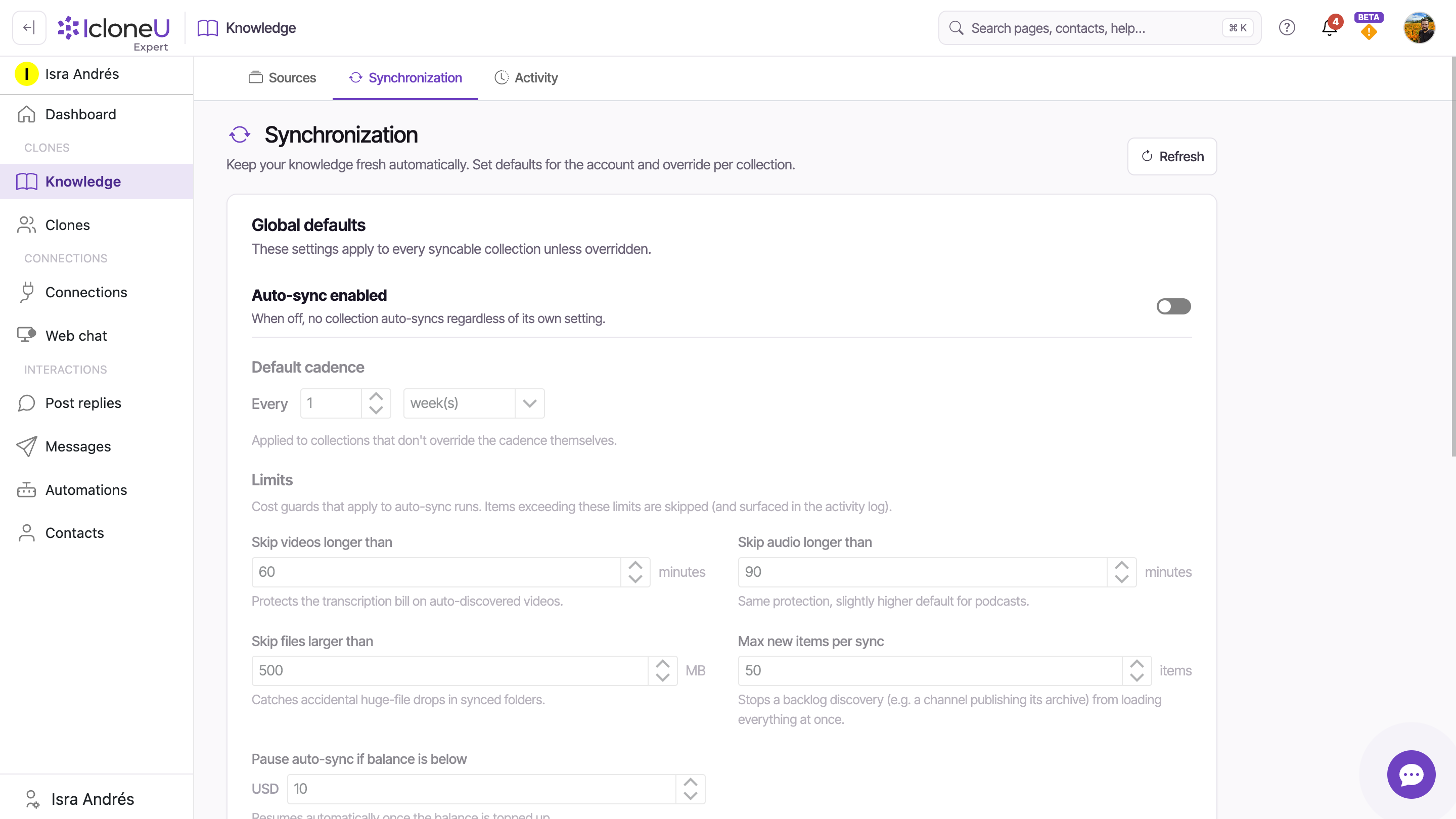
The Synchronization sub-tab on the Knowledge page controls re-fetching for every syncable collection in your account. It isn't on every account yet: IcloneU turns it on account by account, so if you don't see it next to Sources, ask support. It has two halves: Global defaults on top, Per-collection overrides below.
Open the Synchronization sub-tab
From the left sidebar, open Knowledge and switch from Sources to Synchronization.
Switch on auto-sync
Enable the Auto-sync enabled master toggle. It's only the default for collections with no Auto-sync setting of their own. A collection's own setting under Per-collection overrides wins, on or off, and a store you add with Shopify (pages & blogs) starts with its own switched on. So, despite the note next to the toggle, turning it off doesn't stop every automatic sync: to do that, also switch off each collection's Auto-sync.
Pick a default cadence
Set how often syncable collections re-fetch — every N day(s), week(s) or month(s). This default applies to every collection that doesn't override it. Click Save to apply the master toggle, the cadence and the Limits covered below; the switches under Per-collection overrides save as soon as you flip them.
Override per collection where needed
Each row in Per-collection overrides has its own Auto-sync toggle and a Cadence that reads INHERITED until you set a custom value with the edit pencil, plus Last sync and Next sync timestamps. Next to INHERITED, the Cadence column shows the collection type's usual cadence, such as every 1 month for a website, but the collection actually syncs at the default cadence from the step above. A collection whose Next sync shows only a dash has no schedule and won't auto-sync, even if its Auto-sync looks on and the master toggle is on. To schedule it, switch its Auto-sync on, or off and on again if it already looks on.
TipTo pause a single collection without touching the rest, switch its Auto-sync off.
Global defaults also include Limits — cost guards that stop an automatic sync from running up your bill. Anything that exceeds them is skipped and surfaced in the Activity log, so you can see what was filtered out:
| Limit | Default | What it protects against |
|---|---|---|
| Skip videos longer than [N] minutes | 60 minutes | Transcription costs on auto-discovered videos |
| Skip audio longer than [N] minutes | 90 minutes | The same, with extra headroom for podcasts |
| Skip files larger than [N] MB | 500 MB | Accidental huge-file drops in synced folders |
| Max new items per sync | 50 items | A backlog discovery loading everything at once |
| Pause auto-sync if balance is below [USD N] | USD 10 | Sync costs draining a low balance — resumes once you top up |
Confirming changes in Activity
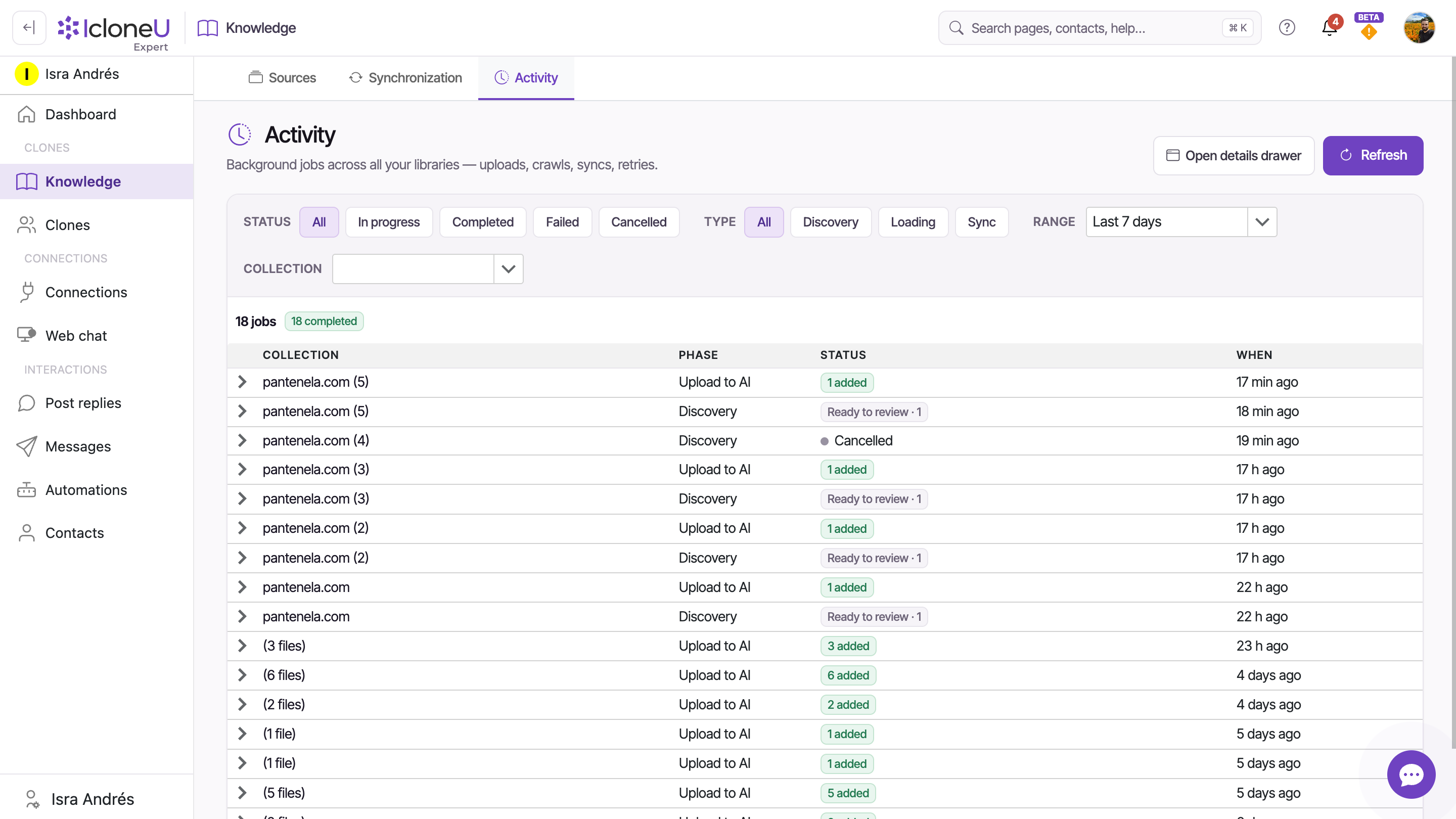
The Activity sub-tab is the audit trail — "Background jobs across all your libraries — uploads, crawls, syncs, retries", as the page itself puts it. Each row is one processing event, with Collection, Phase, Status and When columns; the phases you'll see include Discovery, Loading, Sync and Upload to AI.
| Filter | Options |
|---|---|
| Status | All · In progress · Completed · Failed · Cancelled |
| Type | All · Discovery · Loading · Sync |
| Range | Last 7 days by default; other ranges in the dropdown |
| Collection | Scope the feed to a single collection |
Two buttons round it out: Refresh reloads the feed while you wait on an in-progress job, and Open details drawer gives a closer view of a selected entry. Items skipped by the sync limits also surface here, so a quieter-than-expected sync run has an explanation. On a New + Changed sync, pages that haven't changed count as skipped too, so a large skipped number is normal.
When a Clone seems to be missing a fact you know you added, look here first — confirm the job completed before debugging anything else.
If you try to leave the Knowledge page while a review, upload, source-edit, or connector-setup popup is open, you'll be asked to confirm — your staged files and reviewed selections aren't lost unless you choose to leave.
Frequently asked
That's not documented yet — whether one file from a previously imported archive can be re-uploaded on its own is still being confirmed. The safe path: upload the updated file as a separate source, and if the old version still exists as its own row from the import, delete that row.
They're skipped during that auto-sync run rather than processed, and surfaced in the Activity log so you can see what was filtered out. If something you wanted was skipped, raise the relevant limit on the Synchronization sub-tab so the next sync can take it.
The deletion may not have fully propagated through the index yet. Wait a few minutes and re-test; if the old content persists past roughly fifteen minutes, the source may be stuck — contact support with the source ID.
Open Activity first — a failed run shows its reason there. A sync that couldn't read the site at all still shows as completed, with nothing added: its reason is in the bell, under We could not check your site. Otherwise, if the run completed, confirm the Clone is attached to this library, then check its match-strictness setting: Strict or Exact can miss new passages even when they're indexed.
Last updated September 23, 2026 · Knowledge Library





