
IcloneU splits the invoice story across two neighbouring sub-tabs of Account settings. The Billing tab holds Billing history — the running record of charges, each with a View link that opens its invoice. The Billing preferences tab holds the Billing details form — the company name, billing email, business address and tax ID that future invoices are built from. This guide walks both.
Click your avatar in the top-right corner and choose Account settings. The page has four sub-tabs — Your details, Billing, Billing preferences and Options — and everything in this guide happens in the middle two.
Find and open an invoice
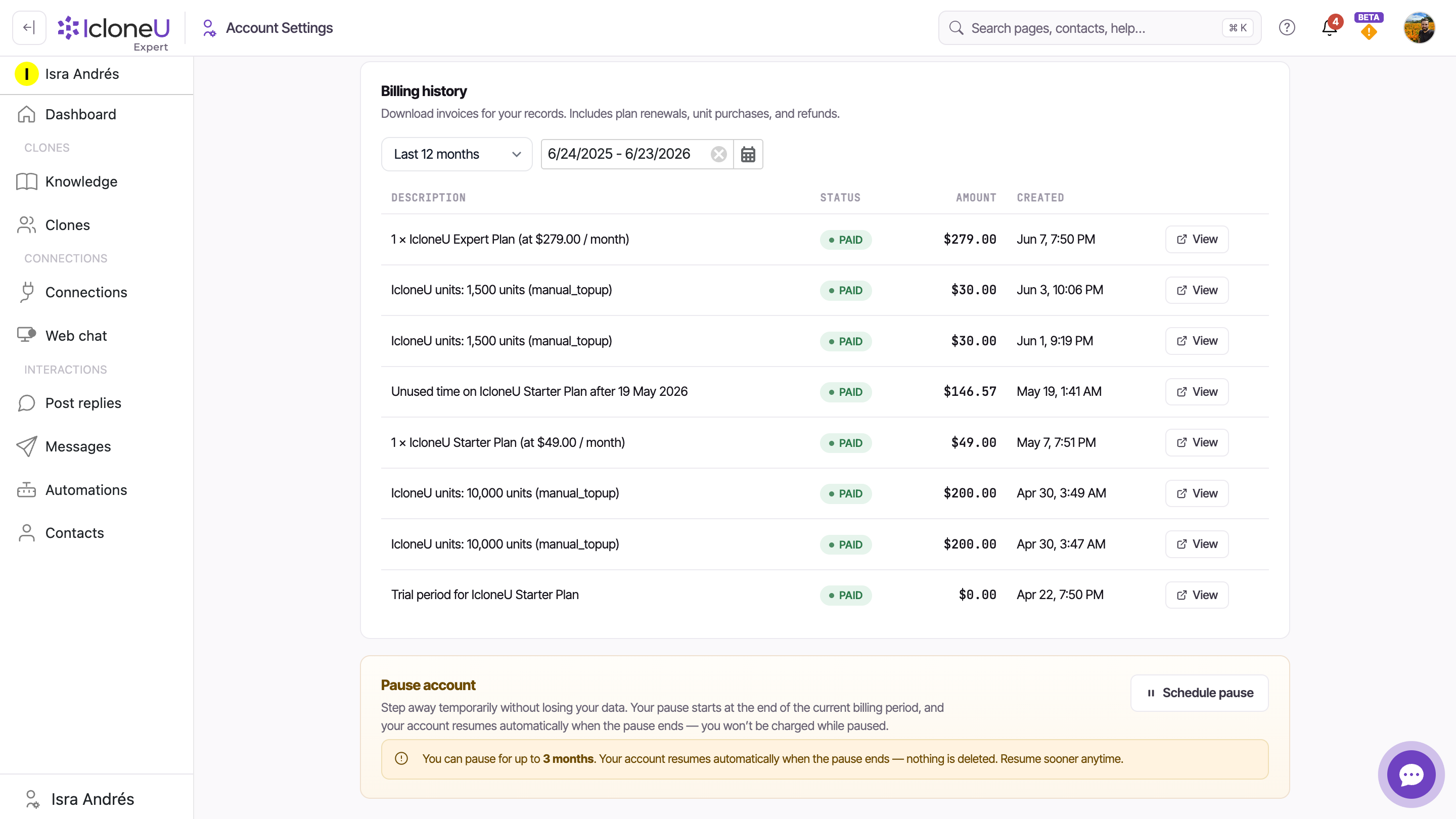
Billing history sits on the Billing sub-tab, below the unit stat boxes. Its own subtitle states the scope: "Download invoices for your records. Includes plan renewals, unit purchases, and refunds." Four steps take you from the avatar menu to an open invoice.
Open Account settings
Click your avatar in the top-right corner and choose Account settings from the menu.
Switch to the Billing tab
Open the Billing sub-tab and scroll past the stat boxes at the top. The banner up there names your plan and its next renewal date and amount; Billing history is the table further down.
Narrow the date range if needed
The filter row above the table combines a Default range dropdown with a date-range picker — handy once renewals and top-ups accumulate. If the table reads "No payments in the selected range.", the charge you're after sits outside the current window: widen it.
Open the invoice with View
Click View on the charge's row. The invoice opens on its hosted receipt page in a new tab, so your place in Billing stays put — review it there, and use that page's own controls to save or print a copy for your records.
| Column | What it shows |
|---|---|
| Description | What the charge was — a plan renewal, a unit purchase, a refund |
| Status | The charge's outcome — Paid for a settled charge |
| Amount | The amount charged |
| Created | When the charge happened |
If your account began with a free trial, it appears here too — a trial-period row with a $0.00 amount and a Paid status — so a zero-dollar entry is nothing to worry about.
Set what appears on your invoices
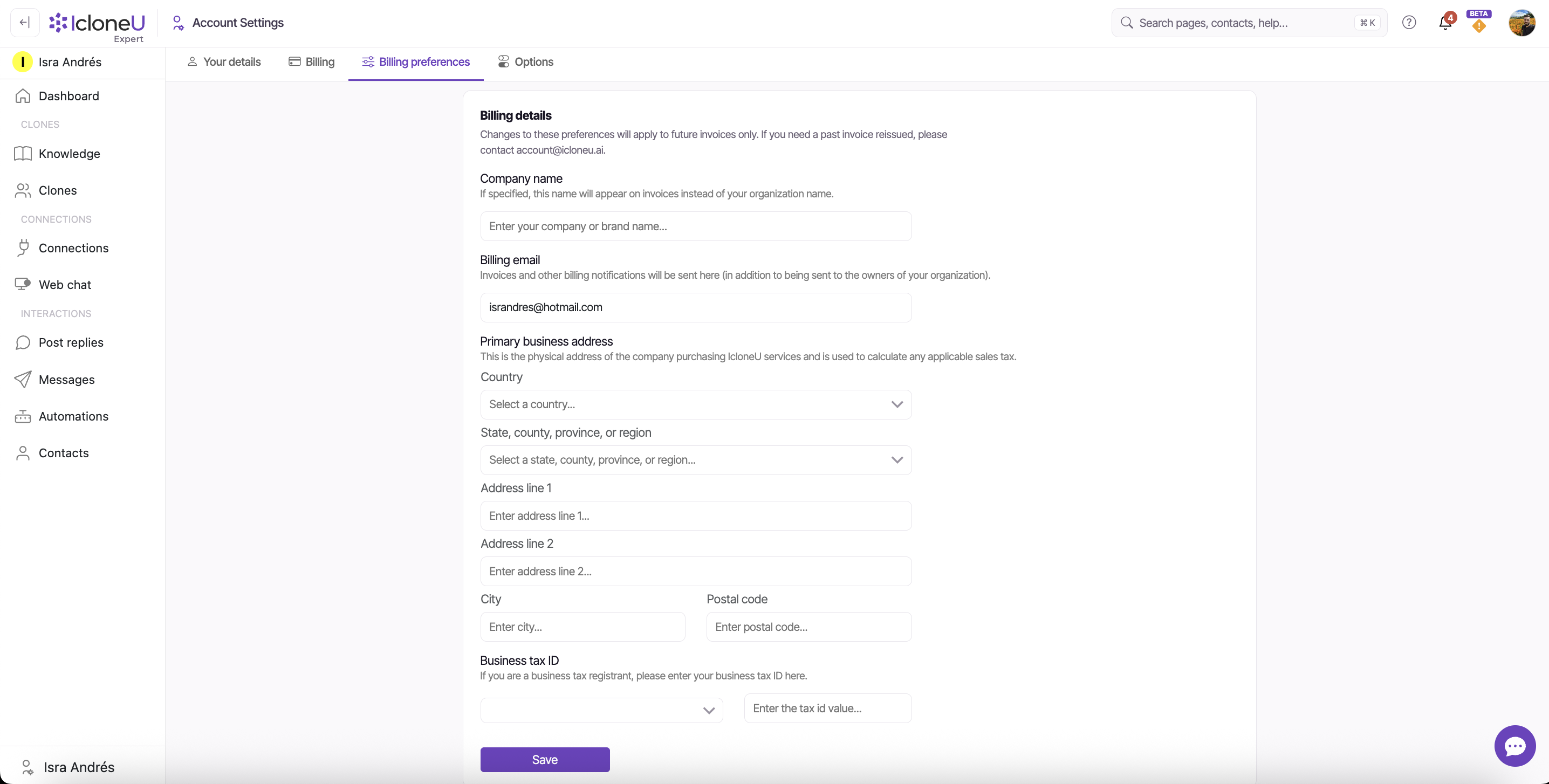
The Billing preferences sub-tab is a single form — Billing details — and it deals in what your invoices and charges carry: nothing here changes your plan, your unit balance or your payment cards, though the address's Country doubles as your billing country, as you'll see below. Whatever you save applies from the next invoice onward.
Open the Billing preferences tab
In Account settings, switch to Billing preferences — the third sub-tab, right after Your details and Billing. The Billing details form is the whole tab.
Set the Company name (optional)
The field's own helper text explains the effect: "If specified, this name will appear on invoices instead of your organization name." It's a display override for invoices only — your organization's actual name, managed under Your details, stays as it is.
Point Billing email somewhere useful
It comes prefilled with your account email. Per its helper text: "Invoices and other billing notifications will be sent here (in addition to being sent to the owners of your organization)." Note the parenthesis — it's additive. Owners keep receiving billing mail; this address receives it too.
Enter the Primary business address
The form is explicit about why it asks: "This is the physical address of the company purchasing IcloneU services and is used to calculate any applicable sales tax." Six fields: Country; State, county, province, or region; Address line 1; Address line 2; City; Postal code.
Add a Business tax ID and save
"If you are a business tax registrant, please enter your business tax ID here." Pick the ID type from the dropdown, enter the value, then click Save.
The form carries a standing note worth quoting in full: "Changes to these preferences will apply to future invoices only. If you need a past invoice reissued, please contact account@icloneu.ai." Saving here never rewrites an invoice that has already been issued.
Billing vs. Billing preferences
The two tabs sound alike and sit side by side, so here's the split:
| Sub-tab | What lives there |
|---|---|
| Billing | The unit-balance stat boxes, your plan and its next renewal, payment methods, Auto top-up, and the Billing history table |
| Billing preferences | The Billing details form: company name, billing email, business address and tax ID for future invoices |
A practical consequence: the address you enter in Billing preferences does more than appear on your invoices — its Country is also your billing country, the one that decides the currency and tax applied to your charges. As the note under the country picker says: "The country in this address is also your billing country: Mexico → MXN (plus 16% IVA); the United States and everywhere else → USD. Mexican cards and American Express only accept charges in MXN. Your current subscription keeps its currency — the change applies to new charges." So changing the country here changes the currency and tax on future charges — your current subscription keeps its currency — but it still doesn't touch your plan, your unit allotment or anything else about how the account behaves. For the unit side of Billing, see Understanding Clone response limits.
Frequently asked
Not from the form — changes apply to future invoices only. A past invoice needs a reissue: email account@icloneu.ai, as the note on the Billing preferences tab instructs.
No. The billing email is additive — invoices and billing notifications go there in addition to the organization owners, not instead of them.
No. It only changes the name printed on invoices, where it replaces your organization name. The account or organization name itself is managed on the Your details tab.
Most likely the date filter: the table only shows charges inside the selected window, and reads "No payments in the selected range." when nothing matches. Widen the range with the Default range dropdown or the date-range picker. And remember the history covers plan renewals, unit purchases and refunds.
Last updated July 27, 2026 · Plans & Billing





