
In IcloneU, organising knowledge isn’t about folders inside one big pile — the unit of organisation is the library itself. You create a focused library per topic, product line or audience, then attach it to the Clones that should read from it. Get that pairing right and you control exactly which Clone sees what.
This guide is about structuring libraries, not filling them. New to the concept? Read What is the Knowledge Library? first. You’ll also want at least one Clone to attach a library to.
Plan your libraries
Two facts shape every organising decision. First, a Clone reads from one library at a time, so each library must hold everything that Clone needs. Second, the same library can be attached to as many Clones as you want, so shared facts belong in one shared library — not in copies.
| If you want… | Do this |
|---|---|
| Two Clones answering from the same facts | Create one library and attach it to both — updates reach every attached Clone |
| One Clone covering several topics | Consolidate those topics into a single library — a Clone reads from one library at a time |
| The same facts, but stricter answers from support than from sales | Share the library and set each Clone’s own access controls (see below) |
Attaching multiple Knowledge libraries to a single Clone is on the roadmap, but not available today. (Function libraries — the skills side — already support several per Clone; that’s a separate feature.)
Create a library
Creating a library takes about a minute. Make one whenever a new topic, product line or audience needs its own home.
Open the Knowledge page
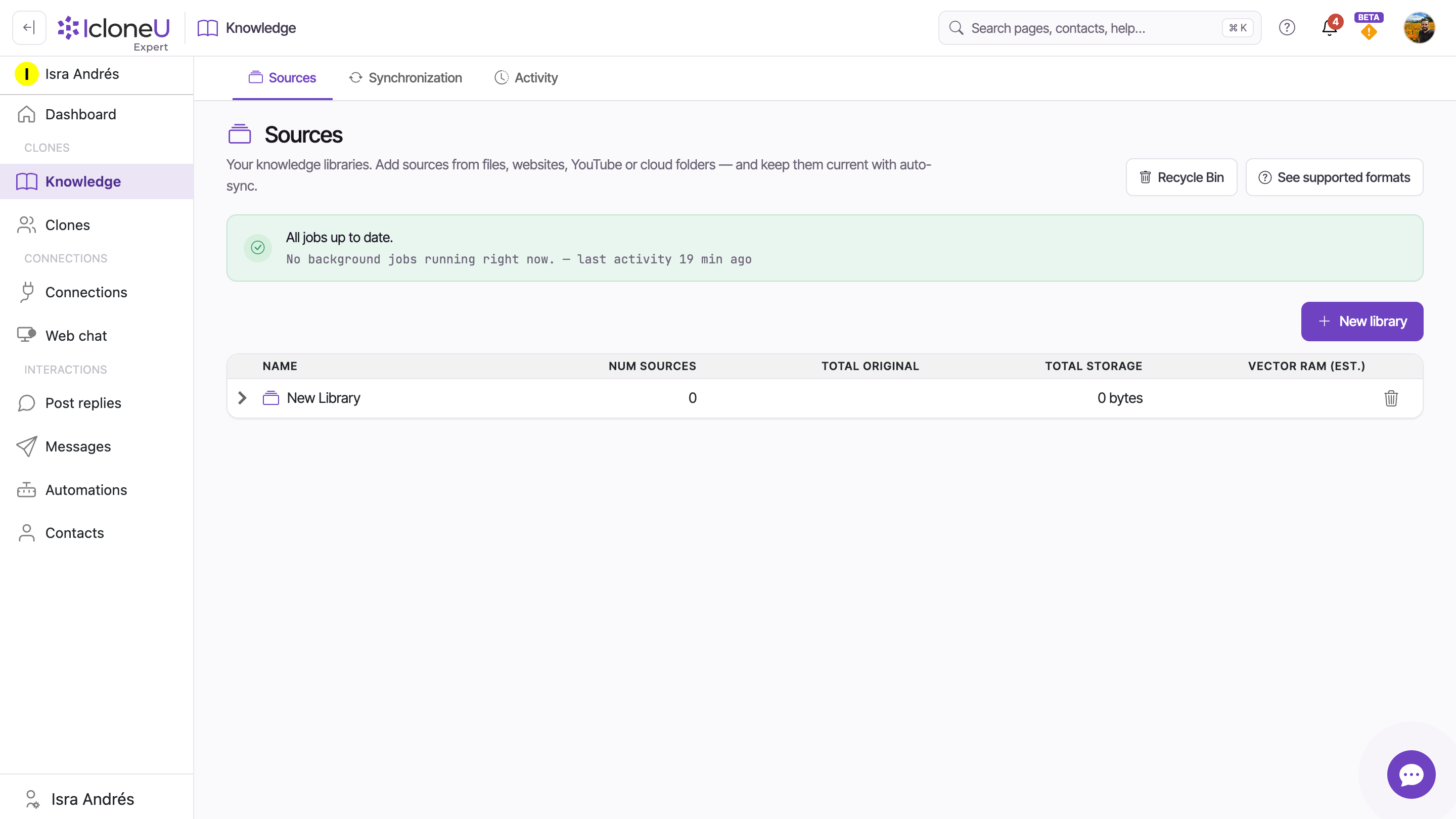
Click Knowledge in the left sidebar. Every library in the account you're working in lives on this page.
NoteWorking in a team? This page shows the team's shared libraries — including ones other members created — and any library or source you add belongs to the team account and is processed on the team's plan.
Start a new library
Click + New library at the top of the list. If your account has no libraries yet, the same button appears in the empty state.
NoteThe page header says Knowledge and the button says + New library — both refer to the same thing. On a fresh account, the empty state reads No knowledge libraries yet and invites you to create your first library.
It’s created — rename it in place
Clicking + New library creates the library immediately — there’s no name-first prompt and no draft state. It appears in the list right away with the default name New Library and 0 sources, and its name cell opens for inline editing. Type a descriptive name in place, then press Enter or click away to confirm.
TipName libraries after the job they do — you’ll be picking them from a dropdown on each Clone’s Knowledge tab, where Product catalogue 2026 beats My docs.
Attach a library to a Clone
A library doesn’t affect anything until a Clone is configured to read from it. The attachment lives on each Clone’s Knowledge tab — connecting the two takes less than a minute.
Open the Clone
Click Clones in the left sidebar, then click the Clone you want to configure. The detail pane opens on the Identity tab.
Switch to the Knowledge tab
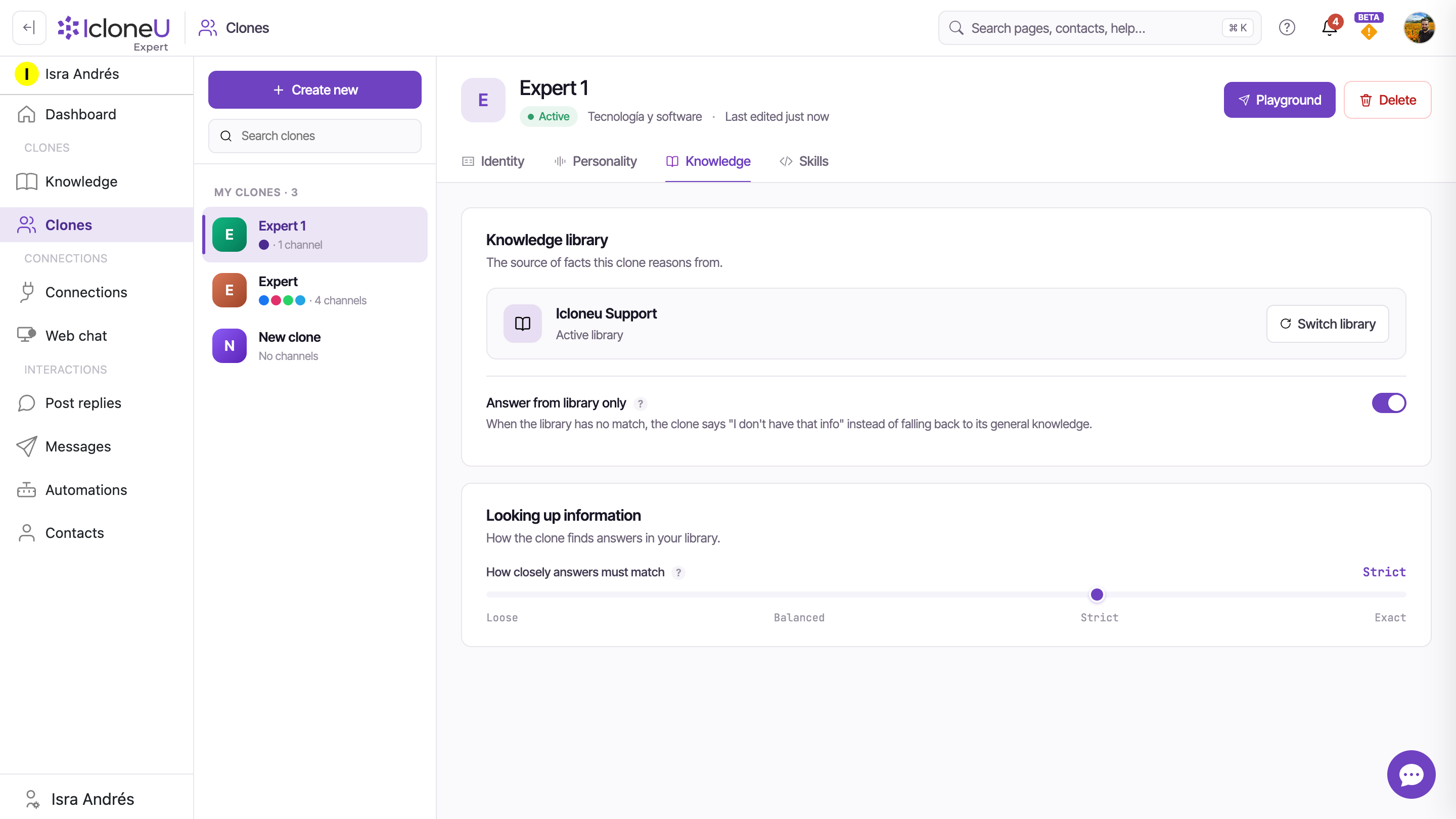
Until a library is attached, the tab shows No library attached — the Clone is answering from its instructions alone.
Select the library
Click Select library and pick the one this Clone should read from. The list shows every library in the account you're working in — in a team, the team's libraries.
NoteLibrary missing from the list? It may have no sources yet, or was created moments ago — add at least one source, wait for it to finish processing, then refresh.
Set the access controls
Two settings decide how the Clone uses the library: the Answer from library only toggle and the How closely answers must match slider (Loose / Balanced / Strict / Exact — the default is Balanced). Both materially change reply behaviour, so set them deliberately; more on the toggle below.
Save your changes
An Unsaved changes indicator appears at the bottom of the page with Discard and Save changes buttons. Click Save changes — as the footer puts it, changes apply to the live clone immediately after save.
Share one library across Clones
The library is shared infrastructure; the attachment is per-Clone. That means you can keep one canonical library — say Product catalogue 2026 — attached to a sales Clone, a support Clone and an FAQ Clone simultaneously, each with its own access settings:
- Answer from library only is the honesty lever. On: when the library has no match, the Clone says "I don't have that info" instead of falling back on general knowledge — choose it when accuracy matters more than coverage. Off: the Clone may supplement what it retrieves with the model’s general knowledge — wider coverage, but a fact-shaped answer can be a guess.
- Match strictness is per-Clone too. The same library can power a Strict, library-only support Clone and a Balanced sales Clone at the same time.
- Updates propagate automatically. Add, remove or re-synchronise sources once, and every attached Clone uses the new material on its next reply (once it has finished processing) — no re-attaching needed.
Even with Answer from library only on, replies are still composed by the AI from the passages it retrieves — the toggle stops the Clone bypassing the library, it doesn’t turn replies into verbatim quotes. An answer is only as good as the passages found, so pair the toggle with the match slider.
Delete a library you no longer need
When a library has served its purpose, delete it from the Knowledge page. Deletion moves the library to the Recycle Bin rather than destroying it outright, so you can change your mind — it only becomes permanent when you delete it from the bin as well.
Find the library
Open Knowledge from the left sidebar and locate the library’s row in the Sources tab.
Click the trash icon
It sits at the right end of the library’s row. A confirmation dialog opens, asking "Are you sure you want to delete this knowledge library?" and explaining: "Deleting this library moves it and the knowledge sources that exist only here to the Recycle Bin. Anything also linked to other libraries stays available in them. You can recover it from the Recycle Bin."
Confirm with Delete
Click Delete (or Cancel to back out). The library leaves the list and a toast confirms the move — e.g. "Moved library 'Product FAQs' (2 collections, 5 sources) to the Recycle Bin" — with an Undo action right in the toast. Any Clone that had the library attached returns to No library attached; the Clone itself is unaffected.
NoteNothing is gone yet: the library sits in the Recycle Bin until you restore it or delete it permanently.
Changed your mind — or ready to clear it out for good? Both happen in the Recycle Bin.
Open the Recycle Bin
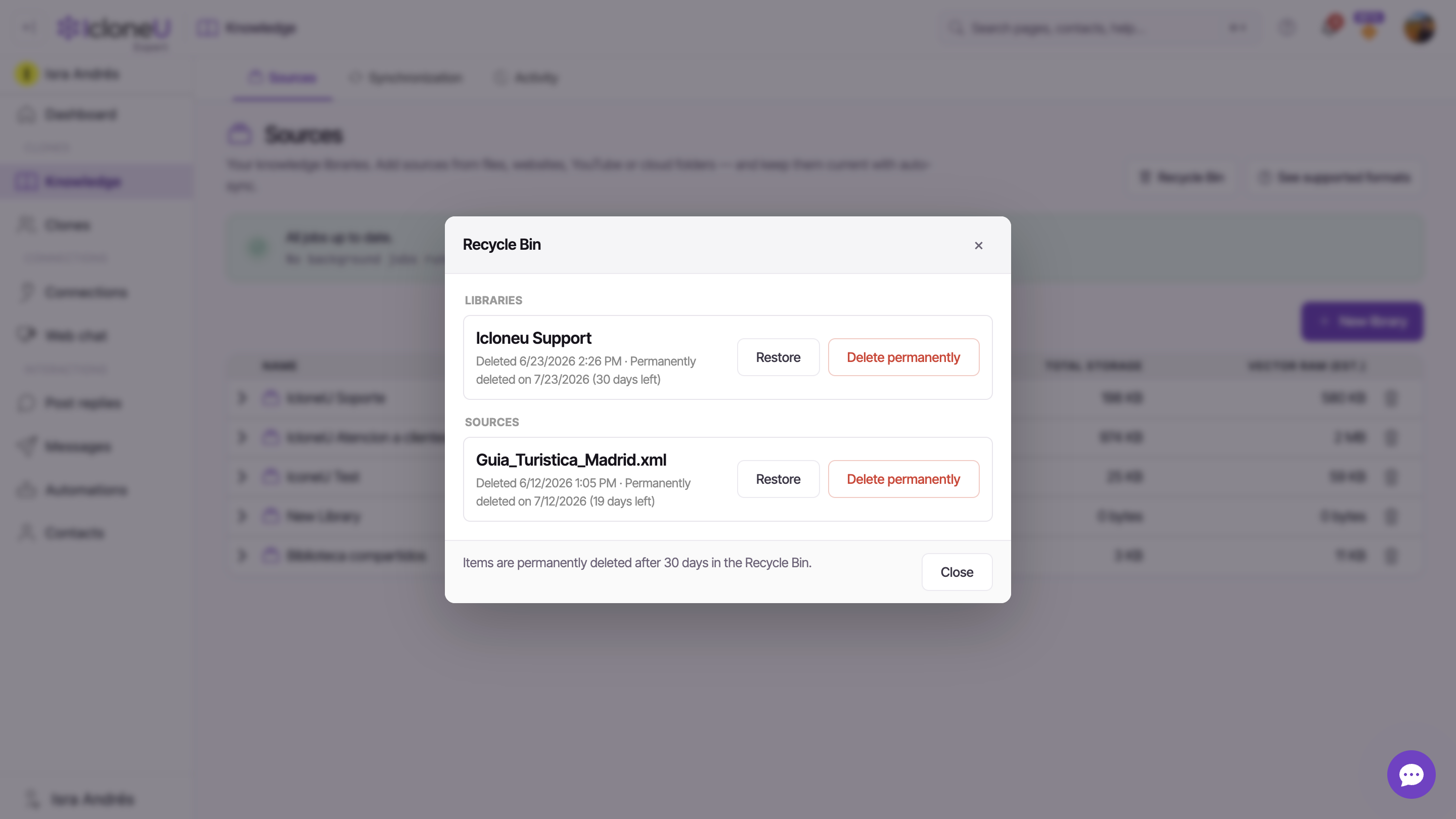
Click the Recycle Bin button at the top of the Knowledge page. Deleted libraries appear under Libraries, each stamped with when it was deleted and with how long it has left — a footer notes that items are permanently deleted after 30 days in the Recycle Bin, so restore anything you want to keep before then.
Restore — or delete permanently
Click Restore to put the library straight back in your Sources list (a toast confirms: "Restored 'Product FAQs'"). Or click Delete permanently to remove it for good.
Heads upOnly Delete permanently is irreversible. If a source exists only in this library and you might need it again, restore the library or keep a copy outside IcloneU before you permanently delete.
Frequently asked
The Clone loses the attachment and its Knowledge tab returns to No library attached — from then on it answers from its instructions alone. The Clone itself is untouched: attach a different library, restore the deleted one from the Recycle Bin and re-attach it, or re-create one from scratch — whenever you’re ready.
No. The attachment points at the library, not at a snapshot of it — every attached Clone picks up additions, removals and re-syncs on its next reply, once the new material has finished processing.
Usually because it has no sources yet, or was created moments ago. Add at least one source, wait for it to finish processing (watch the Activity tab on the Knowledge page), then refresh the Clone page.
Check that Clone’s own settings. With Answer from library only on and a Strict match level, a Clone can appear not to know something that’s technically in the library when the match isn’t tight enough. Try a looser level on that Clone to confirm, then tune from there.
Expand the library on the Sources tab and type in the search box at the right of its toolbar — it reads "Enter text to search...". The list narrows as you type to the collections and sources whose name or web address contains your text, so part of a URL works too. An expanded collection has a search box of its own, which narrows that collection’s sources by title or address.
Last updated September 23, 2026 · Knowledge Library





