
Download your information exports a copy of your account data as one JSON file that downloads to your device. You tick the categories you want, then click Download; IcloneU gathers the selected data, packages it, and saves it as account-data.json. The whole thing happens in your browser session — nothing is emailed to you and there's no request queue to wait on.
This tool only copies your data out. It does not delete anything. If you want to remove your account and its content, that's a separate flow — see Deleting your account.
Where to find it
The export lives on your Account page, under the Data & account section. The row is labelled Download your information with the hint "Your information includes your activity and things we collect."
Open your Account page
Go to your account settings and scroll to the Data & account section.
Click Download
On the Download your information row, click the Download button. The Download your information picker opens.
Choose what to include
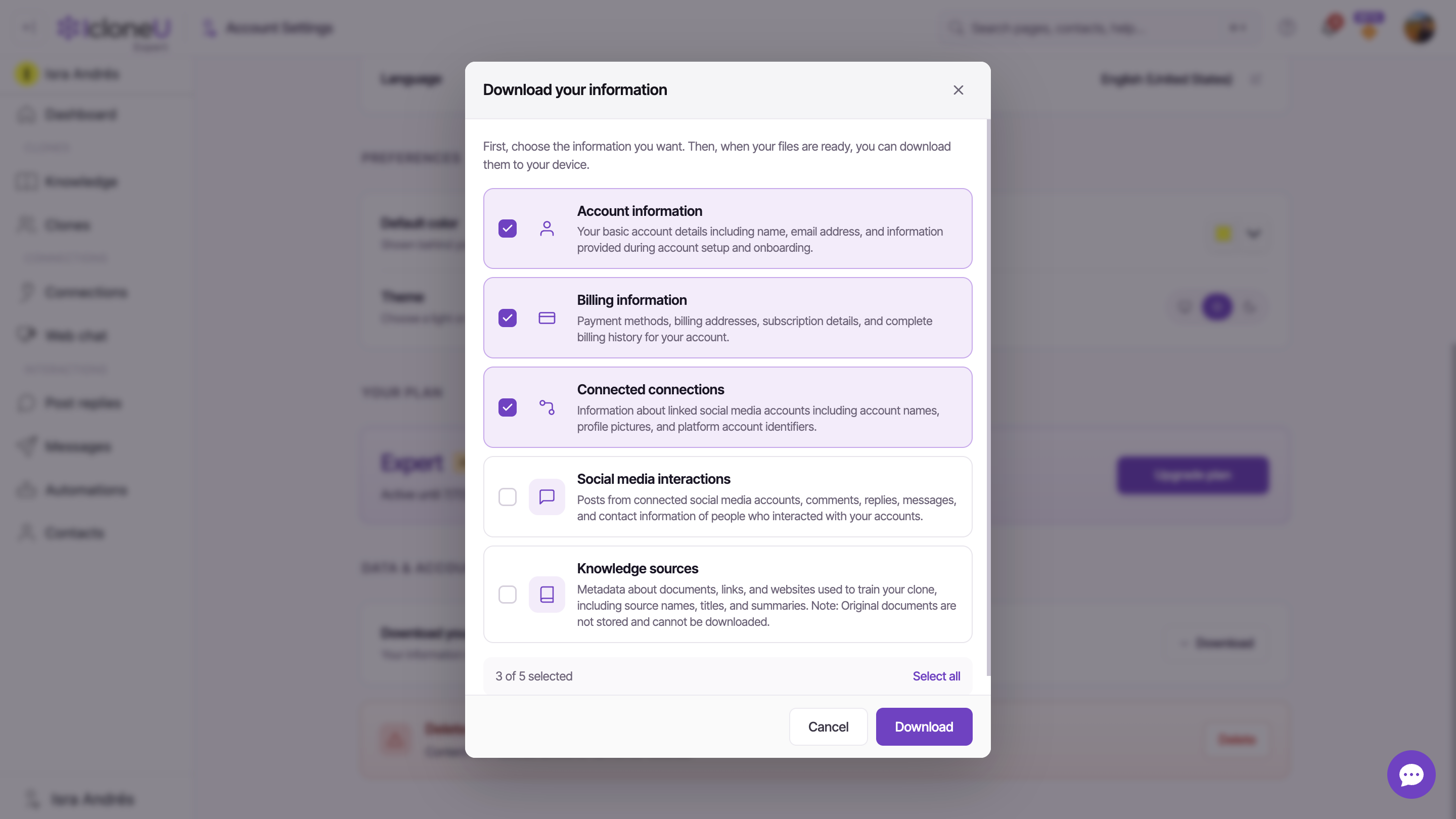
The picker opens with the instruction "First, choose the information you want. Then, when your files are ready, you can download them to your device." Below it are five toggleable category cards. Three are ticked by default — Account information, Billing information and Connected connections — and two start unticked: Social media interactions and Knowledge sources. Tick or untick each card to shape the export.
One of the five cards, Billing information, is shown ticked by default but is not wired into the export: ticking or unticking it changes nothing, and no payment-method, billing-address, subscription or billing-history data is written to account-data.json. The four categories below are the ones that actually produce data in the file.
Here is exactly what each of the four exporting categories covers, in the product's own words:
| Category | What it contains | Default |
|---|---|---|
| Account information | Your basic account details including name, email address, and information provided during account setup and onboarding. | On |
| Connected connections | Information about linked social media accounts including account names, profile pictures, and platform account identifiers. | On |
| Social media interactions | Posts from connected social media accounts, comments, replies, messages, and contact information of people who interacted with your accounts. | Off |
| Knowledge sources | Metadata about documents, links, and websites used to train your clone, including source names, titles, and summaries. | Off |
The Knowledge sources card spells it out: "Original documents are not stored and cannot be downloaded." You get the source names, titles and summaries — not the underlying files you uploaded. Keep your own copies of those.
Below the cards is a running counter — "{0} of {1} selected" — next to a Select all toggle. When everything is already ticked, the same toggle reads Deselect all, so one click flips the whole set either way.
Run the download
With at least one category ticked, the Download button in the footer becomes active (it stays disabled while nothing is selected; Cancel closes the picker without doing anything). Click Download and a progress popup takes over.
Click Download
IcloneU starts gathering your data. A progress popup headed Downloading information appears.
Watch the progress
The popup steps through "Gathering data...", then "Processing table '…'" for each part of your data, and finally "Downloading information to file".
Save the file
When it finishes, your browser downloads account-data.json to your device and a confirmation toast reads Information downloaded.
NoteProcessing time depends on how much data your account holds — accounts with lots of interactions take longer than a fresh account. There's no published time estimate.
What the file looks like
The export is a single, human-readable JSON file named account-data.json, formatted with indentation so you can open it in any text editor. It groups your data by the internal tables it came from, and only includes rows that actually have data.
Where a field holds binary data, the export writes a placeholder of the form [BINARY DATA - N bytes] rather than the raw bytes, so the file stays readable. The actual binary content is not part of the export.
If something goes wrong
If the gather step hits an error, the operation stops and a toast reads Error downloading information. Closing the progress popup mid-run cancels the operation cleanly — no partial file is saved. In either case you can simply reopen the picker and try again.
Frequently asked
No. The file downloads straight to your device through your browser, the same as any other download. There's no email, no request queue, and no link that expires — you have the file as soon as the progress popup finishes.
No. The Knowledge sources category exports metadata — source names, titles and summaries — because, as the picker states, "Original documents are not stored and cannot be downloaded." The export is not a way to recover files you've uploaded, so keep your own originals.
The Download button is disabled until at least one category is ticked. Tick any card (or use Select all) and it becomes active.
No — this only makes a copy. Your account and its data stay exactly as they were. Deleting your account is a separate, irreversible action covered in Deleting your account.
Last updated June 15, 2026 · Security & Privacy





