
An AI Clone is a self-contained assistant: its own name, language, instructions, personality settings and knowledge attachment. That's exactly what makes running several useful — a support Clone and a sales Clone, a Spanish Clone and an English one, a Clone per brand — each configured on its own terms. This guide covers how many Clones your plan includes, how to add one, and what is (and isn't) shared between them.
How many Clones your plan includes
Every plan includes a set number of AI Clones, which depends on your tier. As of writing, the counts are:
| Plan | AI Clones included |
|---|---|
| Starter | 1 |
| Pro | 4 |
| Expert | 7 |
| Enterprise | Custom |
Plans evolve, so treat the Plan page as the source of truth: open the avatar menu in the top-right of the dashboard and choose Plan — each plan card lists its included AI Clone count.
The Starter tier includes exactly one Clone, so "multiple" starts at Pro.
Why run more than one
Each Clone keeps its own configuration — internal name, primary language, instructions, personality settings, knowledge attachment and skills all live on that Clone's tabs. Three patterns make good use of that separation:
- Different roles. One Clone for customer support, a second for sales lead qualification, a third for FAQs on a specific product line.
- Different brands or languages. Each Clone has its own Identity tab — display name, Primary language, short description and instructions — so a Clone per brand or per language keeps each voice clean.
- Per-channel specialisation. Route different channels to different Clones — say, one tuned for WhatsApp DMs and another for Instagram post comments.
The separation works at the configuration level: each setting in this guide is saved per Clone — you make a change on one Clone's tabs, and it applies to that Clone.
Create an additional Clone
Adding a Clone takes a few clicks — the new Clone appears immediately, ready to configure.
Open the Clones page
Select Clones in the left sidebar. The My clones list on the left shows every Clone in your account, with a running count in its header.
Click Create new
Click + Create new at the top of the list. The new Clone is created on the spot — no draft step — and appears in the list with a default internal name, ready to select.
Configure it like any other Clone
Work through its four tabs — Identity, Personality, Knowledge and Skills — to give it its own name, language, instructions, library and abilities. The full tour is in Creating and configuring an AI Clone.
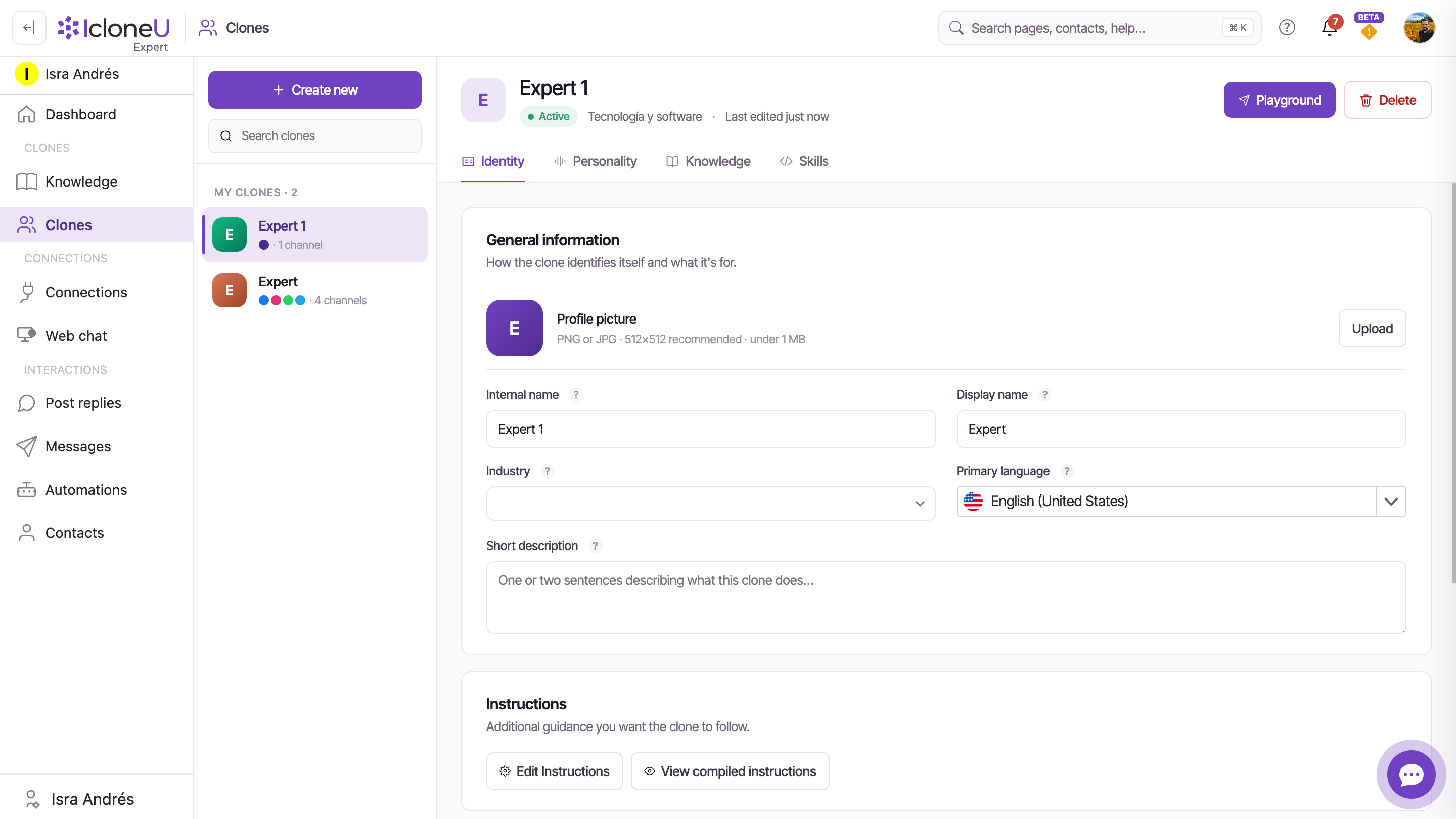
Each plan includes a set number of Clones. To see how many your tier includes, open the avatar menu → Plan; the Upgrade to [plan] button on a higher plan's card moves you to a plan that includes more.
Share knowledge without sharing identity
Running several Clones doesn't mean maintaining several copies of your content. The library selector is per-Clone — each Clone's Knowledge tab, under Knowledge library, picks which library that Clone uses — so the same library can be selected on as many Clones as you like. Here's what's shared and what isn't:
| Setting | Scope |
|---|---|
| Knowledge library sources | Shared — there's one copy of the sources, and every attached Clone points at the same library |
| Answer from library only | Per Clone — each Clone sets its own toggle |
| How closely answers must match | Per Clone — each Clone sets its own strictness |
| Identity, Personality, Skills | Per Clone — configured on each Clone's own tabs |
That mix is what makes sharing practical. A support Clone can be set to Strict with Answer from library only turned on, while a sales Clone points at the very same library set to Balanced with the toggle off. And because the library itself is shared, you update it in one place — add a source, remove one, re-synchronise — with no re-attaching needed on any Clone.
A Clone reads from one library at a time — its Knowledge tab has a single library selector. If a Clone needs material from several places, consolidate it into one library.
Map Clones to your channels
Connections — WhatsApp, Instagram, Facebook and the rest — are wired to Clones in one direction: each Connection routes its incoming messages to the single Clone attached to it, while a Clone can be attached to several Connections at once. That gives you two patterns:
- One Clone, many Connections — the standard pattern. One well-configured Clone answers on every channel, applying the same personality and the same library to each conversation.
- A Clone per Connection — the multi-Clone pattern. When channels need genuinely different treatment — a formal voice on email, a casual one on Instagram — give each Connection its own Clone.
A Connection generally has one attached Clone handling all of its messages, so don't plan on splitting a single channel across several Clones. If sales and support need different handling on the same channel, the dependable pattern is a separate Connection per surface — for example, two WhatsApp numbers — each with its own Clone. The wiring itself is covered in Assigning a Clone to a platform.
Frequently asked
Each tier includes a set number — as of writing, Starter includes 1, Pro 4, Expert 7 and Enterprise a custom count. The authoritative number is on the Plan page: open the avatar menu in the top-right and choose Plan; each plan card lists its included AI Clone count.
Yes — the library selector is per-Clone, so you can select the same library on as many Clones as you like. Each Clone keeps its own Answer from library only and match-strictness settings, and because they all point at the same library, you only ever update it in one place — no re-attaching needed.
Not today — the Knowledge tab has a single library selector, so a Clone reads from one library at a time. Consolidate what a Clone should know into a single library.
Don't count on it — a Connection routes its messages to the one Clone attached to it. The dependable way to get two behaviours is two Connections (for WhatsApp, that means two numbers, provisioned separately), each with its own Clone.
Last updated September 23, 2026 · AI Clones





