
A Clone's Skills tab is the fourth of its four configuration surfaces, after Identity, Personality and Knowledge. Where the other tabs shape how the Clone sounds and what it knows, Skills decides what it can do — call a function library to look something up, or act on a connected service once you've set it up. The tab stacks up to four cards: Recognize returning customers up top, then Function libraries (only on accounts that have been given a library), Integration connections and Files the clone can send.
Open the Clones page from the left sidebar, select a Clone, and click the Skills tab in its detail pane. Every Clone configures its Skills independently — turning a library on for one Clone doesn't touch any other.
Customer recognition
The first card on the tab is Recognize returning customers. Switched on, the Clone recognizes a customer it has spoken with before — greeting a returning buyer by name and drawing on their purchase history when a connected store provides it — on channels where the customer's identity is verified. It covers the web chat and the Playground too, so you can try the experience yourself.
Whether an email sender counts as verified is decided per connection, in that connection's own settings panel — the toggle used to live in this popup and now only appears there for email connections. Treating a sender address as verified identity is a trust decision: leave it off unless you're confident about your mail flow.
Function libraries
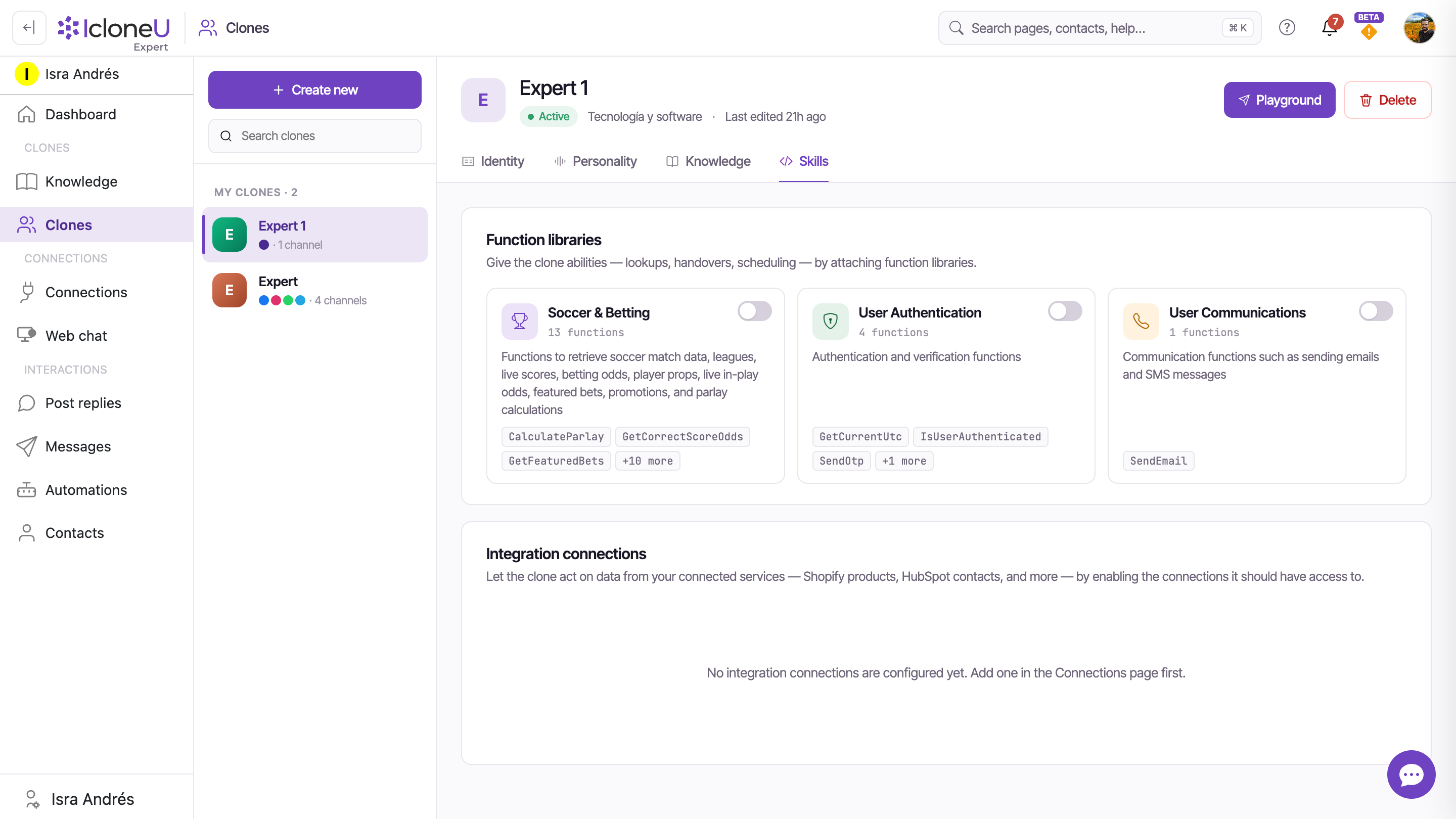
The Function libraries card appears only when IcloneU has given your account access to at least one library; most accounts have none, and the tab then goes straight from Recognize returning customers to Integration connections. Where it shows, it carries the subtitle "Give the clone abilities — lookups, handovers, scheduling — by attaching function libraries." Each library is a card with a toggle: flip it on and the Clone can call the functions inside that library while it answers; flip it off and those functions are unavailable to it.
Each card shows the library's name, an icon, and a function count rendered as {n} functions. Below that it lists the first few function names as small chips; if a library has more than three, a final chip reads +{n} more to stand in for the rest.
Each account sees only the libraries it has access to. Three pre-built ones you may find there:
| Library | Functions | Sample function names shown |
|---|---|---|
| Soccer & Betting | 13 functions | CalculateParlay, GetCorrectScoreOdds, GetFeaturedBets (+10 more) |
| User Authentication | 4 functions | GetCurrentUtc, IsUserAuthenticated, SendOtp (+1 more) |
| User Communications | 1 function | SendEmail |
Soccer & Betting is a demonstration library — a worked example of the kind of domain-specific functions a library can expose. If your account has it, you don't have to enable it, and most businesses won't.
Open the Skills tab
On the Clones page, select your Clone and click Skills.
Find the library you want
Under Function libraries, each pre-built library is a card showing its name and function count.
Toggle it on
Click the switch on the card. The card highlights to show it's enabled, and the Clone can now call that library's functions when it replies.
The chips on a card show only the first three function names; the +{n} more chip accounts for the rest. So a 13-function library like Soccer & Betting shows three names and a +10 more chip — the count on the card is always the real total.
Integration connections
The Integration connections card carries the subtitle "Let the clone act on data from your connected services — Shopify products, HubSpot contacts, and more — by enabling the connections it should have access to." Where function libraries are made available to your account by IcloneU, integration connections come from your own connected services.
On a fresh workspace this section reads: "No integration connections are configured yet. Add one in the Connections page first." That's expected — there's nothing to enable here until you set up a connection elsewhere.
Once you've added a connection on the Connections page, it appears here as a card you can toggle on for this Clone, the same way as a function library. Enabling a connection lets the Clone act on the data from that service while it answers.
Add a connection first
Integration connections are configured on the Connections page, not here. Set up the service you want before returning to the Skills tab.
Return to the Clone's Skills tab
Back on the Skills tab, your configured connections now appear under Integration connections as cards.
Enable the ones this Clone should use
Toggle on each connection you want this Clone to act on.
Heads upA connection that isn't Active shows a notice — "This connection is currently {status}. Reconnect it to make its actions available to the AI." — and its actions won't be available until you reconnect it.
Each connection card also shows a small actions count — open it to see exactly what that connection lets the Clone do, each action with a one-line description. Actions the Clone only uses internally carry a Private badge, meaning customers can't invoke them directly.
A Clone can use only one connection of the same connector at a time — one Shopify store, for example. If another connection of that connector is already on, the card says so and its toggle is blocked: turn the other one off first, or give the second store its own Clone.
For an enabled, active connection a Configure button appears on the card. If you set per-Clone usage instructions or a resource scope there, the card shows a Custom guidance set tag so you can see at a glance which connections have been tuned.

Files your Clone can send
The last card, Files the clone can send, holds images and documents of your own — a price list, a menu, a brochure — that the Clone sends in the conversation when the moment you describe comes up. On every customer message in a private conversation, the Clone is reminded of your files and the moment each one is for, and told to send a file in that same reply when its moment has come. Sending is still the Clone's own call on each reply, so it can answer in text alone.
Add the file
Click Add file, then drop or choose the file. Images can be JPG or PNG, up to 5 MB; documents can be PDF, Word, Excel or PowerPoint, up to 15 MB.
Name it
Give it a Name of up to 100 characters that no other file of this Clone uses. It's how the Clone — and your instructions — refer to the file, and on WhatsApp, Telegram and email the customer sees it next to the file. On web chat a document shows it too, but an image appears without it.
Say when to send it
Fill in When should the clone send it? Describe the moment, not the file, and say when not to send it too: the Clone follows this literally. It's required — without it, the file is never sent.
Keep it active
Leave Active — the clone can send it switched on and save. Every file in the list has its own switch and its edit and delete buttons. Deleting a file stops the Clone from sending it; conversations where it was already sent keep it.
- Right after the text. The file arrives just after the Clone's reply. On WhatsApp and Telegram it carries its name as the caption, and a document keeps its file extension; on Messenger and Instagram it arrives without that caption.
- One file per reply. A store product photo counts as that one file too.
- Only in private conversations — never in a reply to a public comment.
- Not twice in a row. The Clone doesn't send the same file again in a conversation within 12 hours, unless the customer asks for it.
- Your instructions can name a file too — for example, "when they ask about birthdays, send the file Birthday packages".
- Changes reach open conversations from their next message.
| Channel | Can the Clone send your files? |
|---|---|
| Yes | |
| Facebook (Messenger) | Yes |
| Telegram | Yes |
| Web chat and the Playground | Yes — shown in the chat right after the text |
| Images only — for a document, the Clone gives the key information in text and offers to send it by WhatsApp or email | |
| Yes, as a download link in a follow-up email | |
| Any other channel | No — the Clone gives the key information in text |
On a connection whose Direct-message review is set to Hold until approved or Auto-send after a delay, the Clone doesn't attach files at all: it answers with the key information in text instead. And a reply that Reply timing or a Reply schedule date range holds back goes out later without its file, even if its text says a file is on the way. The Clone counts that file as sent, so for the next 12 hours it won't send it again in that conversation unless the customer asks for it. The card's own note warns about reviewed connections, not about Reply timing.
Frequently asked
A function library is a pre-built bundle of functions that IcloneU makes available to your account — many accounts have none, and then the tab shows no Function libraries card. An integration connection binds the Clone to one of your connected third-party services, which you set up first on the Connections page. Both are toggled on per Clone in the Skills tab.
Because no connection has been configured for your workspace yet. The section reads "No integration connections are configured yet. Add one in the Connections page first." — add a connection on the Connections page and it will appear here as a card you can enable.
Each library card lists only its first three function names as chips; the +{n} more chip stands in for the remaining functions. Soccer & Betting has 13 functions, so it shows three names (CalculateParlay, GetCorrectScoreOdds, GetFeaturedBets) plus a +10 more chip. The function count at the top of the card is always the real total.
No. It's a demonstration library, an example of domain-specific functions, and only accounts that have been given access to it see it. Leave its toggle off and the Clone never touches it.
Check, in order: the file is switched on and has its When should the clone send it? text; the conversation is private (never a comment) on a channel that takes the file — Instagram takes images, not documents; the connection's Direct-message review is Send immediately, because reviewed connections never carry files; the Clone hasn't already sent that file in this conversation in the last 12 hours; no other file or product photo already went with that reply; and your instructions don't tell the Clone not to send files at that point — they win over a file's condition, so remove a line like “don't send images, menus or PDFs” once you add files. A reply held back by Reply timing or a Reply schedule date range also goes out without its file. If all of that checks out, the Clone didn't judge that the moment had come: sending is its own decision on each reply, so make the When should the clone send it? text describe the moment as plainly as you can.
Last updated September 23, 2026 · AI Clones





