
With 2FA on, a stolen password isn't enough to get into your account — a sign-in also needs the rotating 6-digit code that only your phone's authenticator app can produce. IcloneU's setup wizard takes about two minutes and runs in five steps: choose method → scan QR code → verify code → save backup codes → finish. The only method offered today is an authenticator app; there's no SMS or email option. Everything below traces to the actual turn-on screens.
An authenticator app on your phone — 1Password, Authy, Google Authenticator or Microsoft Authenticator all work. The app generates codes offline, so there are no SMS fees and no SIM-swap risk.
Where to turn it on
2FA lives in your account settings, not on a Clone or a Connection. Open Your details and find the Two-factor authentication row in the profile section. Its hint reads "Extra security at sign-in using an authenticator app." When 2FA is off, the row shows the status Not enabled with a Turn on button; once it's on, the same row shows Enabled with a Manage button instead.
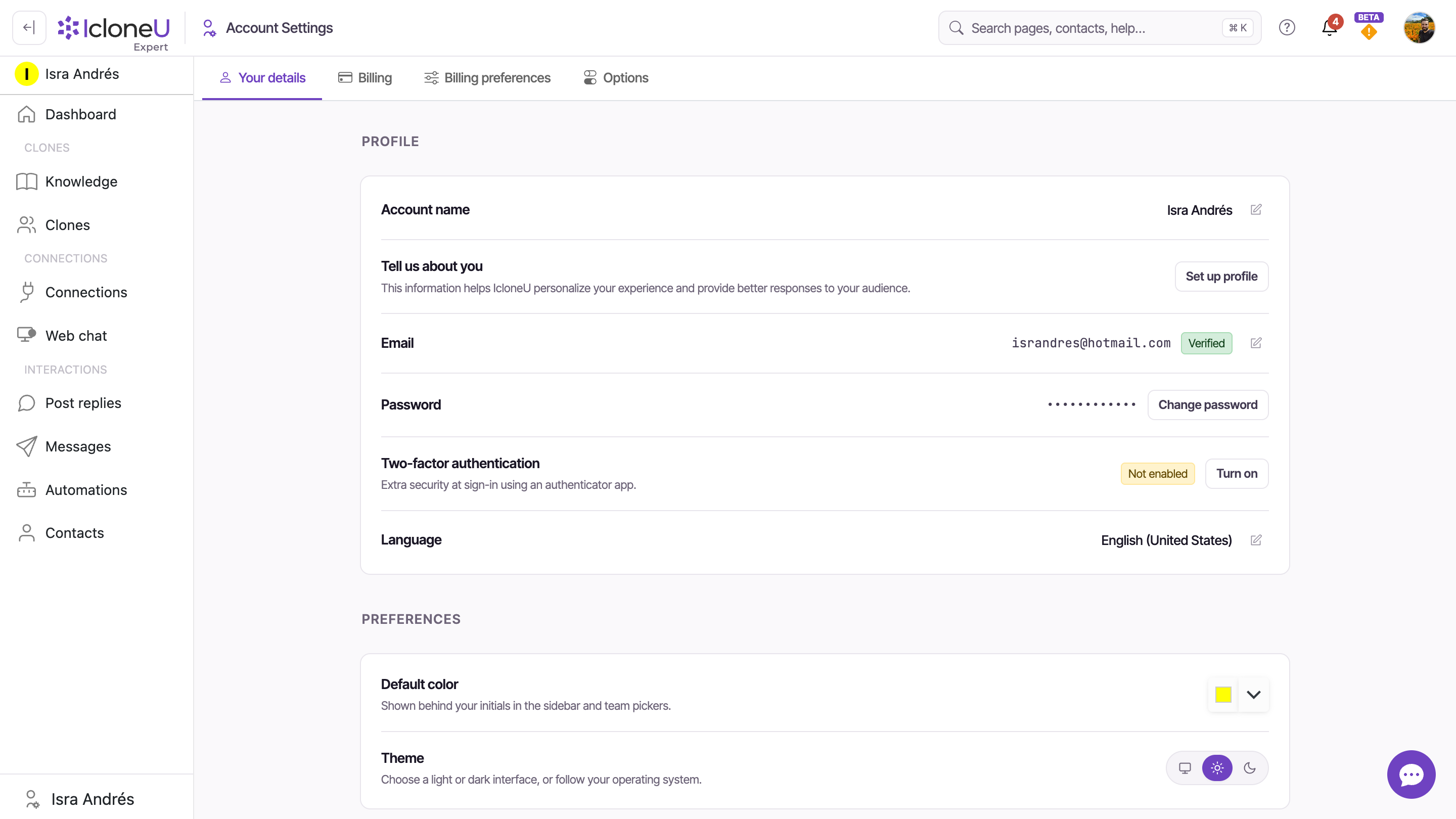
Click Turn on to open the setup wizard. Everything from here happens inside one popup — you can Cancel at any step before you verify a code, and nothing changes on your account until verification succeeds.
The five-step setup wizard
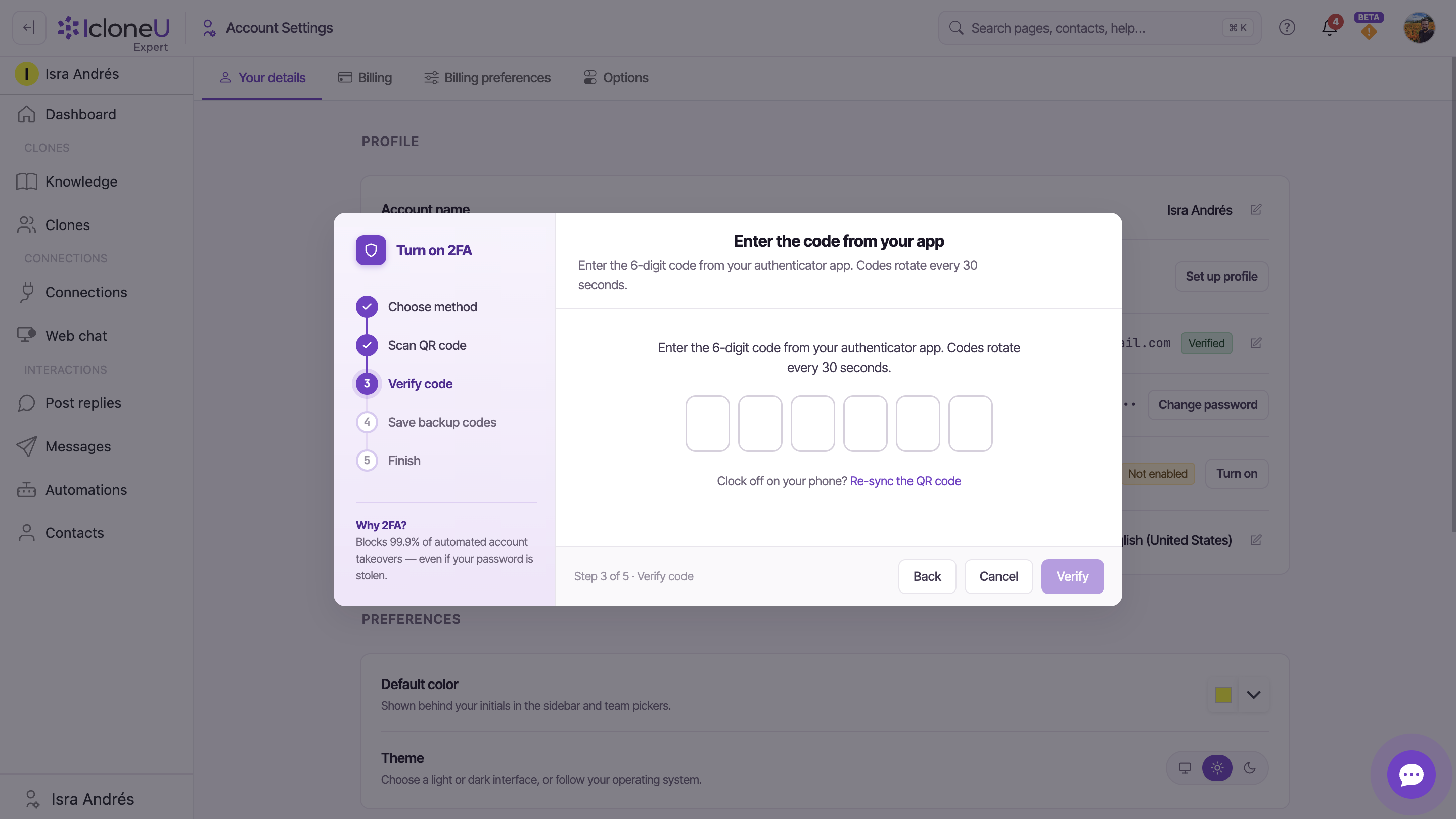
The popup shows your progress down the left rail — Choose method, Scan QR code, Verify code, Save backup codes, Finish — and a step counter along the bottom ("Step 1 of 5" and so on). Here's each step.
Choose method
The first screen, Add a second step to sign-in, lists why 2FA helps and offers the second factor. Only one is available — Authenticator app, marked Recommended — and it's pre-selected. Click Continue.
NoteThere is no SMS or email-code option in the wizard. If a help link or older page mentions SMS, the live product supports authenticator apps only.
Scan QR code
On Scan with your authenticator, open your authenticator app, tap + Add account (or Scan QR code), and point your camera at the QR code shown. Your app saves an entry for this account.
TipCan't scan? Use the Setup key shown beside the QR to type the secret in by hand — the Copy button copies it to your clipboard. When you're done, click I've scanned it.
Verify code
On Enter the code from your app, type the current 6-digit code from your authenticator into the six boxes. Codes rotate every 30 seconds, so enter the one showing right now and click Verify. This is the step that actually switches 2FA on.
Heads upIf you see "That code didn't match. Codes expire every 30s — try the current one.", you most likely entered a code that just rolled over. Wait for the next code and retype it. If your phone's clock is off, use the Re-sync the QR code link on this screen to generate a fresh key and scan again.
Save backup codes
Once your code verifies, IcloneU shows 10 backup codes. Save them — they're your only way in if you lose your phone. Use Copy all, Download .txt, or Print to keep a copy somewhere safe, then tick the acknowledgement checkbox and click I saved them.
Heads upEach backup code works once. Per the wizard's own warning, if you lose your phone these codes are the only way back in — "we can't regenerate them for you without a full identity check." Store them in a password manager, not in the same place as your phone.
Finish
The last screen, You're all set, confirms 2FA is on and summarizes your method (Authenticator app), how many backup codes you saved, and that you just enrolled. Click Done to close the wizard.
Signing in with 2FA on
The next time you sign in, after your email and password IcloneU shows a Two-factor authentication screen asking for the 6-digit code from your authenticator app. Enter it and click Verify and continue.
That screen also offers a Remember this browser for 30 days checkbox — tick it on a device you trust to skip the code prompt on that browser for a month. If you've lost access to your authenticator, use the Sign in with a recovery code link to enter one of your backup codes instead.
A recovery code you use to sign in is spent — it won't work a second time. If you're running low (or have run out), regenerate a fresh set of 10 from the Manage screen, covered below.
Managing 2FA after it's on
Once 2FA is enabled, the Your details row changes to Enabled with a Manage button. Clicking it opens the Two-factor authentication management popup — subtitle "Manage how we verify sign-ins to your account." — with three actions.
| Action | What it does | Re-scan needed? |
|---|---|---|
| Switch | Move 2FA to a new phone or a different app. Re-scans the QR code. | Yes |
| Regenerate | Invalidates current codes. You'll get 10 fresh single-use codes. | No |
| Turn off | Not recommended. Your account drops to password-only protection. | No |
Switch authenticator app moves 2FA to a new phone or app and walks you back through the scan step. Regenerate backup codes issues a fresh set of 10 and immediately invalidates the old ones — use it if you're running low. Turn off 2FA removes the second step entirely; the management popup asks you to confirm with "Turn off 2FA? Your account will only be protected by your password."
When you have 3 or fewer backup codes left, the Manage screen surfaces a warning prompting you to regenerate so you don't lock yourself out — and if you've used them all, it tells you "No backup codes remaining" and asks you to generate a new set.
Frequently asked
No. The setup wizard offers a single method — an authenticator app — and it's marked Recommended. There's no SMS or email-code option. Authenticator codes are generated on your phone, so they work offline and aren't exposed to SIM-swap attacks.
Any standard TOTP app. The wizard names 1Password, Authy, Google Authenticator and Microsoft Authenticator as examples, but any app that scans a standard authenticator QR code will do.
Codes rotate every 30 seconds, so the most common cause is entering one that just expired — wait for the next code and retype it. If it still fails, your phone's clock may be out of sync; use the Re-sync the QR code link on the Verify step to generate a fresh key and scan again.
Use one of your backup codes at sign-in via the Sign in with a recovery code link. Each code works once. Once you're back in, open Manage → Switch to re-enroll a new phone, and Regenerate a fresh set of codes. Note the wizard's warning: backup codes can't be regenerated for you without a full identity check, so keep them somewhere safe.
Open Your details → Two-factor authentication → Manage, then click Turn off and confirm. The product flags this as not recommended — your account would drop to password-only protection.
Last updated June 15, 2026 · Security & Privacy





