
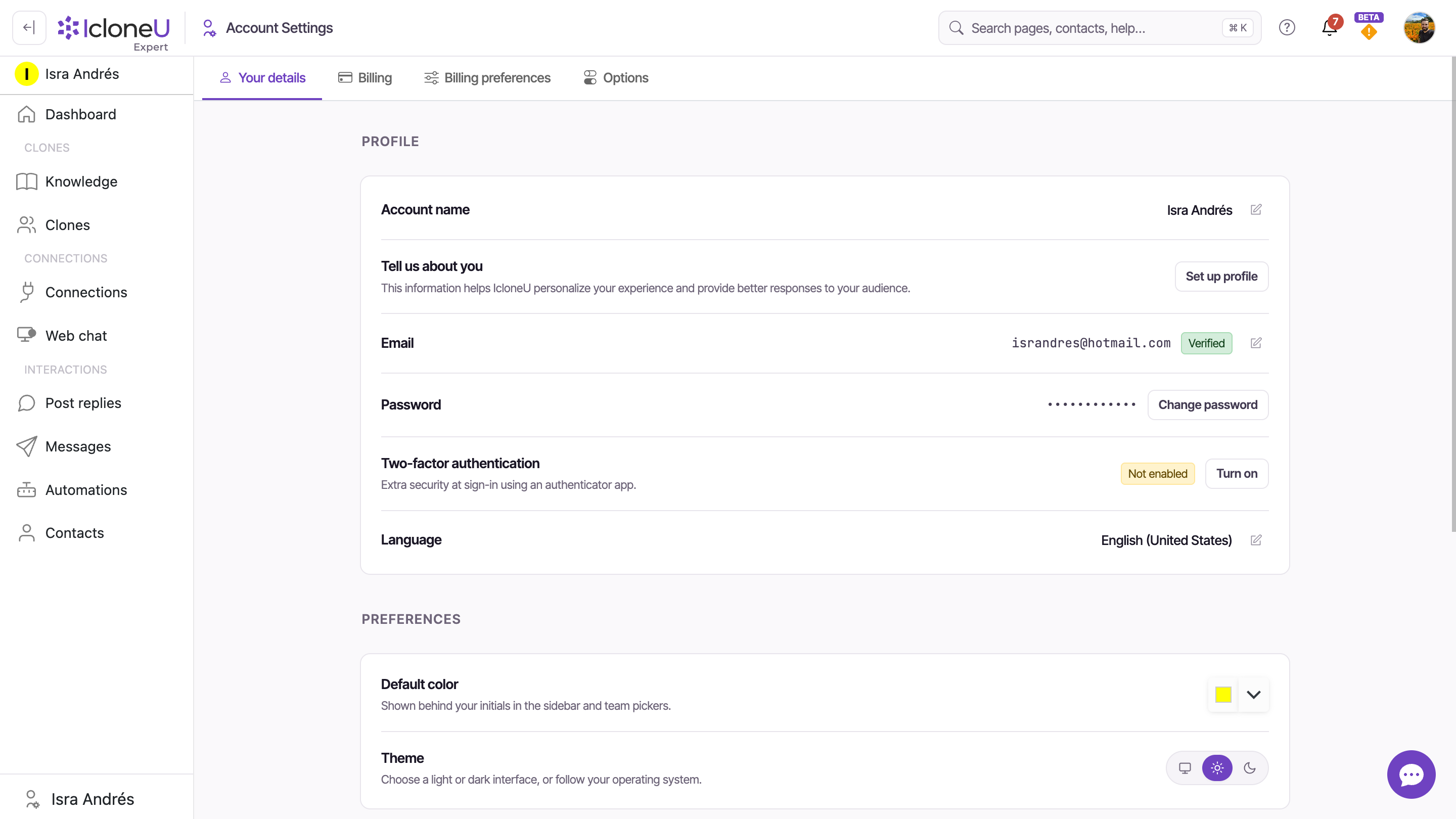
Your password lives alongside the rest of your sign-in details on the Your details tab of Account settings. Changing it takes a minute: you open that tab, find the Password row and use its Change password button. The same page also lets you turn on two-factor authentication, so it's the one place to harden your account.
Change your password
Everything happens on the Your details tab. Three steps take you from the dashboard to a new password.
Open Account settings
Click your avatar in the top-right corner and choose Account settings from the menu. The page opens on the Your details sub-tab by default.
Find the Password row
In the profile section, the Password row shows your password masked as dots. Click the Change password button at the end of that row.
Confirm and set a new password
A dialog opens where you confirm your current password and enter the new one. Submit it to save — IcloneU confirms once the change goes through.
This guide covers changing your password from inside the app, while you're signed in. If you've forgotten it and can't get in at all, use the password-reset link on the sign-in screen instead — that flow lives outside Account settings.
Add two-factor authentication
A strong password is the baseline; two-factor authentication is the next step up. You'll find its control just below the Password row on the same Your details tab.
The Two-factor authentication row is described as "Extra security at sign-in using an authenticator app." On a fresh account it reads Not enabled, with a Turn on button beside it. Turning it on means that, after your password, sign-in also asks for a short code from your authenticator app — so a stolen password alone isn't enough to get in.
While you're on this tab, note that your Email row carries a green Verified badge — confirmation that the address on file has been verified and can receive account and sign-in messages.
Last updated June 12, 2026 · Account & Settings





